This feature is for a Desktop or Laptop running Windows 10 Operating System. Your family, coworkers or friends may be in different time zones. Lets say you have friends residing in Arizona which does not observe Daylight Savings Time. How many hours are they ahead or behind your current time zone? We are going to find an easy way to do this beside searching for “time in <city>”.
This is for Windows 10 operating system
Setup Additional Time Zones
To find these settings:
Right click on the clock in the Windows 10 Taskbar (lower right)
Select Adjust date/time
Select Add clocks for different time zones under Related Settings section
See below screenshot:
Date and Time settings screenshot
Adding Two Time Zones
To add other clock(s):
Check Show this clock box
Chose a time zone
Enter a display name
Repeat above for a second time zone, its up to you
Your can add two times zones besides your current one
Click OK
See below screenshot for adding two time zones:
Adding time zone for Dhaka, Bangladesh and DaNang, Vietnam
Now when you hover your mouse over the date and time in the Taskbar you will see your time zone settings.
I Would Like to Hear from You
Please feel free to leave a comment. I would love hearing from you. Do you have a computer or smart device tech question? I will do my best to answer your inquiry. Please mention the device, app and version that you are using. To help me out, you can send screenshots of your data related to your question.
Do you want to save electricity? Shutting down your Windows 10 Desktop or Laptop at a specific date and time is one answer. Normally, we walk away from our computer at the end of the day. At some point, your PC will slip into hibernation or sleep mode, which saves power consumption but we are going to save even more electricity plus reduce heat buildup.
The Windows operating system has a Task Scheduler which allows us to setup a shutdown at a specific date and time. This Scheduler has been around since Windows XP. By setting up a scheduled task, we are going to shut down your PC at a specific time. I am going to walk you through the setup process screen by screen.
The steps are for Windows 10 operating system. The Task Scheduler is for Windows XP through Windows 10
In the Cortana search box, type in “task scheduler“ (without the quotes)
Open the Task Scheduler. See following image:
Opening the Task Scheduler
Create the Auto Shutdown Task
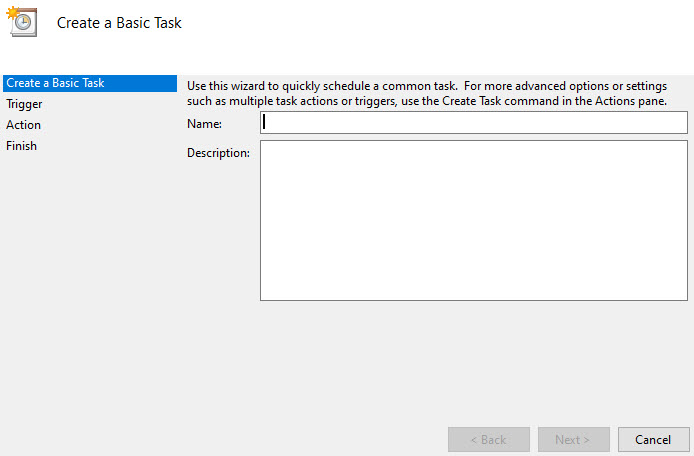
Select Create Basic Task. See following image:
Creating a Basic Task
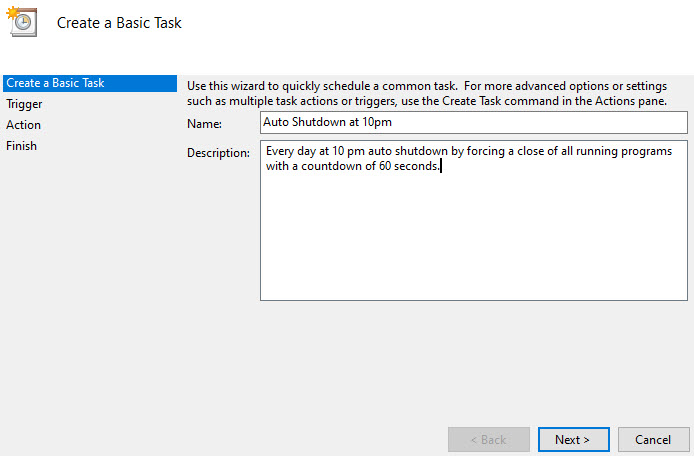
Give the Task a name and a description. I am using Auto Shutdown at 10 pm as the name. See following image:
Assigning a Name and Description to our scheduled task
Set the Task Triggers
Click Next at the bottom of the screen to open the Task Trigger screen
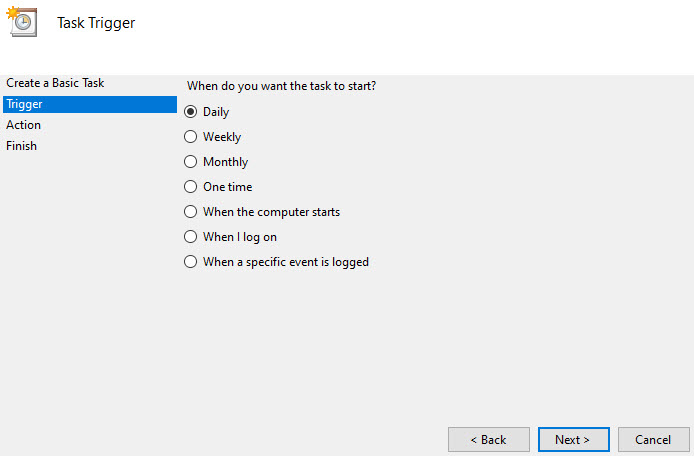
Select Daily (the default). See the following image:
Selecting the Task Trigger
Select Next
Select a Start: date and time
Set Recur every: 1 day (the default). See below image:
Setting the start date, time and the recurrence of the scheduled task
Set the Task Action
Select Next. You will see the Action screen
Select Start a program (the default). See below image:
Selecting the Action we want to perform
Set the Task Arguments
Click Next
In the Program/script box, enter “shutdown” (without the quotes)
Enter -s -f -t 60 in the Add arguments box. See following screen:
Entering the program name and arguments for the scheduled task
These arguments are part of the shutdown.exe program. The -s tells Windows to shutdown, you could enter -r for a shutdown and Restart. The -f forces all running programs to close and is implied if the -t argument is greater than 0. The -t 60 adds a 60 seconds countdown, if you want an immediate shutdown, change to -t 0. See following image:
Setting the program name and arguments
View Your Task Summary
Click Next and you will see your Summary screen. See below image:
A Summary of the scheduled task
Click Finish
Close the Task Scheduler. For our example, we are initiating a daily shutdown starting on 2/5/2020 at 10pm by closing all running applications with a 60 seconds countdown.
View, Edit or Delete Your Scheduled Task
Open Task Scheduler
Click on Task Scheduler Library
Find your task under the Name column and highlight it. You can view your Triggers and Actions under the appropriate tab. See following image:
Viewing your scheduled task
To Edit your task, highlight the task and select Properties. I recommend you go through each tab and make any necessary change(s). Click OK to apply your change(s).
To Delete the task, highlight the task and select Delete. Click Yes to complete the deletion.
Close the Task Scheduler
You are finished. At the designated date and time, watch your computer automatically shutdown. In our example, the auto shutdown occurs every day at 10 pm..
I Would Like to Hear from You
Please feel free to leave a comment. I would love hearing from you. Do you have a computer tech question? I will do my best to answer your inquiry. Please mention the app and version that you are using. To help me out, you can send screenshots of your data related to your question.
I ran across this neat feature of Microsoft PowerPoint that I want to share with you. As a presenter, you are in control of what is being displayed. Instead of presenting all your bullet points at once lets dim there appearance one at a time. The “dim text” feature allows the audience to focus on one topic. For my example I am using a single slide with five bullet points.
This is for PowerPoint for Office 365 Windows and Mac versions. Other versions of PowerPoint will be similar.
Launch PowerPoint
Open PowerPoint on your Desktop/Laptop or Mac
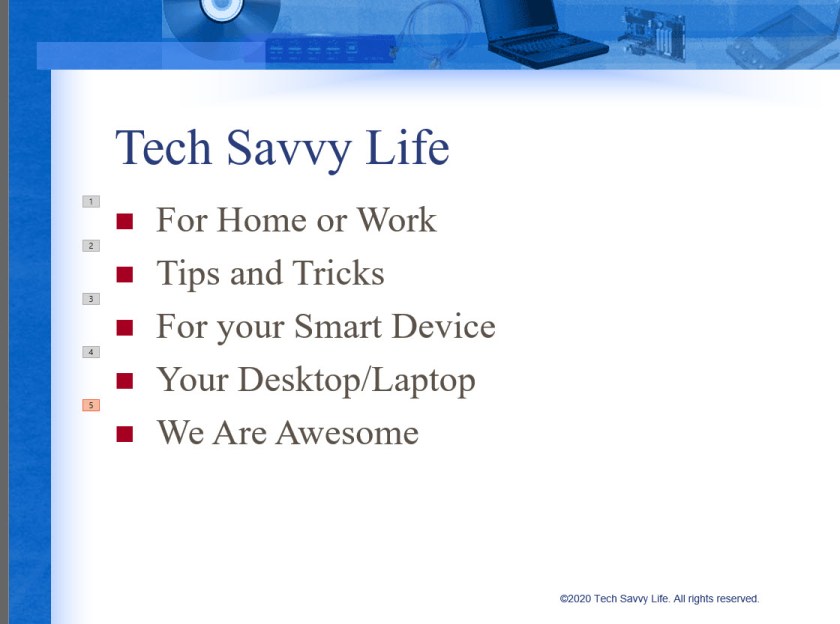
Find a slide that contains bullet points or text you want to dim. See my example below:
PowerPoint Slide Bullet Points screen
Highlight a bullet point or text
Select the Animations tab and choose the Appear animation
Set Animations
The animation will be successfully applied if you see a number next to the bullet point or slide.
Repeat the above steps until you have applied an animation to each bullet point or text. Refer to the following image:
PowerPoint Slide with Animation applied screen
Select all the Animations by using the “Ctrl” key and clicking on each animation.
Select the arrow next to the right side of the animation
PowerPoint Animations screen
Set Effects
Select Effect Options. See following image:
PowerPoint Effects screen
Change Behavior for Dimming
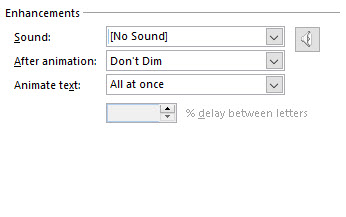
We are going to change the behavior of the default Don’t Dim option by clicking the arrow next to the item (a drop down box selection) and select a color slightly different than your bullet points or text. You want your color selected to be visible to the audience. For my example, I selected a light red color:
PowerPoint Color Selection for Animation screen
Click OK
Test Your Slide
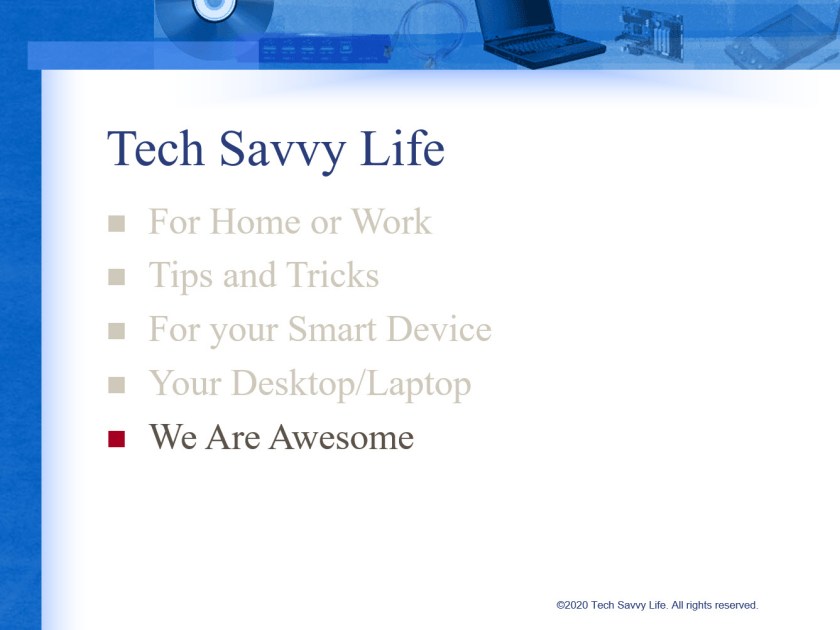
Now its time to test out your slide. You should see something like the following screen as you manually or automatically select each bullet point.
PowerPoint using the Dim Feature
This is a nifty feature for your next text presentation. Save your slide or presentation, you are finished.
I Would Like to Hear from You
Please feel free to leave a comment. I would love hearing from you. Do you have a computer tech question? I will do my best to answer your inquiry. Please mention the app and version that you are using. To help me out, you can send screenshots of your data related to your question.
Do you want to protect your Microsoft Excel workbook or a sheet in your workbook? If so, this blog post is for you. We are going to password protect a workbook, protect a sheet in a workbook and the Excel file itself.
This is for Excel for Office 365 Windows and Mac versions. Other versions of Excel will be similar.
Protect a Workbook
I recommend you start with a blank Excel workbook, just in case you forget a password. To assign a password to an Excel workbook, do the following:
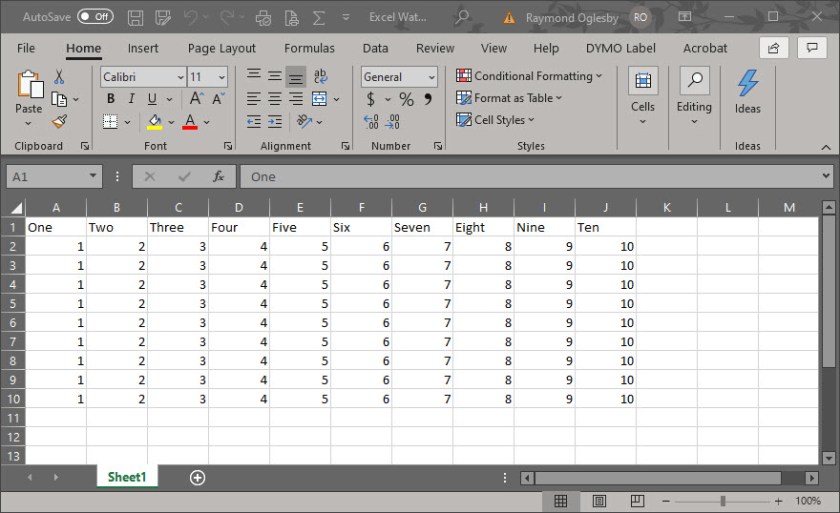
Open a blank Excel workbook. For demonstration purposes, I am using an Excel workbook that contains one sheet with cell data. You can choose an existing Excel workbook if you chose. See my workbook below :
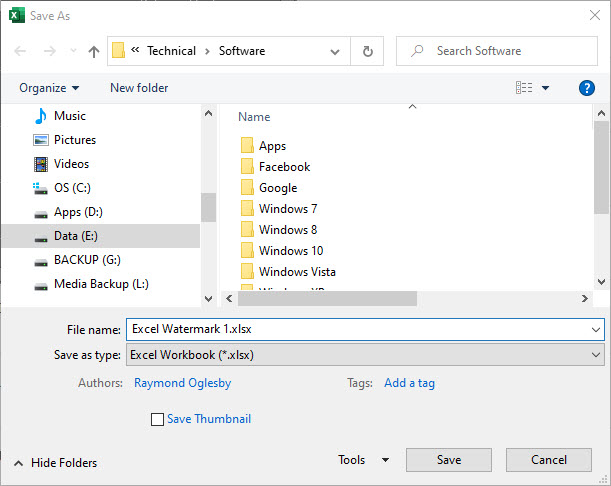
Select File>Save As
Select More options (underneath Excel Workbook drop down box)
Select the Tools drop down box
Chose General Options
Set the Password(s)
You will see notice two password boxes, one to open the workbook and one to modify the workbook
Enter one or both passwords. Make sure you write down these passwords and store them in a safe place.
You have two other options to set if you chose, Always create backup and Enable Read-only recommended. The first is self explanatory. The second option is an extra layer of protection by enabling the workbook to read-only status upon opening.
Confirm your password(s) by reentering the password(s)
Click OK
Click Save
Close or Exit Excel
Note! A user who doesn’t know the second password can open and view the data by clicking the Read Only option. This user can still modify the data, but they are unable to save their changes to the protected workbook. However, the user can save the workbook under a new name, which circumvents the protection process. Of course, password-cracking software will get you into the workbook.
Protect a Sheet
Open a blank Excel workbook. For demonstration purposes, I am using an Excel workbook that contains one sheet with cell data. You can choose an existing Excel workbook if you chose.
Select the Review tab
Click the Protect icon
Click Protect Sheet icon. Refer to following image:
Enter your password in the Password to unprotect sheet box
Click OK
In the Confirm Password dialog box, type the password again
Click OK
Save your changes
Close or Exit Excel
Tip! To remove a password, click Protect>Unprotect Sheet and enter your password. You can also select Protect Workbook icon to protect a workbook which follows.
Protect Excel Structure
Open a blank Excel workbook. For demonstration purposes, I am using an Excel workbook that contains one sheet with cell data. You can choose an existing Excel workbook if you chose.
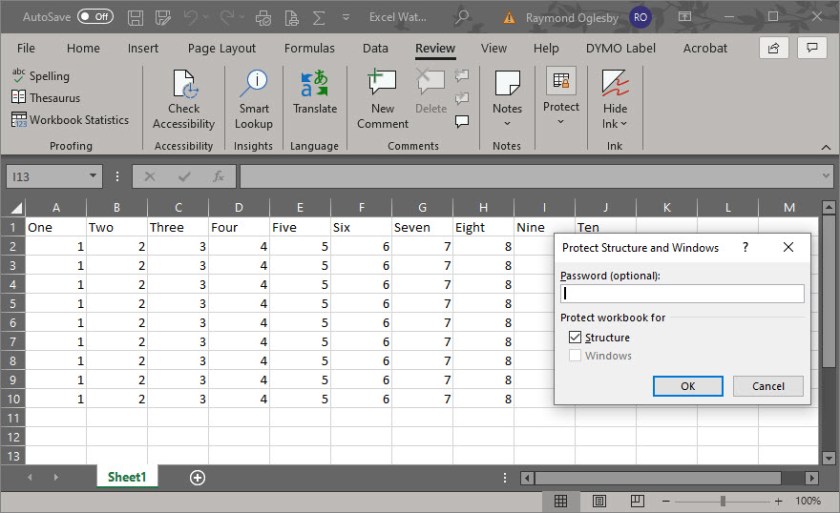
Select the Review tab
Click the Protect icon
Click Protect Workbook icon. Refer to the following image:
Select the Windows option if you want to prevent users from moving, resizing, or closing the workbook window or hide/unhide windows
Enter your password
Click OK
In the Confirm Password dialog box, type the password again
Click OK
Save your changes
Close or Exit Excel
Protect the Excel File
To prevent users from accessing the data in your Excel file, we are going to protect the file with a password
Open a blank Excel workbook. For demonstration purposes, I am using an Excel workbook that contains one sheet with cell data. You can choose an existing Excel workbook if you chose.
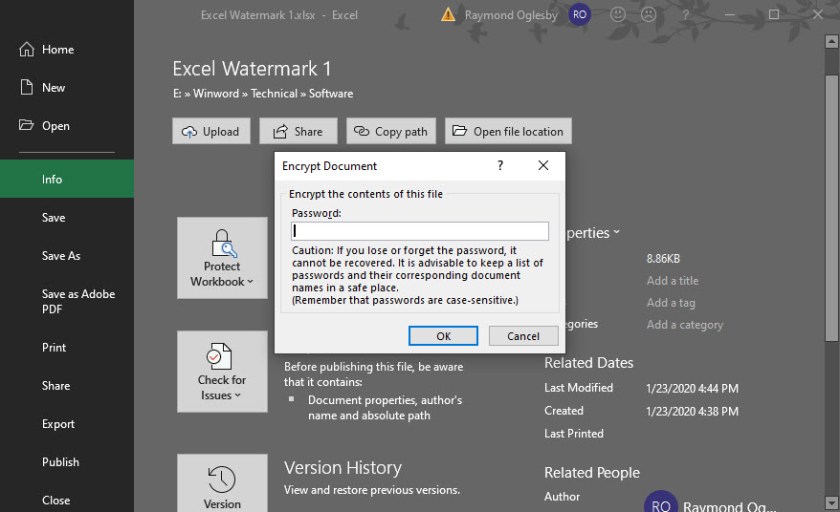
Select File>Info. Refer to my image below:
Click Protect Workbook icon
Chose Encrypt with Password option
Enter a password in the Encrypt Document dialog box
Click OK
In the Confirm Password dialog box, type the password again
Save your changes
Close or Exit Excel
Be cautious when sharing files or passwords with other users. You still run the risk of passwords falling into the hands of unintended users. Remember to write down your passwords and store them in a safe place.
I Would Like to Hear from You
Please feel free to leave a comment. I would love hearing from you. Do you have a computer tech question? I will do my best to answer your inquiry. Please mention the app and version that you are using. To help me out, you can send screenshots of your data related to your question.
Drop down lists are used to select specific data, in our example, a list of Salutations. If the user tries to enter a Salutation that is not in the list, Excel rejects the entry.
I am using a simple drop down list in an Excel sheet. This feature is not well known nor initiative.
Salutations was a BIG DEAL for a religious organization that I worked for as a Consultant. The company had a donor base of 25,000+ names/addresses. (Of course, I was using a database, not Excel, to manage the data.) If the Salutation was incorrect on a donor letter, some donors refused to give monies for the company projects. For example, do you address them as Mr. and Mrs. or Dr. and Mrs. or Mr. and Dr.? Some donors wanted no Salutation. I spent a lot time getting the Salutations correct.
This is for Excel for Office 365 Windows and Mac versions. Other versions of Excel will be similar.
Setting Up the Excel Sheet
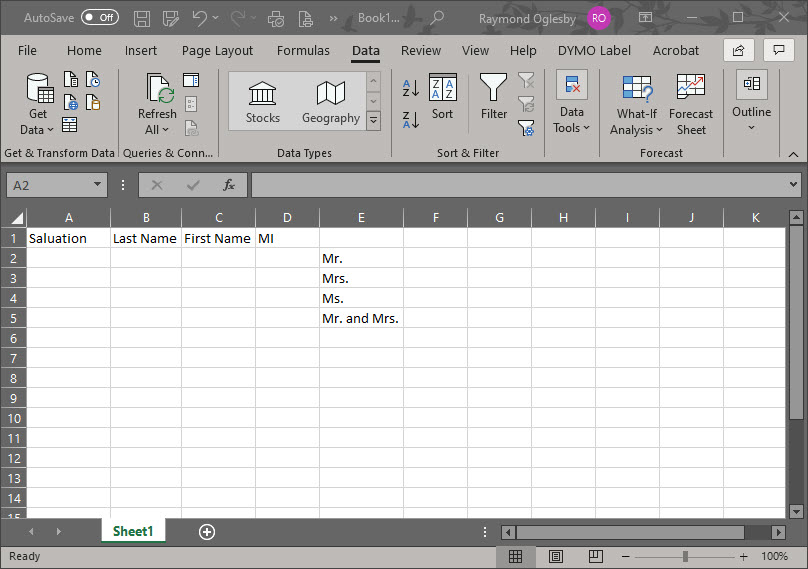
Enter the headings in Row 1 (Optional)
Create a list of cells E2:E5. Alternatively, you could put the list in another sheet.
Select the empty cell A2. (You can position the drop down list in most any cell or even multiple cells.)
Setting up Excel for a drop down list
Using Data Validation
Select the Data tab
Select Data Validation
Choose List from the Allow options drop down list
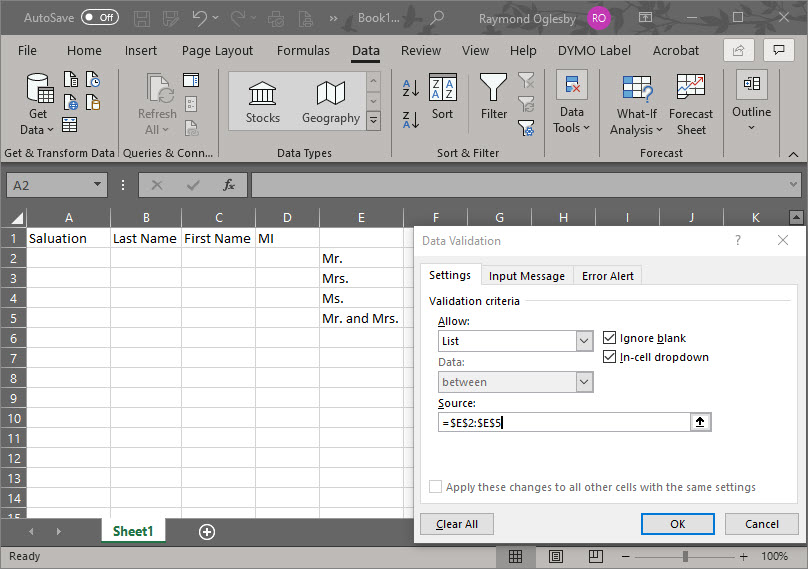
Click the Source control and drag to highlight cells E2:E5. Alternatively, you could enter the cell reference $E$2:$E$5 or use a sheet and cell reference if your list is in another sheet.
Ensure that the In Cell dropdown option is checked. If you leave this unchecked, Excel forces users to enter only the list values, but it won’t present a drop down list. The users would have to guess the values; not a good idea!
See the following screenshot:
Entering the Allow and Source option
Click OK
You can add the drop down list to multiple cells. Select the range of data input cells instead of a single cell. Also, you can select noncontinuous cells by holding down the Shift key while you click the appropriate cells.
You can copy and paste this drop down cell to any other cells in your sheet.
Below is a screenshot where Mr. was selected as a Salutation for cell A2:
Excel drop down list selection
I Would Like to Hear from You
Please feel free to leave a comment. I would love hearing from you. Do you have a computer tech question? I will do my best to answer your inquiry. Please mention the app and version that you are using. To help me out, you can send screenshots of your data related to your question.
Just how big can a Microsoft Word document be? The short answer, it depends. The amount of text, photos, images and videos content determines the document size. Also, your computer system resources plays a part.
The maximum file size of an “all text” document in Microsoft Word 2007 or later is 32 MB. If you add photos, images or videos, the maximum file size jumps to 512 MB or a half of a gigabyte. Although Word can handle a very large file, it becomes more unmanageable as you approach the 512 MB limit.
Older file formats use the “.doc” file extension while the newer versions, Word 2007 and above, use the “.docx” extension.
This is for Word for Office 365 Windows and Mac versions. Other versions of Word will be similar.
If you are working with the old format, “.doc” extension, you can covert the file to the newer format as follows:
Open Microsoft Word
Locate the file with a “.doc” extension
Click on File>Save As
From the drop down box, select Word Document (*.docx)
Click Save
Check Your Word Document File Size
There are several ways to check the size of your document. One way is as follows:
Open File Explorer
Locate the folder where the document resides
Click on View>Details
You will see the Size column denoting the file size
A second way is very similar.
Open File Explorer
Locate the file
Right click on the file name
Click on Properties
OR
Open File Explorer
Locate the file
Click Home on the main menu
Click Properties
Click Properties from the sub menu
A third way is from the Word document itself as follows:
Either using Word to locate and open the document or using File Explorer to locate the file; then double click to open
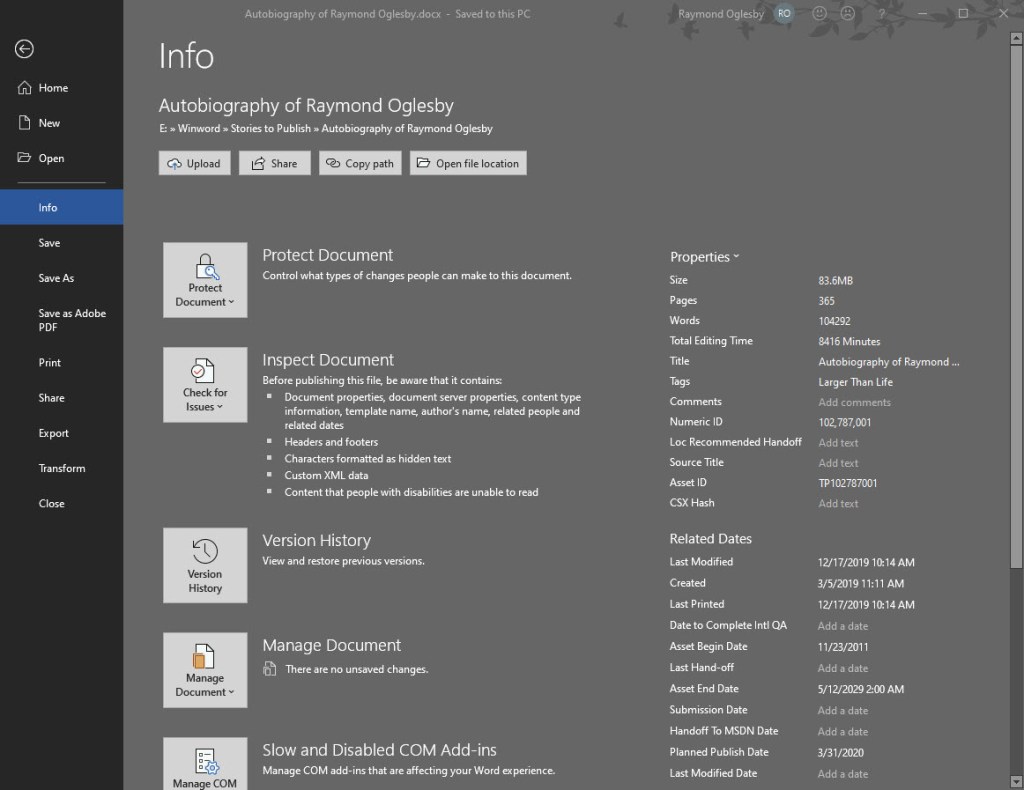
From the main menu, click on File>Info
Under Properties is the Size of the document
Your screen should look like the below image:
File Info screenshot
File Info Properties
Document properties, also known as metadata, are details about a file that describe or identify it. They include details such as title, author name, subject and keywords that identify the document’s topic or contents. You can use these keywords for searching Word documents. For example, in Word, you can use the Keywords property (also called Tags) to add the keyword “customers” to your sales documents. You can then search for all sales documents with that keyword.
Some entries can be changed. At the bottom of the File Info screen is the Show All Properties. Click on this to see more detail about your document. The grayed out options are the ones you can update.
Other properties are automatically updated. You can also search for these entries. For example, you can search for all files created after January 1, 2020, or for all files that were last changed yesterday.
A Personal Observation
I have an autobiography Word document that is 356 pages with 375 photos and images. The file size is only 83.6 MB (see above image). You should be able to manage a Word document with 1400 pages and 1400 images/photos and still not reach the 500 MB limit. Currently, I have no videos in the document. If I did, that would drastically increase the file size.
How to Reduce the Size of your Word Document
One way would be to split the document into two Word files. Of course, this would result in two Table of Contents, Bibliographies, etc. This may not be the right choice.
Another way is to compress the size of your images/photos. First, you should covert a “.doc” file extension document into the new “.docx” format as mentioned in this post.
To compress your images/photos, do the following:
Make a backup copy of your original Word document. Although you are using the Save As option to Save the file with a new file name, I prefer working with a backup copy.
Open your backup Word document
Click on File>Save As>More Options at the top of the screen
A screenshot is below:
More Options screenshot
In the Save As dialog box, click Tools>Compress Pictures at the bottom of the screen
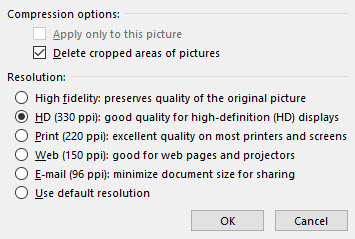
In the latest version of Word, you are presented with four Options as shown below:
Photos compression options
For the smallest possible size:
Click “Email (96 ppi) …“
Click OK
Click Save
This option will result in the poorest image quality. All your images/photos will be automatically compressed. Choosing any other option will result in a larger Word document.
Take a look at the results of your compressed document. Do you like the results? If not, then repeat the above steps with another backup copy of your document.
Once you are satisfied, then rename the compressed document back to the original file (overwrite the original file) or rename to a different file name.
I Would Like to Hear from You
Please feel free to leave a comment. I would love hearing from you. Do you have a computer tech question? I will do my best to answer your inquiry. Please mention the app and version that you are using. To help me out, you can send screenshots of your data related to your question.
This post is for a PC Windows 10 Operating System having multiple users or several PCs in a small business environment. We are going to change the Windows Registry to provide a Legal Message at login. I am using a lot of screenshots to ensure you are successful.
First and foremost, lets backup your PC Registry. This is extremely important in case you update the wrong key or your registry has problems. I want you to have a safe experience. Changing the Registry is tricky and not for the “faint of heart”.
Starting in Windows 10 Version 1803, the Windows Registry is no longer automatically backed up. You can change this behavior by following these instructions. This requires editing the Registry. Instead, I recommend using a software program to backup the Registry.
This is for Windows based operating systems
The RegBak Software Utility
The program I recommend is called RegBak, a freeware program. You can download the program here. Click the Download button for RegBak then click the regbak.exe file at the bottom of the screen and follow the install instructions. Once installed, you should see a screen like the one below:
After installing RegBak
To backup your Windows registry:
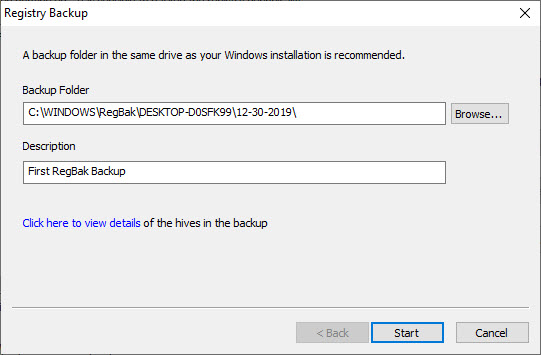
Click the New Backup button
Enter a Description (this is optional)
Click Start
Below is a screenshot:
Starting to run RegBak
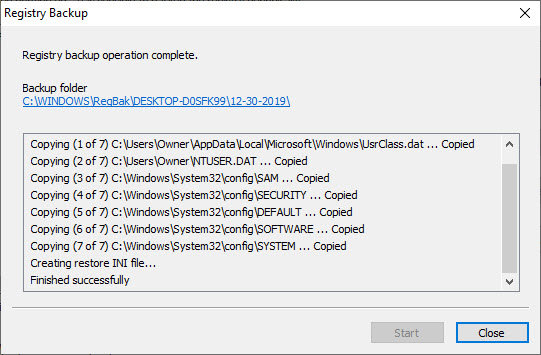
Click Close
Your screen will look like the below image:
Results of running RegBak
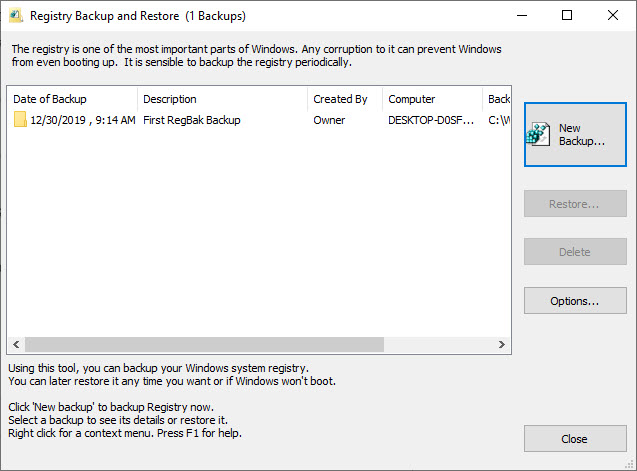
Click Close to exit
Your screen should look like the below image:
Registry backup complete
To Restore from a backup: Note! only do this if your Registry is corrupt.
Highlight a backup entry
Click the Restore button
Click Close
You can also delete a backup by highlighting an entry and clicking on Delete. Feel free to check out the Options button. I would just leave the default options as is.
Setting up the Legal Message
Now lets edit the Registry for our Legal Message at Windows login:
Type “regedit” (without quotes) into the Cortana search box to open the Registry Editor
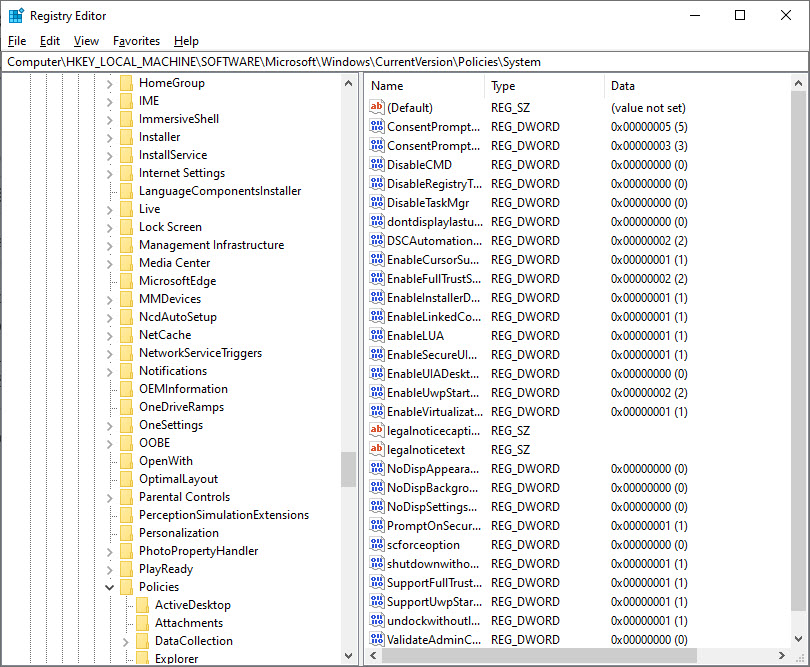
Expand the HKEY_LOCAL_MACHINE and keep expanding until you reach HKEY_LOCAL_MACHINE_SOFTWARE\Microsoft\Windows\CurrentVersion\Policies\System
Your screen should look like the below image:
Registry screenshot for editing legal caption and legal text
In the right hand pane, find these two listings: legalnoticecaption and legalnoticetext.
The value of legalnoticecaption acts as the heading of your legal message.
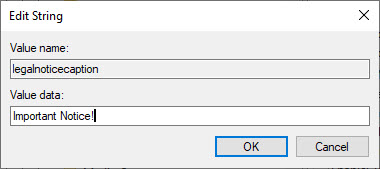
Double click on legalnoticecaption and change its value to something like “Important Notice!” (without quotes).
Your screen should look like the below image:
Adding a legal message caption
Click OK
Now we will do the same for the Legal Message text.
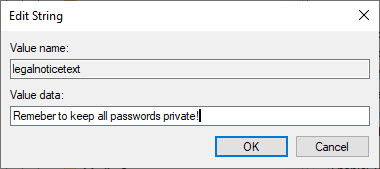
Double click on legalnoticetext and enter something like “Remember to keep all passwords private!” (without quotes).
Your screen should look like the image below:
Adding a legal message text
Click OK
What if you wanted more than one line of text for your Legal Message? This requires hexadecimal editing and is not recommended. However, if you need this:
Complete the text field first
Right click the legalnoticetext key
Select Modify binary data
Your screen should look like the below image:
Before modifying the binary data for the legal message
Find the appropriate spot for a paragraph break. Click the space just after the last character in the message where you want to put the carriage return.
Enter this four digit code for a carriage return, 0D00. Finding the right spot to insert a carriage return can be tricky.
In my example I am entering a carriage return just after the word “passwords”.
Below is a screen shot:
After modifying the binary data for legal message
When the changes are complete click File>Exit to save your work and close the Registry. The next time a user logs into the Windows 10 PC they will have to acknowledge the Legal Message by clicking the OK button before they can move on to the normal login screen.
If you applied a carriage return in the binary data and it doesn’t work, try entering the 0D00 in a different spot for the Legal Message text. To do this, remove your text message and reenter, then insert the carriage return key.
Important Note
Its important to understand, that the Legal Message will appear each and every time the Windows 10 PC is booted. At some point, you may wish to cancel the Legal Message. In that case, repeat the above steps for editing the Registry and remove the text in legalnoticecaption and legalnoticetext keys to cancel the message. This will resume the typical login sequence.
I Would Like to Hear from You
Please feel free to leave a comment. I would love hearing from you. Do you have a computer tech question? I will do my best to answer your inquiry. Please mention the app and version that you are using. To help me out, you can send screenshots of your data related to your question.



















 Tech Savvy Life