How to Enable Google Chrome Dark Mode

Google Chrome has had a built-in dark theme like Mozilla Firefox and Microsoft Edge since Chrome 74. You can even apply a dark theme to every web page you visit using third-party themes or an extension.

RAYMOND OGLESBY @RaymondOglesby2
January 26, 2023

Google Chrome has had a built-in dark theme like Mozilla Firefox and Microsoft Edge since Chrome 74. You can even apply a dark theme to every web page you visit using third-party themes or an extension. Let’s explore this dark mode feature.

This is for devices running Windows 11 or 10. Screenshots are from Windows 10

Dilbert and Robot
Copyright Scott Adams, Inc./Distributed by Universal Uclick for UFS

Chrome offers a built-in dark mode on Windows 11 and Windows 10. It even makes all of Chrome’s context menus dark, too.

Dark Mode for Windows 11

First, open the Settings app and navigate to:

Personalization > Color

Next, click the drop-down menu to the right of Choose Your Mode and select Dark. Refer to the below image:

Dark Mode 1
Setting Dark Mode for Windows 11

Next, close out the Settings app and launch Google Chrome. Unless you have manually set Chrome’s theme, it will match your system.

Dark Mode for Windows 10

First, head to:

Settings > Personalization > Colors

and select Dark under Choose your default app mode. See the below image:

Dark Mode 2
Setting Dark Mode for Windows 10

Apply a Dark Theme

Chrome supports user-created themes, which you can download from the Chrome Web Store. To give Chrome a dark interface, all you have to do is install a dark theme. Google even provides a helpful collection of editor-selected dark themes. This will give your Chrome browser a dark mode on Windows 7, Linux, Chrome OS, and any operating system without a native dark theme.

Note! Google now offers some official Chrome browser themes, including a “Just Black” dark mode theme. You may want to give that a try.

We recommend Morpheon Dark, which is the most popular dark theme in the Store. Unlike some other dark themes, it provides a decent amount of contrast between your active tab, which is a bit lighter, and your inactive tabs, which are darker.

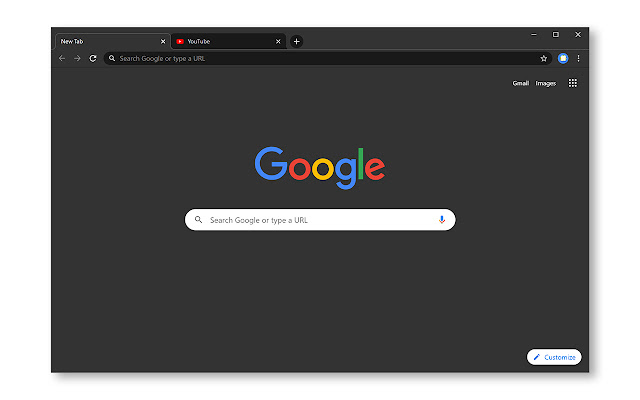
This theme turns darkens the Tab Bar, Title Bar, Toolbar, and New Tab page. That’s all you can theme in Chrome. You can not make Chrome’s Context Menus or Settings page dark, for example. See the following image:

Dark Mode 3
Apply Morpheon Dark Mode

If you ever want to switch back to Chrome’s default theme you can. Head to:

Menu > Settings

Look for the Themes option under Appearance and then click Reset to Default. Refer to the below image:

Reset to the default theme
Disclaimer

Technology is always changing, and rarely is their static tech for smartphones and desktops. Thus, the contents of this post are only valid at the time of writing. Blog posts older than six months may have directions incompatible with your device or OS. Hopefully, older post content will continue to work as advertised. Thank you for reading TechSavvy.Life for Technology at Work For You.

Quote For the Day

Even the technology that promises to unite us, divides us. Each of us is now electronically connected to the globe, and yet we feel utterly alone.

Dan Brown

Tweet Info

You are finished. Please feel free to share this post! One way to share is via Twitter.

Just click the Tweet icon below. This will launch Twitter where you click its icon to post the Tweet.

Checkout TechSavvy.Life for blog posts on smartphones, PCs, and Macs! You may email us at contact@techsavvy.life for comments or questions.

I Would Like to Hear From You

Please feel free to leave a comment. I would love to hear from you. Do you have a computer or smart device tech question? I will do my best to answer your inquiry. Just send an email to contact@techsavvy.life. Please mention the device, app, and version you are using. To help us out, you can send screenshots of your data related to your question.

Author’s E-Book

You can access the e-book from a Kindle device, the Kindle App for the desktop or smartphone, which is a free app.

The author’s Vietnam eBook on the Battle for Tra Bong Vietnam: Events and Aftermath

How to Add Copyright, Trademark, and Registered Symbol to a Document on Windows

You can insert special symbols on Windows by pressing its Alt Code on a numeric keypad. Or, press Windows+. to use the emoji keyboard.

RAYMOND OGLESBY @RaymondOglesby2
January 19, 2023

You can insert special symbols on Windows by pressing its Alt Code on a numeric keypad. Or, press Windows+. to use the emoji keyboard.

The symbols are a hint to others that something is protected by law. Windows keyboards do not have a dedicated key to quickly insert the symbol. But there’s a keyboard shortcut for the Windows operating system.

This is for Windows. Screenshots are from Windows 10

Dilbert and Twitter
Copyright Scott Adams, Inc./Distributed by Universal Uclick for UFS

Using a Numeric Keyboard

The quickest way to insert a copyright, trademark, or registered symbol in your document is to use its Alt Code.

Note: You can only use this shortcut if your keyboard has a numeric keypad, which is usually to the right of the keyboard. You can not use this shortcut with the numbers at the top of the keyboard.

First, place the cursor where you would like to insert the symbol.

Next, press and hold the Alt key. For the copyright symbol © press “0169” using the numeric keypad. Once you release the Alt key, the copyright symbol will be inserted. Repeat the above for the trademark symbol using “0153” and for the registered symbol ® using “0174“.

Without a Numeric Keyboard

If your Windows PC does not have a numeric keypad, you can use the emoji keyboard instead. Press Windows+. to open the emoji keyboard.

First, tap the symbol icon at top of the emoji keyboard. Then tap the appropriate emoji to insert it. Refer to the below image:

Symbol
Selecting a symbol from the emoji keyboard

You can also insert many other symbols via the keyboard shortcut or the emoji keyboard.

Disclaimer

Technology is always changing and rarely is static for smartphones and desktops. Thus, the contents of this post are only valid at the time of writing. Blog posts older than six months may have directions that are incompatible with your device or OS. Hopefully, older post content will continue to work as advertised. Thank you for reading TechSavvy.Life for Technology at Work For You.

Quote For the Day

Man is a slow, sloppy, and brilliant thinker; computers are fast, accurate, and stupid.

John Pfeiffer

Tweet Info

That’s it. Please feel free to share this post! One way to share is via Twitter.

Just click the Tweet icon below. This will launch Twitter where you click its icon to post the Tweet.

Checkout TechSavvy.Life for blog posts on smartphones, PCs, and Macs! You may email us at contact@techsavvy.life for comments or questions.

I Would Like to Hear From You

Please feel free to leave a comment. I would love to hear from you. Do you have a computer or smart device tech question? I will do my best to answer your inquiry. Just send an email to contact@techsavvy.life. Please mention the device, app, and version you are using. To help us out, you can send screenshots of your data related to your question.

Author’s E-Book

You can access the e-book from a Kindle device, the Kindle App for the desktop or smartphone, which is a free app.

The author’s Vietnam eBook on the Battle for Tra Bong Vietnam: Events and Aftermath

Explore the World of Radio Stations

While radio is not particularly hard to access; you just need a device capable of tuning into radio frequencies; listening to the radio outside of your area can be difficult. This app, however, lets you listen to any radio station in any country worldwide, complete with a colorful interface.

RAYMOND OGLESBY @RaymondOglesby2
January 10,2023

While radio is not particularly hard to access; you just need a device capable of tuning into radio frequencies. Listening to the radio outside of your area can be difficult. This app, however, lets you listen to any radio station in any country worldwide, complete with a colorful interface. Let’s check this out.

This is for computers and mobiles running a web browser. Screenshots are from Windows 10 PC

Dilbert and Dating
Copyright Scott Adams, Inc./Distributed by Universal Uclick for UFS

Radio Garden is available as a web version, and it also has mobile apps for Android and iOS. Its whole premise is that you can listen to several radio stations in many different countries and cities. You will see a bunch of small green dots all across the globe, and those are radio stations that you can tune into immediately. You do not need a login or any kind of subscription. All you need is a device that can access the internet, like your computer or smartphone. Refer to the below image:

Radio 1
South Carolina

You can zoom in or out, move the round circle to any part of the world, or tap a green dot to listen to a station. Check out the Settings menu for options. We suggest you ignore the ads, they take you where you may not want to go; just close them. You can purchase the app for $2.99 (under Settings) to remove the virtual ads.

Some examples of Radio Garden stations:

Radio 2
Brazil
Radio 3
Ukraine
Radio 4
North Korea

It’s a lot of fun to play around with the app and learn something new.

Disclaimer

Technology is always changing and rarely is there static for smartphones and desktops. Thus, the contents of this post are only valid at the time of writing. Blog posts older than six months may have directions incompatible with your device or OS. Hopefully, older post content will continue to work as advertised. Thank you for reading TechSavvy.Life for Technology at Work For You.

Quote For the Day

Good, bad or indifferent, if you are not investing in new technology, you are going to be left behind.

Philip Green

Tweet Info

That’s it. Please feel free to share this post! One way to share is via Twitter.

Just click the Tweet icon below. This will launch Twitter where you click its icon to post the Tweet.

Checkout TechSavvy.Life for blog posts on smartphones, PCs, and Macs! You may email us at contact@techsavvy.life for comments or questions.

I Would Like to Hear From You

Please feel free to leave a comment. I would love to hear from you. Do you have a computer or smart device tech question? I will do my best to answer your inquiry. Just send an email to contact@techsavvy.life. Please mention the device, app, and version you are using. To help us out, you can send screenshots of your data related to your question.

Author’s E-Book

You can access the e-book from a Kindle device, the Kindle App for the desktop or smartphone, which is a free app.

The author’s Vietnam eBook on the Battle for Tra Bong Vietnam: Events and Aftermath

How to Customize the SendTo Menu in Windows

The SendTo menu in Windows has been a useful feature for a long time. It may be buried in the right-click context menu in File Explorer, but you can use it to send files to a specific location, copy photos to a new device, or print your work in moments. It also comes with default entries you may never use and lack certain features you may want.

RAYMOND OGLESBY @RaymondOglesby2
December 8, 2022

The SendTo menu in Windows has been a useful feature for a long time. It may be buried in the right-click context menu in File Explorer, but you can use it to send files to a specific location, copy photos to a new device, or print your work in moments. It also comes with default entries you may never use and lack certain features you may want. Let’s explore tweaking what appears in the SendTo menu.

This is for Windows 11, 10, and 8.1. Screenshots are from Windows 10

Dilbert and Approved
Copyright Scott Adams, Inc./Distributed by Universal Uclick for UFS

Open the SendTo Menu

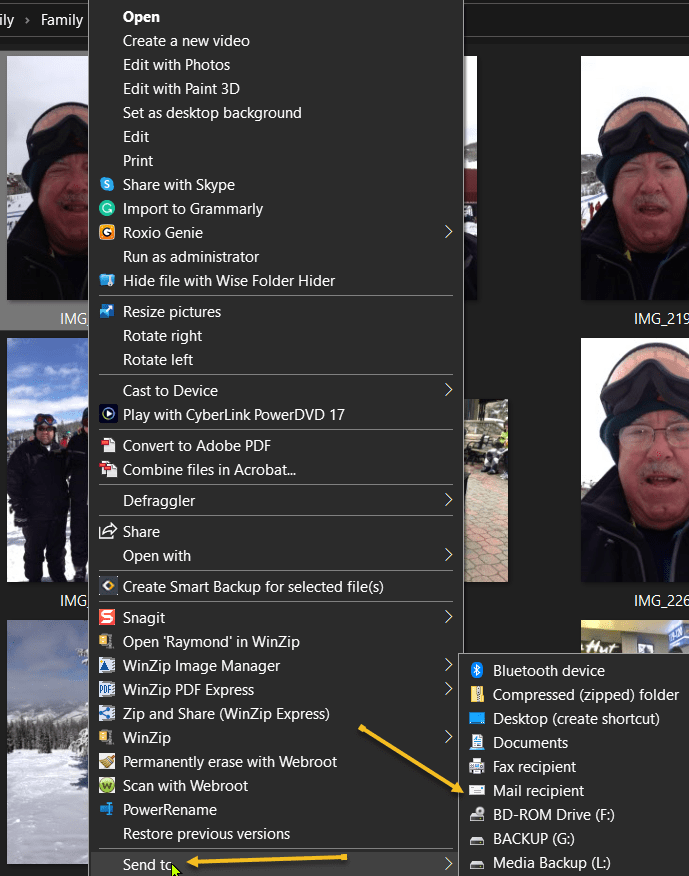
The SendTo function works the same in Windows 11, 10, and 8.1. First, open File Explorer and right-click on a file, such as a word processing document, spreadsheet, text file, or image file. From the pop-up menu, move your mouse to the SendTo command. menu.

The SendTo menu opens, revealing various locations and applications to which you can send the file. First, click a specific entry, such as a Bluetooth device, a compressed zip file, a Mail recipient, or your Documents folder. The file you selected is then sent to the chosen destination. Refer to the below image:

Send To 1
Your SendTo menu

Remove Entries

Next, press the Windows Key + R to trigger the Run window. At the Open field in the window, type shell:SendTo and then click OK. See the below image:

Send To 2
Accessing SendTo via Run command

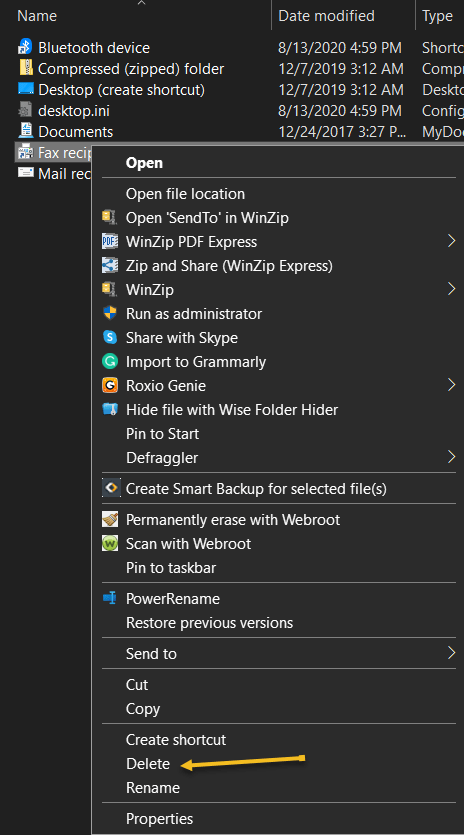
Now, the File Explorer opens to the SendTo folder for your user account. From here, you can delete any entries you would never use by right-clicking on them and selecting Delete from the pop-up menu. See the following image:

Send To 3
Delete a SendTo option

Add Entries

When adding new entries to the menu, you need to know the path of the executable file for the app you want to add. Let’s say you wish to play songs from Windows Media Player and want to add them to the SendTo menu. First, you would create a SendTo entry for it in the SendTo folder. To do so, open File Explorer, then right-click on any empty area of the folder.

Next, select New > Shortcut. In the window that opens to create the shortcut. Refer to the below image:

SendTo 4
Create a shortcut

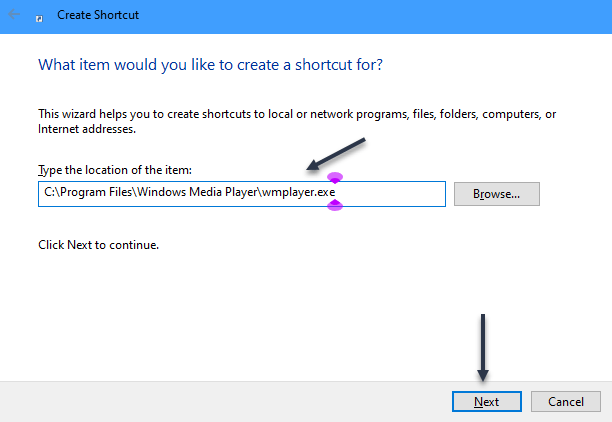
Now, browse to or type the following path: C:\Program Files\Windows Media Player\wmplayer.exe, then click Next. See the below image:

SendTo 5
Location of the shortcut

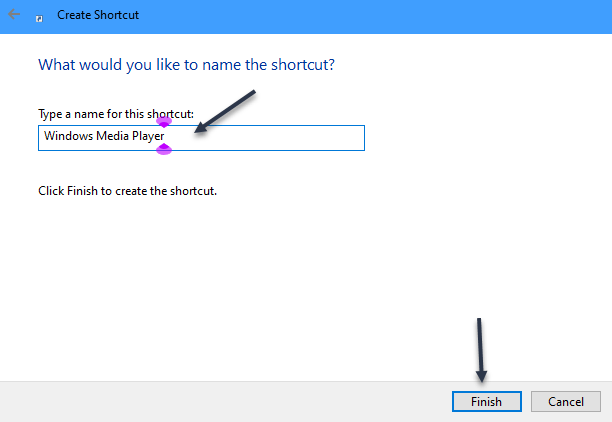
Next, you would then change the name for the shortcut to Windows Media Player and click Finish. See the following image:

SendTo 6
Name the shortcut

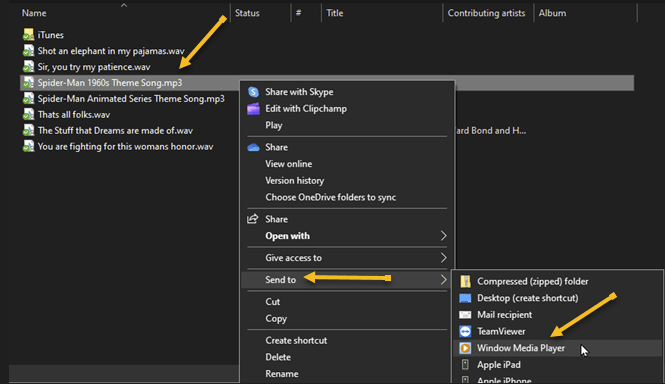
Now you can send any type of audio file to Windows Media Player if you right-click on it and open the SendTo menu. Refer to the below image:

SendTo 7
Send a file to your new entry

Quote For the Day

To err is human, but to really foul things up you need a computer.

Paul Ehrlich

Tweet Info

That’s it. Please feel free to share this post! One way to share is via Twitter.

Just click the Tweet icon below. This will launch Twitter where you click its icon to post the Tweet.

Checkout TechSavvy.Life for blog posts on smartphones, PCs, and Macs! You may email us at contact@techsavvy.life for comments or questions.

I Would Like to Hear From You

Please feel free to leave a comment. I would love to hear from you. Do you have a computer or smart device tech question? I will do my best to answer your inquiry. Just send an email to contact@techsavvy.life. Please mention the device, app, and version you are using. To help us out, you can send screenshots of your data related to your question.

Author’s E-Book

You can access the e-book from a Kindle device, the Kindle App for the desktop or smartphone, which is a free app.

The author’s Vietnam eBook on the Battle for Tra Bong Vietnam: Events and Aftermath

Three Features You Should Be Using in Word

If you use Microsoft Word to create your documents, then you are likely familiar with the features you use every day. But there are plenty of features that fly under the radar that could be just as useful, if not more.

RAYMOND OGLESBY @RaymondOglesby2
November 10, 2022

If you use Microsoft Word to create your documents, then you are likely familiar with the features you use every day. But there are plenty of features that fly under the radar that could be just as useful, if not more.

Here, we will look at just three Word features you should be using. These tools can save you time, improve the readability of your document, and even enhance your overall Microsoft Word experience.

This is for devices using Microsoft Word. Screenshots are from Windows 10

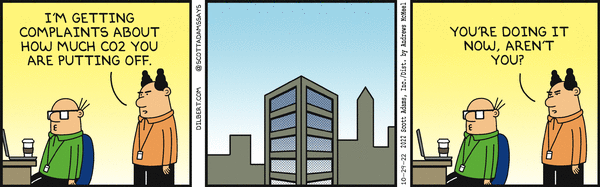
Dilbert and CO2
Copyright Scott Adams, Inc./Distributed by Universal Uclick for UFS

Distraction Free Writing Using Focus

If you do a lot of writing in Word, especially for things that need your full attention, you can enjoy distraction-free writing with Focus.

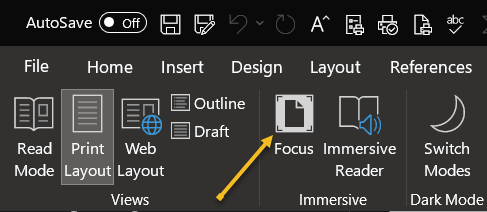
First, enable the feature by selecting Focus in the Status Bar on the View tab. Refer to the below image:

Word 1
Accessing the Focus option

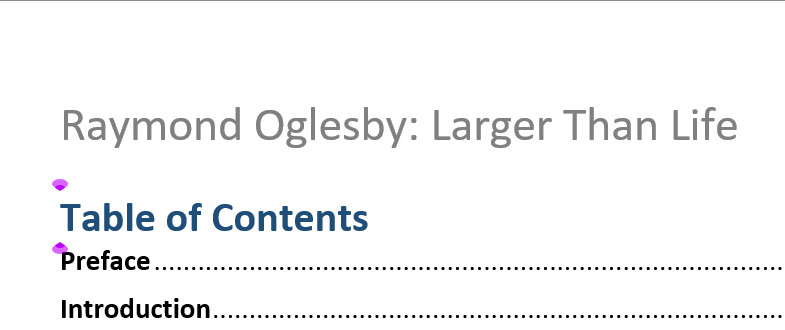
Next, you will see your document take over your entire screen with no Ribbon, Status Bar, or anything else to get in the way of your concentration. See the below image:

Word 2
Your Focus enabled document

Move your cursor to the top anytime to redisplay these items or to deselect Focus and return to your normal view.

Document Preview Using Document Editor

Another terrific feature in Microsoft Word is the Editor. With it, you can check your document for spelling, grammar, punctuation, readability, and more, all in one spot.

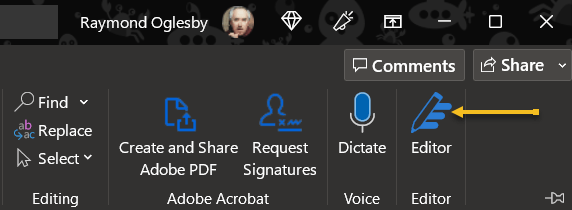
First, head to the Home tab and select Editor in the Editor section of the Ribbon. See the following image:

Word 3
Accessing Editor option

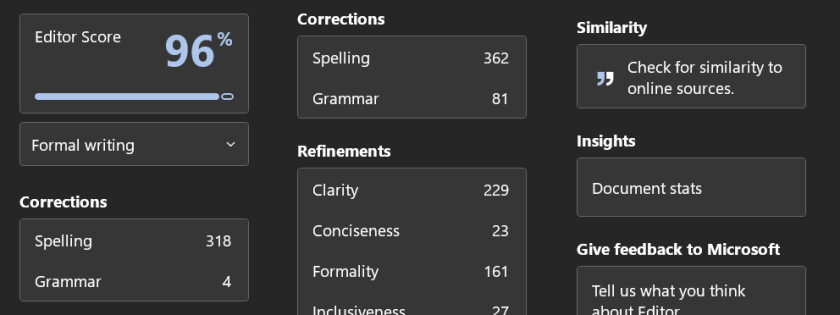
Next, when the sidebar opens, you will see your score at the top. You can then review necessary Corrections, Refinements, and see if similar documents appear on the web.

Note! For a very long document, this may take several minutes for the stats to be collected.

Refer to the below image:

Word 4
Your Editor stats

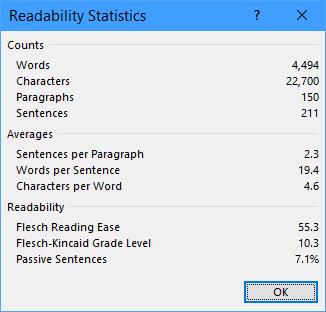
Now, select Document Stats in the Insights section to view counts of words and paragraphs, averages of characters per word and words per sentence, and readability scores for grade-level and passive sentences. See the below image:

Word 5
Your Document stats

Next, click the “X” on the top right of the Editor sidebar to close the tool when you finish.

References and Citations Using Researcher

One more feature in Word that goes a bit unnoticed is the Researcher tool. With it, you can look up almost anything on the internet and insert details for it without ever leaving your document.

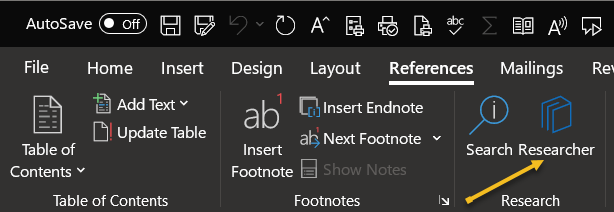
First, head to the References tab and choose Researcher in the Research section of the Ribbon. See the following image:

Word 6
Accessing the Researcher option

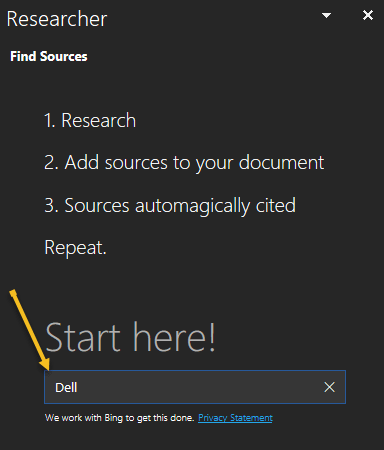
Next, the Researcher sidebar opens on the right. Enter your search term into the box and press Enter. Refer to the below image:

Word 7
Entering your search

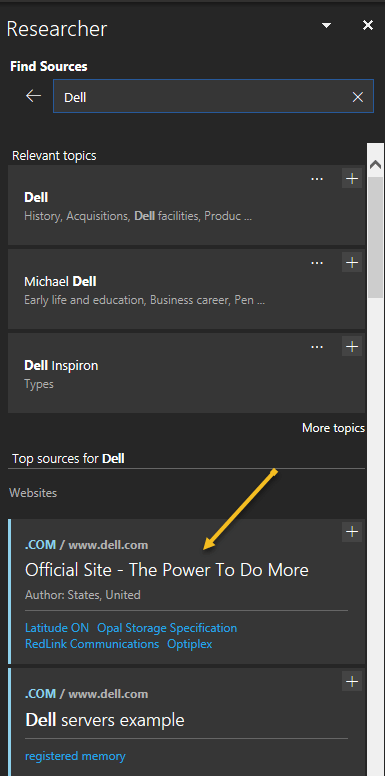
Now, you will see the results of your search. Select one to read more. See the below image:

Word 8
Your search results

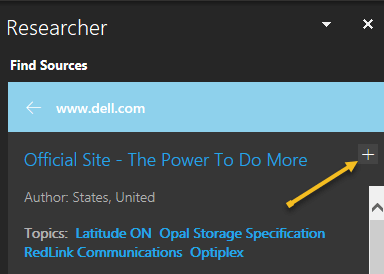
You can copy and paste the text you see into your document, then click the plus sign on the top right of the item in the sidebar to add a citation for it. See the following image:

Word 9
Add a citation to your document

Researcher is a handy and helpful tool for essays, papers, and research documents.

These three features can help you no matter what type of document, article, or paper you create in Microsoft Word.

Quote For the Day

My life is now a constant assessment of whether what’s happening in real life is more entertaining than what’s happening on my phone.

Damien Fahey

Tweet Info

You are finished. Please feel free to share this post! One way to share is via Twitter.

Just click the Tweet icon below. This will launch Twitter where you click its icon to post the Tweet.

Checkout TechSavvy.Life for blog posts on smartphones, PCs, and Macs! You may email us at contact@techsavvy.life for comments or questions.

I Would Like to Hear From You

Please feel free to leave a comment. I would love to hear from you. Do you have a computer or smart device tech question? I will do my best to answer your inquiry. Just send an email to contact@techsavvy.life. Please mention the device, app, and version you are using. To help us out, you can send screenshots of your data related to your question.

Author’s E-Book

You can access the e-book from a Kindle device, the Kindle App for the desktop or smartphone, which is a free app.

The author’s Vietnam eBook on the Battle for Tra Bong Vietnam: Events and Aftermath

Five Useful YouTube Features

YouTube has been around since 2005, and it’s one of the most visited websites in the world. Tons of features have been added to the YouTube website and apps over the years.

RAYMOND OGLESBY @RaymondOglesby2
October 13, 2022

YouTube has been around since 2005, and it’s one of the most visited websites in the world. Tons of features have been added to the YouTube website and apps over the years. Here are some features you may not know about.

This is for devices using YouTube. Screenshots are from iPhone XR running iOS 15.6+

Dilbert and Dilbert
Copyright Scott Adams, Inc./Distributed by Universal Uclick for UFS

Save Videos to Watch Later

You have probably been browsing YouTube and come across a video that looks interesting. What if you do not have the time to watch it right at that moment? The Watch Later feature is perfect for this.

Watch Later is essentially just a playlist that you can add videos to for watching later. It’s great for saving videos that you do not want to forget about, and it works everywhere you can access the YouTube website or app.

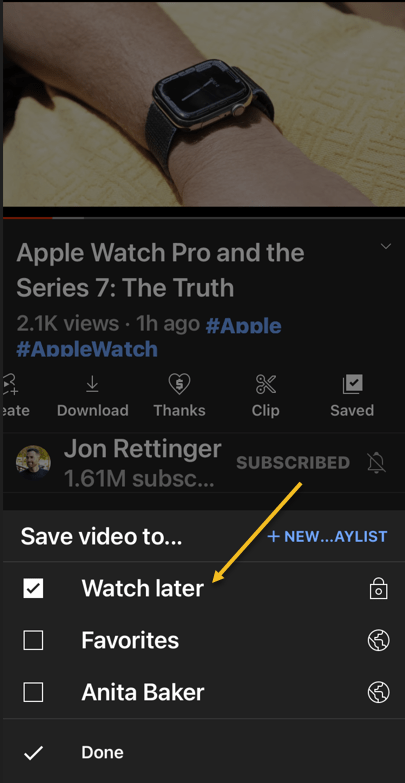
First, find a YouTube video you want to watch later. Next, tap the Save icon in the toolbar below the video. Now, from the Menu that opens, select the Watch Later option. Refer to the below image:

YouTube Features 1
Selecting Watch Later option

Set YouTube Videos to Fill Your iPhone Screen

It’s pretty common for your phone’s display to have a different aspect ratio than YouTube videos. You can pinch to zoom to fill the full screen when watching a video, but you have to do that every time.

You can actually make it so videos will always fill the full screen. You will not have to pinch-to-zoom every time, but you will be able to zoom out if too much of the video is being cut off.

First, open the YouTube app on your iPhone or iPad device. Next, double-tap your profile icon in the top right-hand corner. Now, from the Manu that opens, select

Settings > General

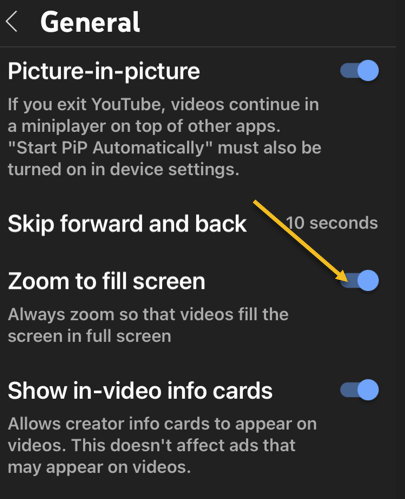
and toggle Zoom to Fill Screen to ON. See the below image:

YouTube Features 2
Enabling Zoom to fill the screen

Skip Forward/Backward Fast

Here’s a quick tip that will save you a lot of time watching videos on the YouTube mobile app. Rather than using the seek bar to skip forward and back in the video, simply double-tap the left or right side of the video. See the following image:

YouTube Features 5
Skip Forward or Backward

Change the Double-Tap Skip Time

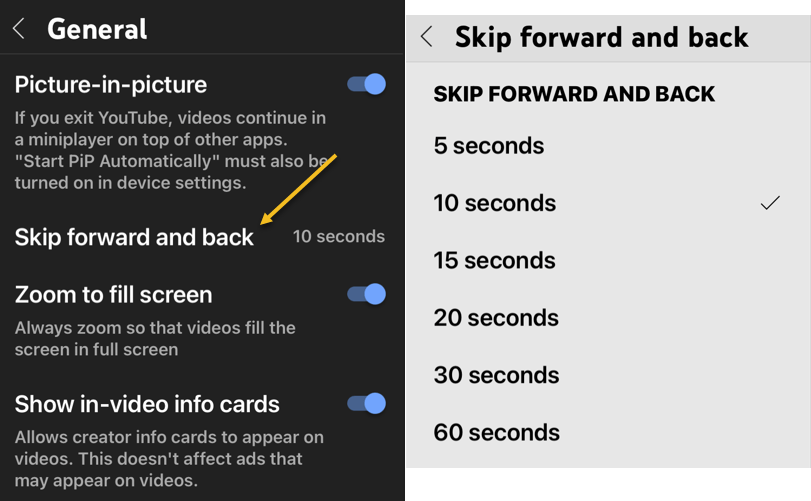
Speaking of double-tapping to skip forward or back in a video, you can adjust the length of these skips. By default, it’s 10-seconds. You can customize this length from 5 to 60 seconds. It’s a great thing to do if you find yourself tapping the video too much.

First, open the YouTube app on your iPhone or iPad, device. Next, double-tap your profile icon in the top right-hand corner. Now, from the Manu that opens, select

Settings > General

and select the Skip Forward and Back option. Next, choose one of the time increments from the Menu. Refer to the below image:

YouTube features 3
Set timer for Skip Forward and Backward

Speed Up or Slow Down a Video

YouTube videos do not have to be played at the speed of how they were uploaded. You can speed up or slow down any video you want. This is super handy for rewatching moments in slow motion or getting through long videos a little faster.

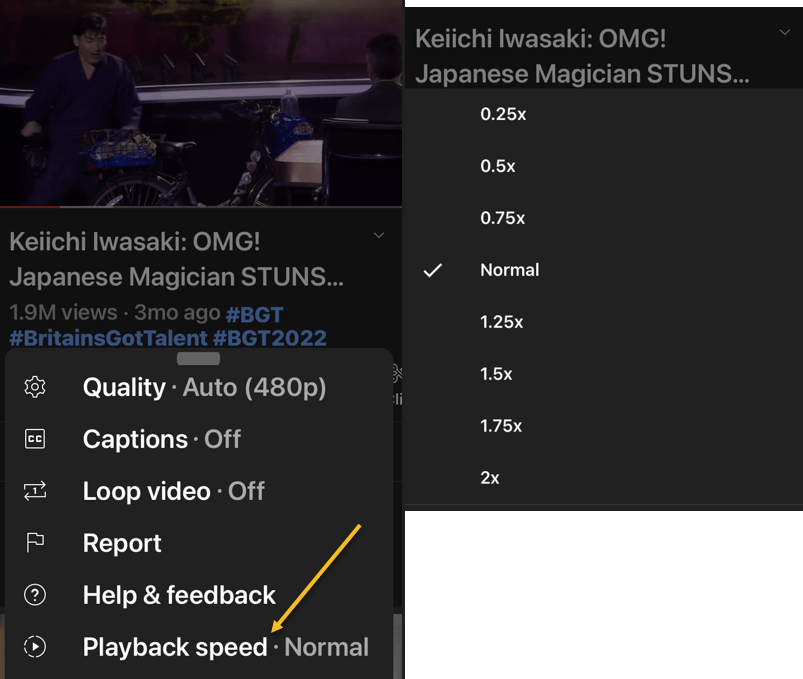
The Playback Speed controls can be accessed on the web and mobile apps. You can select a speed anywhere between 0.25- 2 times the normal speed, with 1 being the normal speed.

First, open the YouTube app and play a video. Next, tap the screen once to bring up the toolbar, Now, tap the Settings icon located in the upper right-hand corner of the video frame.

Next, in the Menu that pops up, select Playback speed. In the list that appears, select the speed you would like. See the below image:

YouTube Features 4
Set timer for Playback speed

Now, close the Menu, and the video will resume at the selected speed. If you need to change it back to the regular speed, repeat the above and change the speed to 1 for normal speed.

Quote For the Day

An outlook… at the vast mysteries of the universe should only confirm our belief in the certainty of its Creator.

Wernher Von Braun

Tweet Info

That’s it. Please feel free to share this post! One way to share is via Twitter.

Just click the Tweet icon below. This will launch Twitter where you click its icon to post the Tweet.

Checkout TechSavvy.Life for blog posts on smartphones, PCs, and Macs! You may email us at contact@techsavvy.life for comments or questions.

I Would Like to Hear From You

Please feel free to leave a comment. I would love to hear from you. Do you have a computer or smart device tech question? I will do my best to answer your inquiry. Just send an email to contact@techsavvy.life. Please mention the device, app, and version you are using. To help us out, you can send screenshots of your data related to your question.

Author’s E-Book

You can access the e-book from a Kindle device, the Kindle App for the desktop or smartphone, which is a free app.

The author’s Vietnam eBook on the Battle for Tra Bong Vietnam: Events and Aftermath

How To Setup Marketplace Alerts on Facebook

Facebook Marketplace has become the go-to place for selling things online. If you are on the lookout for a specific item, an alert can help you hopefully snag a great deal before everyone else.

RAYMOND OGLESBY @RaymondOglesby2
September 22, 2022

Facebook Marketplace has become the go-to place for selling things online. If you are on the lookout for a specific item, an alert can help you hopefully snag a great deal before everyone else. Let’s explore this Facebook feature.

Be aware that by using Marketplace, you may be scammed. In a recent survey, one in six (17%) respondents had been defrauded on the site.

Note! Technology is always changing. This means if you are implementing this post, your OS (PC, Mac), iOS (iPhone), iPadOS (iPad), and Android screens or text may not resemble this post’s contents, especially, if you are looking at a post years old.

This is for desktops using Facebook

Dilbert and Idiot
Copyright Scott Adams, Inc./Distributed by Universal Uclick for UFS

Setting up an alert will allow you to be notified when new items matching your search parameters are posted. You can skip the search process and always know when new items are posted.

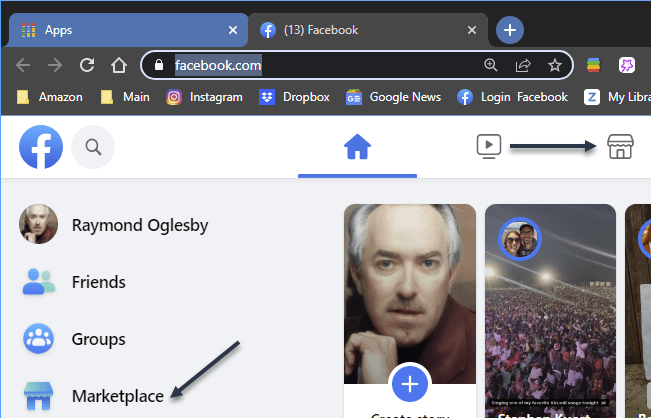
First, head on over to Facebook.com in your desktop browser. Click the Marketplace icon in the sidebar or top bar. Refer to the below image:

FB Marketplace 1
Selecting Marketplace

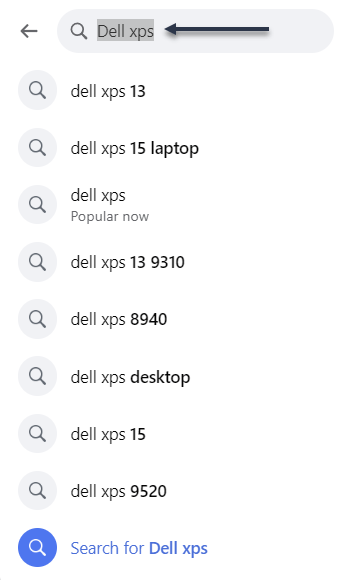
Next, use the search box to enter what you are looking for. See the below image:

FB Marketplace 2
Locate an item

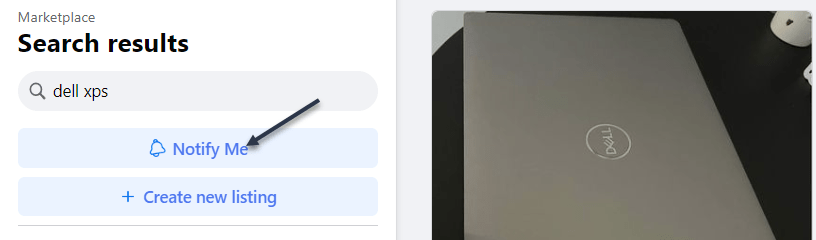
Now, click the Notify Me button under the search bar. See the following image:

FB Marketplace 3
Selecting Notify Me

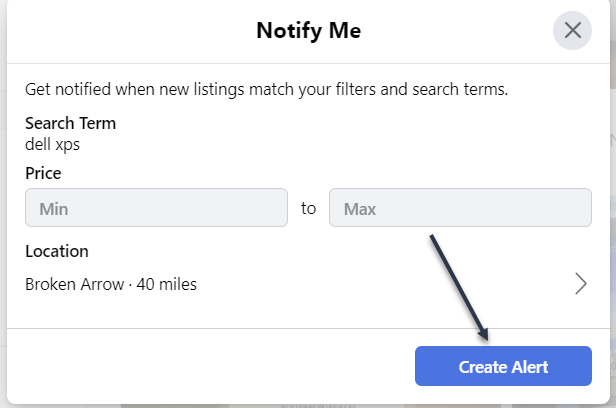
Next, in the pop-up window that opens, enter a minimum and maximum price and adjust the search radius if you would like. Then click Create Alert to finish. Refer to the below image:

FB Marketplace 4
Setup search parameters

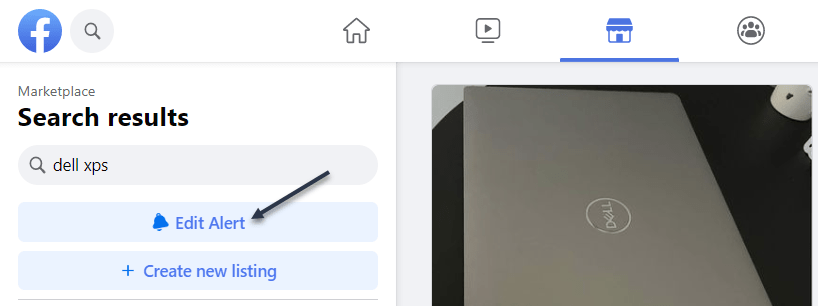
Now, to edit or remove an alert, repeat the search and click Edit Alert. See the below image:

FB Marketplace 5
Selecting to Edit Alert

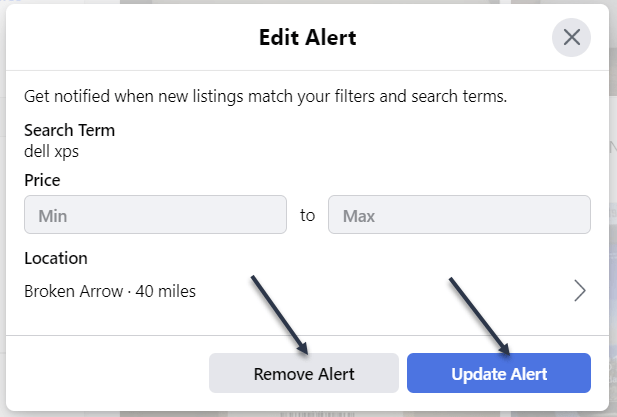
Next, you will have the option to adjust the parameters or Remove Alert. See the following image:

FB Marketplace 6
Change Parameters or Remove Alert

Facebook Marketplace has a lot of advantages over other online sellers like Craigslist. If you do a lot of shopping in the Marketplace, you should take advantage of the alert feature.

Quote For the Day

It’s not that we use technology, we live technology.

Godfrey Reggio

Tweet Info

That’s it. Please feel free to share this post! One way to share is via Twitter.

Just click the Tweet icon below. This will launch Twitter where you click its icon to post the Tweet.

Checkout TechSavvy.Life for blog posts on smartphones, PCs, and Macs! You may email us at contact@techsavvy.life for comments or questions.

I Would Like to Hear From You

Please feel free to leave a comment. I would love to hear from you. Do you have a computer or smart device tech question? I will do my best to answer your inquiry. Just send an email to contact@techsavvy.life. Please mention the device, app, and version you are using. To help us out, you can send screenshots of your data related to your question.

Author’s E-Book

You can access the e-book from a Kindle device, the Kindle App for the desktop or smartphone, which is a free app.

The author’s Vietnam eBook on the Battle for Tra Bong Vietnam: Events and Aftermath

How to Follow Someone on Facebook

Once you follow a personal account or a page on Facebook, you start seeing that entity’s posts in your News feed. This is a great way to get updates from your favorite people or brands without being friends.

RAYMOND OGLESBY @RaymondOglesby2
August 23, 2022

Once you follow a personal account or a page on Facebook, you start seeing that entity’s posts in your News feed. This is a great way to get updates from your favorite people or brands without being friends. Let’s explore following a person on Facebook.

This is for devices using Facebook. Screenshots are from Windows 10 and iPhone XR

Dilbert and Crypto
Copyright Scott Adams, Inc./Distributed by Universal Uclick for UFS

Following vs Friending

When you follow someone, you do not have to add them as a friend. You can see that entity’s posts and other content in your News feed while not becoming a part of their friend’s list. This option is usually used to follow celebrities and the pages that interest you on this social platform.

To follow someone and to add someone as a friend are two different things on Facebook.

The convention on Facebook is that when you add someone as a friend, it’s likely you know that person personally. You add people like your real-life friends, colleagues, and family as “friends” on Facebook.

Know that while Facebook allows you to have up to 5,000 friends at a time, there’s no such limit for followers. Also, keep in mind that people and pages can choose not to allow themselves to be followed. In such cases, you will not see the Follow button on these entities’ pages on Facebook.

Follow People

To follow a personal account on Facebook, all you have to do is visit that person’s profile page and click or tap an option.

On Desktop

On your computer, first, launch a web browser and open Facebook. Log in to your account if you have not already.

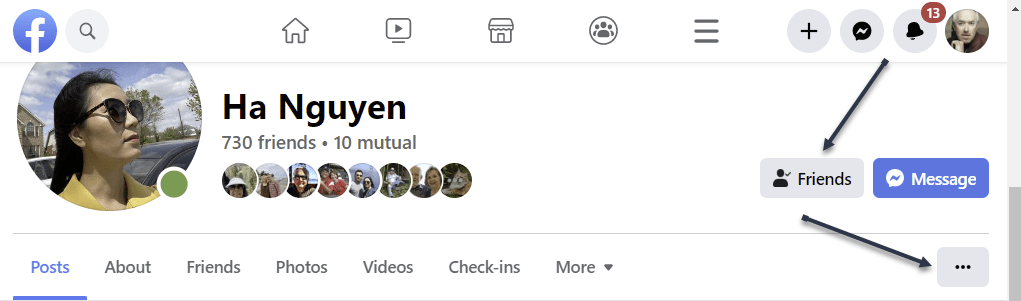
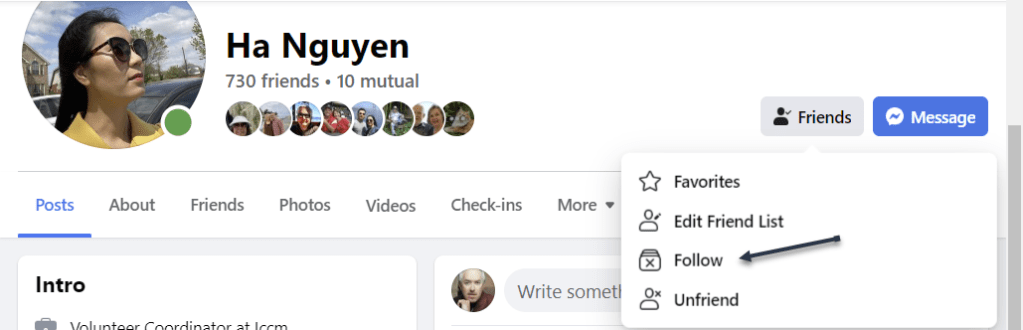
Next, after logging in, access the profile page of the person you want to follow. On this page, in the tab list beneath the person’s name, click the three dots (the Menu icon) or the Friends button. Refer to the below image:

Accessing the Menu

Now, in the three-dot Menu, choose Follow. If you do not see the Follow option, that person has yet to enable others to follow them. See the below image:

Selecting to Follow

Tip: Later, to unfollow this person, click Following followed by Unfollow on the person’s profile page.

You are now following the selected person in your Facebook account. The person’s posts will appear in your News feed.

On Mobile

To follow a person from your phone or tablet, first, launch the Facebook app on your mobile device. Then, open the profile page of the person you want to follow.

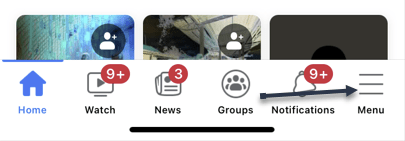
Next, on the profile page, beneath the person’s name, tap the three dots (the Menu icon). See the following image:

Accessing the Menu

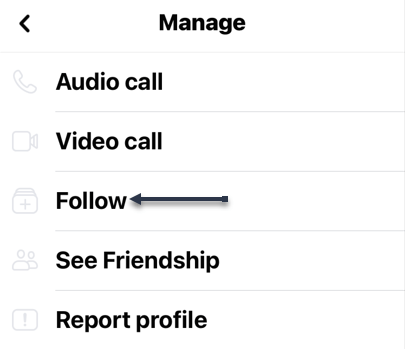
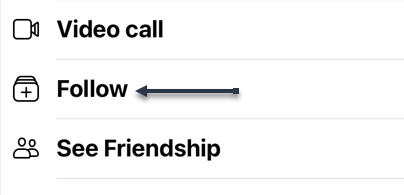
Now, in the Profile Settings menu, choose Follow. Refer to the below image:

Selecting to Follow

Tip: In the future, to unfollow this person, tap Following followed by Unfollow.

You are now following the selected person in your Facebook account. The person’s posts will appear in your News feed.

Follow Pages

Following a page is as easy as doing so for a personal account.

On Desktop

On your computer, first, launch a web browser and open Facebook. Log in to your account if you have not already.

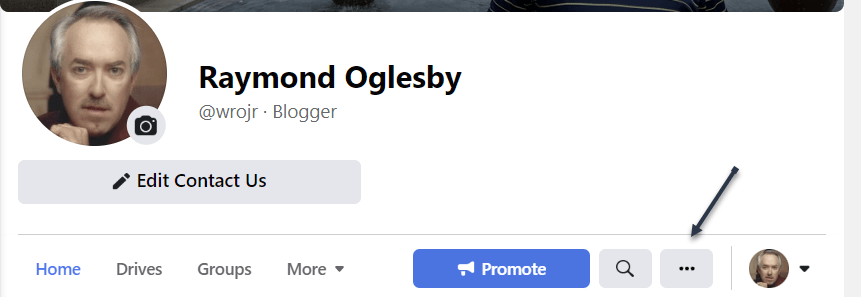
Next, open the page you wish to follow. On the page screen, at the far right of the tab list, click the three lines or the three dots (the Menu icon), whichever is shown. See the below image:

Accessing the Menu

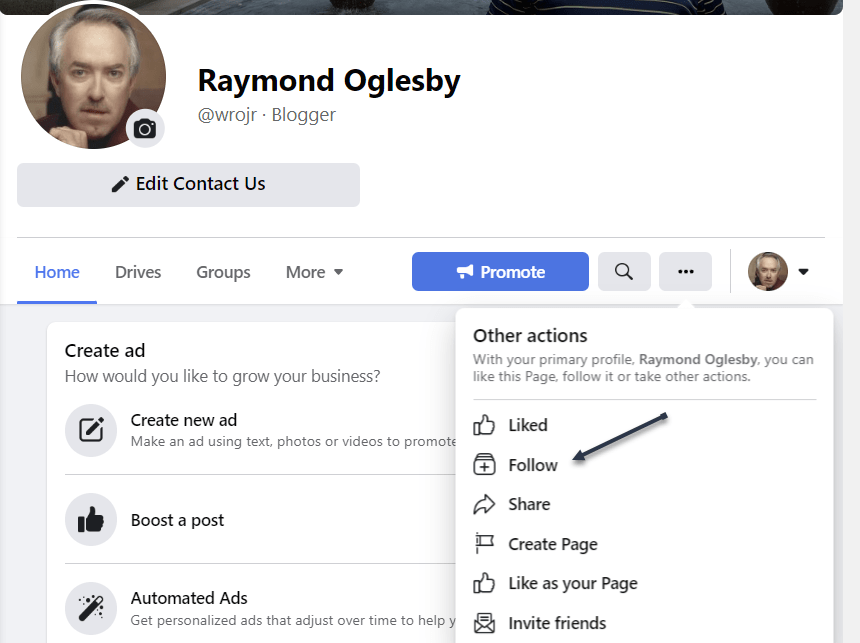
Now, in the Menu, choose Follow. If you do not see the Follow option, that person has yet to enable others to follow their page. See the following image:

Selecting to Follow

Tip: Later, to unfollow a page, visit the page, click the three lines or the three dots (the Menu icon), and choose Follow Settings. Then enable Unfollow This Page and click Update.

You are now following the selected person’s page posts in your Facebook account. The person’s page posts will appear in your News feed.

On Mobile

On your mobile phone or tablet, first, launch the Facebook app. Access the page to follow, then tap the three lines or three dots (the Menu icon). Refer to the below image:

Accessing the Menu

Next, from the Menu that opens, select Follow. See the below image:

Selecting to Follow

Tip: To unfollow a page, tap the three lines or three dots (the Menu icon) and select Manage Follow Settings. Then tap Unfollow.

You are now following your favorite page on Facebook.

Quote For the Day

Let’s go invent tomorrow instead of worrying about what happen yesterday.

Steve Jobs

Tweet Info

That’s it. Please feel free to share this post! One way to share is via Twitter.

Just click the Tweet icon below. This will launch Twitter where you click its icon to post the Tweet.

Checkout TechSavvy.Life for blog posts on smartphones, PCs, and Macs! You may email us at contact@techsavvy.life for comments or questions.

I Would Like to Hear From You

Please feel free to leave a comment. I would love to hear from you. Do you have a computer or smart device tech question? I will do my best to answer your inquiry. Just send an email to contact@techsavvy.life. Please mention the device, app, and version you are using. To help us out, you can send screenshots of your data related to your question.

Author’s E-book

You can access the e-book from a Kindle device, the Kindle App for the desktop or smartphone, which is a free app.

The author’s Vietnam eBook on the Battle for Tra Bong Vietnam: Events and Aftermath

How to Remove the Icons in Search Box in Windows 10/11

You may have noticed new, and ever-changing, little icons in the Search box on Windows 10’s Taskbar. That’s a “search highlight.” If you are like us, we found these icons very annoying.

RAYMOND OGLESBY @RaymondOglesby2
July 23, 2022

You may have noticed new, and ever-changing, little icons in the Search box on Windows 10’s Taskbar. That’s a “search highlight.” If you are like us, we found these icons very annoying. Here’s what it is and how to remove it.

This is for Windows 10 and 11. Screenshots are from Windows 10

Dilbert and Pills
Copyright Scott Adams, Inc./Distributed by Universal Uclick for UFS

Why the Icons

The icons are a part of a new feature rolled out to Windows 10 and Windows 11 as part of an April 2022 update.

The particular feature is called Search Highlights and it integrates a rotating set of icons into the right-hand side of the toolbar Search box. Depending on the day, the icons are specific; such as to celebrate the U.S. Open golf tournament, or more generic with suggested backgrounds, like photos of U.S. national parks.

In addition to placing the icons in the Search box, the Search Highlights feature also puts “highlighted” content into the Search menu on both Windows 10 and Windows 11. The highlights include news, trending stories, word and quote of the day tiles (presumably rolled out on slow news days,) as well as a trending searches tile.

If you like Microsoft’s bid to mimic a sort of Google daily doodle combined with a little news showcase in your Search menu then you can, naturally, just leave things how they are.

But if you had a less than positive reaction to the change, it’s thankfully very simple to turn off. Yea!

Remove the Icons

First, on Windows 10, you will see the icons in the Search box. Refer to the below image:

Icons 1
The icons in the Search box

Next, right-click on a blank area in your Taskbar to pull up the menu, select Search and uncheck Show search highlights option to get rid of these silly icons. Refer to the below image:

Icons 2
Remove the icons by unchecking Show search highlights

Although there’s no Search box (and thus no new icons) on Windows 11, you can still turn off the highlights in the Search menu. Just head to:

Settings > Privacy & Security > Search Permissions > More Settings

In the More Settings section just toggle OFF the switch Show Search Highlights.

With that simple change, there will not be any more icons in the Search box or news highlights in the Search menu.

Quote For the Day

The machine does not isolate man from the great problems of nature but plunges him more deeply into them.

Antoine de Saint-Exupery

Tweet Info

That’s it. Please feel free to share this post! One way to share is via Twitter.

Just click the Tweet icon below. This will launch Twitter where you click its icon to post the Tweet.

Checkout TechSavvy.Life for blog posts on smartphones, PCs, and Macs! You may email us at contact@techsavvy.life for comments or questions.

I Would Like to Hear From You

Please feel free to leave a comment. I would love to hear from you. Do you have a computer or smart device tech question? I will do my best to answer your inquiry. Just send an email to contact@techsavvy.life. Please mention the device, app, and version you are using. To help us out, you can send screenshots of your data related to your question.

Author’s E-book

You can access the e-book from a Kindle device, the Kindle App for the desktop or smartphone, which is a free app.
The author’s Vietnam eBook on the Battle for Tra Bong Vietnam: Events and Aftermath

Using the Ctrl+Shift+V Shortcut

Tired of pasting and getting weird fonts and formatting in Windows 10 or 11? Avoid using Notepad as an intermediary. Try Ctrl+Shift+V shortcut and you will get only the text you want.

RAYMOND OGLESBY @RaymondOglesby2
August 11, 2022

Tired of pasting and getting weird fonts and formatting in Windows 10 or 11? Avoid using Notepad as an intermediary. Try Ctrl+Shift+V shortcut and you will get only the text you want. Here’s why.

This is for Windows 10/11 and Mac. Screenshots are from Windows 10

Dilbert and Metaverse
Copyright Scott Adams, Inc./Distributed by Universal Uclick for UFS

Paste Without Formatting

By default, when you normally Copy with Ctrl+C and Paste with Ctrl+V in Windows, the clipboard captures not only the text you have selected but also the styling that goes with it. That includes font style, text color, attributes such as bold and italics, and even bulleted lists.

Fortunately, there’s an easy way to avoid it. The next time you want to paste only the text without any formatting or style information, press Ctrl+Shift+V on your keyboard in Windows 10/11. (On a Mac, you can press Option+Shift+Command+V for a similar result).

Microsoft Word Fix

In Microsoft Word, Ctrl+Shift+V does not work. Instead, you will need to use a special option in the ribbon menu. To do so, switch to the Home tab and click Paste, then select the icon that looks like a clipboard with an “A” on it (Keep Text Only) which will paste without formatting. Refer to the below image:

Word Shortcut 1
Selecting the Keep Text Only option

You can also change the default behavior in Word to always paste without formatting. To do so, navigate to

File > Options

In the Options menu that opens, click Advanced in the sidebar, then choose Keep Text Only in the Cut, Copy, and Paste drop-down menus. This way, you can make Ctrl+V always paste as Keep Text Only in Word. See the below image:

Word Shortcut 2
Selecting the Keep Text Only option for Pasting within the same document

Quote For the Day

Our business is about technology, yes.But its also about operations and customer relationships.

Michael Dell

Tweet Info

That’s it. Please feel free to share this post! One way to share is via Twitter.

Just click the Tweet icon below. This will launch Twitter where you click its icon to post the Tweet.

Checkout TechSavvy.Life for blog posts on smartphones, PCs, and Macs! You may email us at contact@techsavvy.life for comments or questions.

I Would Like to Hear From You

Please feel free to leave a comment. I would love to hear from you. Do you have a computer or smart device tech question? I will do my best to answer your inquiry. Just send an email to contact@techsavvy.life. Please mention the device, app, and version you are using. To help us out, you can send screenshots of your data related to your question.

Author’s E-Book

You can access the e-book from a Kindle device, the Kindle App for the desktop or smartphone, which is a free app.

The author’s Vietnam eBook on the Battle for Tra Bong Vietnam: Events and Aftermath