How to Insert a PDF into Word

One unique feature of Microsoft Word is the ability to insert a PDF file directly into Word, and it can be done in only a few steps. You can insert it as an embedded object, a linked object, or text only.

One unique feature of Microsoft Word is the ability to insert a PDF file directly into Word, and it can be done in only a few steps. You can insert it as an embedded object, a linked object, or text only. Let’s explore how to do this.

This is for devices supporting Microsoft Word

Dilbert and Dumb
Copyright Scott Adams, Inc./Distributed by Universal Uclick for UFS

To Tweet about this post, click the Tweet icon below to launch Twitter, then click its Tweet icon to post.

Check out TechSavvy.Life for their blog posts on smartphone apps, PCs. and Macs!

Embedding Explained

When you embed a PDF file in Word, the first page of your PDF appears in the document. Since an embedded object becomes part of the document after it is inserted, it’s no longer connected to the source file. Any changes made to the original PDF in the future will not be reflected in the Word document.

Linking Explained

Inserting a PDF file as a linked object means it appears as the first page of the PDF, but it is also linked to the original file. Changes made to the PDF will also be reflected in the Word document. You can opt to display an icon instead of a preview. Either option will open the PDF file when selected.

Text Only Explained

Inserting a PDF as text involves the use of copy and paste. Copying the text from the PDF file and pasting it into a document is a straightforward way to insert a bit of text into Word.

Embed or Link a PDF

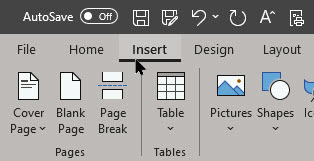
First, open a Word document, and place your cursor where you would like to insert the PDF file. Next, select the Insert tab. Refer to below image:

Insert PDF 1
Selecting the Insert tab

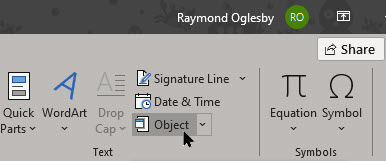
Now, click Object from the Text group. See below image:

Insert PDF 2
Selecting the Object option

From the small drop-down menu, select Object. See following image:

Insert PDF 3
Selecting the Object option from drop-down menu

From the Object window, click the Create from File tab. Next, select Browse. Refer to below image:

Insert PDF 4
From the Create from file tab, selecting the Browse option

Navigate to the location of the PDF, select it, and then click Insert. See below image:

Insert PDF 5
Selecting your PDF file to Insert into Word

Selecting Your Options

Now, it is time to decide if you want to (1) link directly to the source file, and/or (2) display the PDF as an icon. Link directly to the source file if you want to have the inserted file reflect any new changes made to the source file. To do so, just checkmark the Link to file option. You are linking to the PDF in your document.

While here, checkmark Display as icon if you don’t want to take up too much space on the page. If you do not enable any of these options, the PDF will be displayed in its entirety on the Word document and will not reflect any new changes made to the source file. You are embedding the PDF into your document.

To finish, select OK. Refer to below image:

Insert PDF 6
Selecting ink your PDF file and display an icon

The PDF will now be inserted in the Word document. See below image:

Insert PDF 7
Your linked PDF file displayed as an icon in Word

Copy and Paste

Copy

First, open your PDF file. Now, highlight some text you want to copy. Next, right-click your selection and select Copy.

Paste

Second, open your Word document. Now, place the cursor where you want to paste the text from the PDF file. Next, right-click and select a Paste option with or without formatting.

I hope you have found this post helpful. If so, click the Tweet icon below. This will launch Twitter where you click its icon to post the Tweet.

I have found TechSavvy.Life blog posts extremely helpful. Check them out for posts on smart phone apps, Macs and PCs!

The following is a previous Twitter feed so you can view how a Tweet will be displayed.

I Would Like to Hear From You

Please feel free to leave a comment. I would love hearing from you. Do you have a computer or smart device tech question? I will do my best to answer your inquiry. Please mention the device, app and version that you are using. To help us out, you can send screenshots of your data related to your question.

The author’s Vietnam eBook on the Battle for Tra Bong: Events and Aftermath

How to Remove Adobe Flash Player in Windows 10

At the end of 2020, Adobe will kill its Flash Player app for security reasons. Microsoft is taking a pre-emptive strike though by using an optional Windows Update to both uninstall and block Flash from being reinstalled.

At the end of 2020, Adobe will kill its Flash Player app for security reasons. Microsoft is taking a pre-emptive strike though by using an optional Windows Update to both uninstall and block Flash from being reinstalled.

It seems the update does not check to see if Flash has been installed using Adobe’s standalone installer, meaning if you have ever installed Flash Player manually, it remains available to use. Web browserscan also have a Flash Player component installed, and these also remain available after the update.

If you have no intention of using Flash again, the Windows Update to remove it is worthwhile simply to make your system a bit more secure. However, it’s worth checking if the Flash Player is installed as an app as well and removing it.

This is for the Windows 10 operating system

Dilbert and Deck
Copyright Scott Adams, Inc./Distributed by Universal Uclick for UFS

To Tweet about this post, click the Tweet icon below to launch Twitter, then click its Tweet icon to post.

Check out TechSavvy.Life for their blog posts on smartphone apps, PCs. and Macs!

To check this:

  • Launch Settings (the gear icon)
  • Click the Apps option

Refer to below image:

Flash 2
Accessing the Apps option

If it is there, click on the app and select Uninstall to remove the app. In my example, the app has been removed and is no longer listed. See below image:

spacer

Flash 1
Your installed apps


Now, lets check your web browser. For Google Chrome:

  • Launch Chrome
  • Click the Hamburger icon in upper right-hand corner (the one with 3 dots)
  • Click More tools
  • Click on Extensions

See following image:

Flash 3
Accessing Chrome extensions


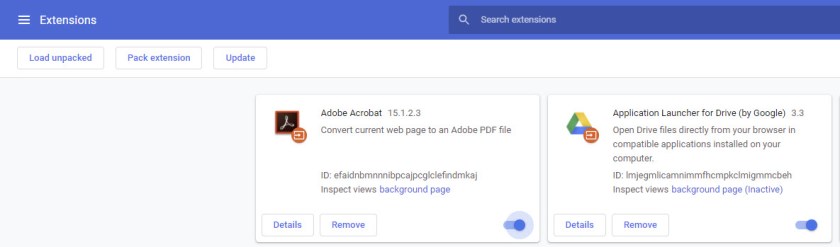
If it is there, click on the slider to disable or the Remove option to delete the app (this is the recommended choice). In my example, the app has been removed and is no longer listed. Refer to below image:

Flash 4
Your Chrome extensions

That’s it. You have successfully removed the app and its Chrome extension. Be sure to run the Windows optional update when available.

I hope you have found this post helpful. If so, click the Tweet icon below. This will launch Twitter where you click its icon to post the Tweet.

I have found TechSavvy.Life blog posts extremely helpful. Check them out for posts on smart phone apps, Macs and PCs!

The following is a previous Twitter feed so you can view how a Tweet will be displayed.

I Would Like to Hear From You

Please feel free to leave a comment. I would love hearing from you. Do you have a computer or smart device tech question? I will do my best to answer your inquiry. Please mention the device, app and version that you are using. To help us out, you can send screenshots of your data related to your question.

The author’s Vietnam eBook on the Battle for Tra Bong: Events and Aftermath

Five Ways to Lock Windows 10

Locking your Windows 10 PC is the best way to secure your computer when you step away. This will not quit or interrupt any running applications. When you return, you have to enter your PIN or password to get past the lock screen.

Locking your Windows 10 PC is the best way to secure your computer when you step away. This will not quit or interrupt any running applications. When you return, you have to enter your PIN or password to get past the lock screen. Let’s explore these five methods.

This is for smartphones and devices using Windows 10

Dilbert and Virus
Copyright Scott Adams, Inc./Distributed by Universal Uclick for UFS

To Tweet about this post, click the Tweet icon below to launch Twitter, then click its Tweet icon to post.

Check out TechSavvy.Life for their blog posts on smartphone apps, PCs. and Macs!

Method 1 – Use the Start Menu

First, click the Start button. Next, select your account name. Now, click the Lock option. Refer to below image:

Lock PC 4
Lock your device from the Start Menu

Method 2 – Use the Keyboard

The Lock Shortcut

Hit the Windows+L key on your keyboard to lock your device.

The Combination Key

Press Ctrl+Alt+Del keys. Next, click the Lock option in the menu that appears.

Method 3 – Use a Desktop Icon

If you’d rather lock your PC with just a click, you can create a desktop icon.

First, right-click on your desktop. Now, hover over the New option. Next, click the Shortcut option. See below image:

Lock PC 1
Create a desktop shortcut to lock your device

The Create Shortcut window will be displayed. Now, type the following command in the Type the location of the item text box. Once you have entered the command, click Next.

Rundll32.exe user32.dll,LockWorkStation

See following image:

LOck PC 2
Entering the Lock command

Now, enter an icon name like “Lock PC”. Next, click Finish. Refer to below image:

Lock PC 3
Naming your shortc ut

Your icon will appear on your desktop. Just double-click it any time to lock your device.

Method 4 – Use the Screen Saver

Another method is to set your PC to lock after the Screen Saver has been on for a certain length of time. First, type in screen saver in the Cortana search box. Next, click Change screen saver in the search results at upper left hand corner of your screen. See below image:

Lock PC 5
Accessing the Screen Saver

In the Screen Saver menu, checkmark the box labeled On Resume, display logon screen option. Now, use the arrow buttons in the Wait box to select how many minutes should pass before your device locks. Next, to save your change click Apply. See following image:

Lock PC 6
Setting your Screen Saver to lock your device

For security reasons, it is best to use another method to lock your device before you step away from it.

Method 5 – Use Dynamic Lock

Dynamic Lock is a feature that automatically locks your PC after you step away from it. It does this by detecting the strength of the Bluetooth signal. When the signal drops, Windows 10 assumes you have left the immediate area of your PC and locks it for you.

This is a nifty feature and my favorite. You just walk away from your PC with your smartphone in hand and let the Dynamic Lock feature lock your PC.

Setup the Smartphone

To use Dynamic Lock, you will first need to pair your smartphone with your PC.

To do this:

On your smartphone, go to Settings > Bluetooth and enable the toggle. Refer to below image:

Lock PC 7
Enabling Bluetooth on your smartphone
Setup the PC

On your PC, go to Settings (the gear icon) > Devices > Bluetooth and Other devices.

Now, click Add Bluetooth or other device. Next, select your phone, confirm the PIN, and they will be paired. See below image:

1 LOck PC 8
Accessing Add a Device

Next, close Settings and relaunch the app. Now, go to Accounts > Sign-in options. Scroll down to the Dynamic Lock section. Next, checkmark the box labeled Allow Windows to automatically lock Your device when you’re away option. See following image where Raymond’s Phone is paired:

Lock PC 9
Enabling Dynamic Lock

I hope you have found this post helpful. If so, click the Tweet icon below. This will launch Twitter where you click its icon to post the Tweet.

I have found TechSavvy.Life blog posts extremely helpful. Check them out for posts on smart phone apps, Macs and PCs!

The following is a previous Twitter feed so you can view how a Tweet will be displayed.

I Would Like to Hear From You

Please feel free to leave a comment. I would love hearing from you. Do you have a computer or smart device tech question? I will do my best to answer your inquiry. Please mention the device, app and version that you are using. To help us out, you can send screenshots of your data related to your question.
The author’s Vietnam eBook on the Battle for Tra Bong: Events and Aftermath

How to Fix a Slow Context Menu in Windows 10

Windows 10’s context menu can slow down over time as you continue to install apps. Third-party programs often install context menu extensions, and badly coded ones can slow things down. Your context menus open slowly, freeze, or hang when you right-click on a menu option.

There is an app that will help us clean up our context menu.

Windows 10’s context menu can slow down over time as you continue to install apps. Third-party programs often install context menu extensions, and badly coded ones can slow things down. Your context menus open slowly, freeze, or hang when you right-click on a menu option.

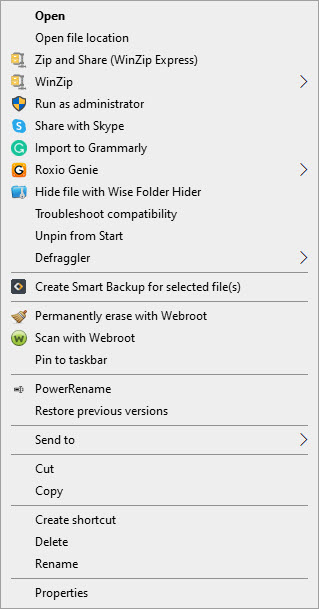
See following image of my context menu. As you can see, I have a lot of menu items.

Context Menu 1
My context menu

Let us explore how to fix a slow context menu. There is an app that will help us clean up our context menu.

This is for Windows 10 operating system

Dilbert and Therapist
Copyright Scott Adams, Inc./Distributed by Universal Uclick for UFS

To Tweet about this post, click the Tweet icon below to launch Twitter, then click its Tweet icon to post.

Check out TechSavvy.Life for their blog posts on smartphone apps, PCs. and Macs!<

Download ShellExView

We are going to do this the easy way without hacking the Windows Registry. That is a slow and error prone process. So, we are going to quickly pin down the problem.

We recommend you download and install ShellExView here, a free utility from NirSoft. The download links are near the end of the document below the Feedback section. Choose one that fits your operating system. Refer to below image:

Context Menu 2
The download links

It runs on Windows 10 and older versions of Windows, too. After the download, click on the executable file to launch ShellExView.

Setup ShellExView

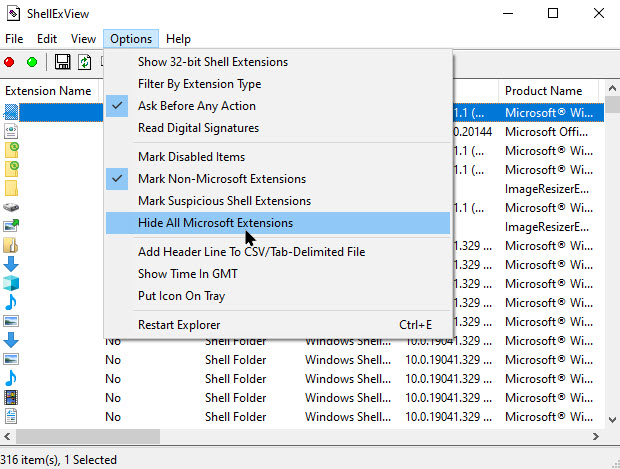
You will see a long list of Windows shell extensions. However, many of them are created by Microsoft and included with Windows. Those should not be slowing down your system. We want to hide all the Microsoft extensions. To do so, click Options then click on Hide All Microsoft Extensions. See below image:

Context Menu 3
Hiding Microsoft extensions

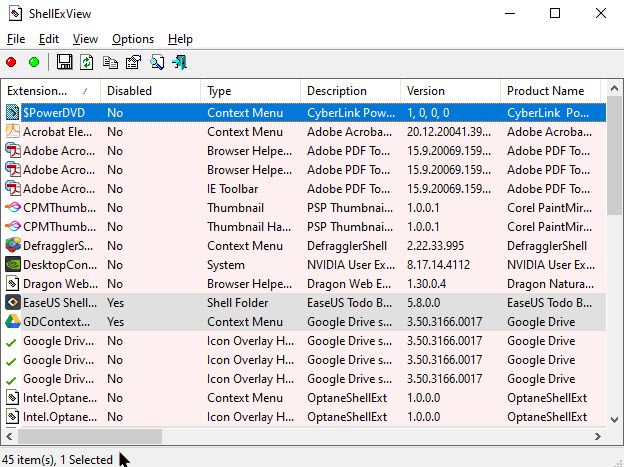
You will now see a more manageable list of the third-party shell extensions from the programs you installed. See following image:

Context Menu 4
Your context extensions

Disable Extensions

You will want to figure out which shell extension is causing the problem. This involves disabling one or more shell extensions, restarting Windows Explorer, and then seeing whether your problem is solved.

For example, you could do this in lseveral ways:

  1. Disable all third-party extensions and add them one by one until the problem appears.
  2. Disable shell extensions one by one until the problem is fixed.
  3. Disable extensions in groups. For example, you could disable half the extensions at once. If your problem is solved, you know that one of the extensions you disabled caused it, and you could go from there. This is the fastest method.

We recommend you chose method number two. Thjs is the safest. More than likely, you have an idea on the culprit extension(s). However you choose to do it, here’s how to disable extensions.

First, select the extension(s) you want to disable. Next, right-click them and select Disable Selected Items or click File > Disable Selected Items. (To re-enable them after, select Enable Selected Items.) Refer to below image:

Context Menu 5
Disable an extension

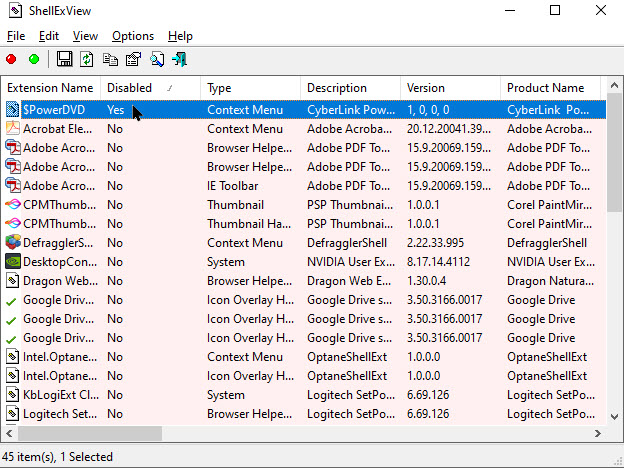
Disabled shell extensions will say Yes under the Disabled column. See below image:

Context Menu 6
The extension disabled

Use the Task Manager to Restart

Your change will not take effect until you restart Windows Explorer. It is recommended you use the Task Manager and not the buil-in app option to restart.

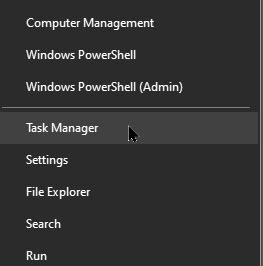
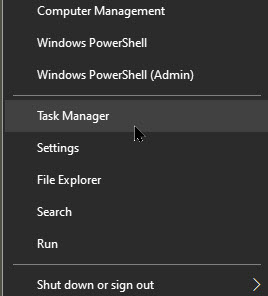
To open it, press Ctrl+Shift+Esc or right-click the taskbar and select Task Manager. See following image:

Context Menu 7
The Task Manager option

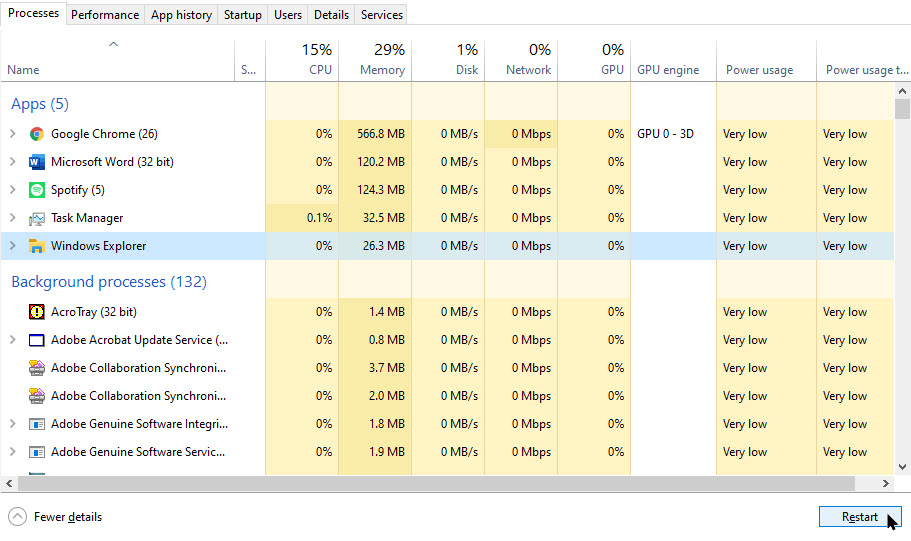
. You should open your Windows Explorer before proceeding. Now,find Windows Explorer under Apps on the Processes tab. (If you do not see this tab, click More Details.). Once you have found it, hightlight the entry and click Restart button in lower right of your screen. Refer to below image:

Context Menu 8
Restart Windows Explorer

Windows Explorer will now restart. Now, try right clicking a folder, file, or your desktop; whatever was slow before. Is it still slow? Then you need to try disabling one or more shell extensions. Is it faster than it used to be? Then you have disabled a shell extension that was slowing it down.

Repeat the Process

Repeat the above process to turn extensions on and off and determine which is causing your problem. By testing your context menus after every time you make a change (be sure to restart Windows Explorer first!), you can determine which one is causing the problem.

You can leave any extension disabled you do not want to use.You can always re-open ShellExView and re-enable them in the future.

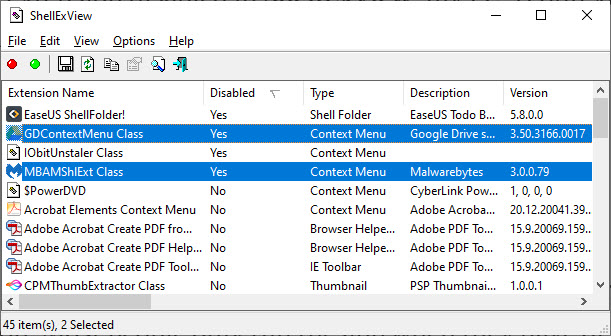
On my PC, one of the culprits slowing down my folder context menus was Google Drive’s “GDContextMenu Class” extension. This is a known problem.

Another culprit causing problems was Malwarebytes. Feel free to disable this extenstion. Most people only run the app when they have, or think they have, malware on their PC.The extension is unnecessary in the context menu. See below image:

Context Menu 9
Disabled extensions

With just these two extensions disabled in ShellExView, my PC’s context menus returned to it’s usual speed.

I hope you have found this post helpful. If so, click the Tweet icon below. This will launch Twitter where you click its icon to post the Tweet.

I have found TechSavvy.Life blog posts extremely helpful. Check them out for posts on smart phone apps, Macs and PCs!

I Would Like to Hear From You

Please feel free to leave a comment. I would love hearing from you. Do you have a computer or smart device tech question? I will do my best to answer your inquiry. Please mention the device, app and version that you are using. To help us out, you can send screenshots of your data related to your question.
The author’s Vietnam eBook on the Battle for Tra Bong: Events and Aftermath

How to Set the Oxford Comma in Microsoft Word

Microsoft Word can warn you about the Oxford or “serial comma”, whether you prefer to use the extra comma or not. It is a feature in the latest Word 365 and Word 2019 and goes back to Word 2002. By default, the option is off.

Microsoft Word can warn you about the Oxford or “serial comma”, whether you prefer to use the extra comma or not. It is a feature in the latest Word 365 and Word 2019 and goes back to Word 2002. By default, the option is off.

The Oxford comma is one of those grammatical things that most people do not worry about. It is a question of whether to add a comma at the end of a list, for example:

Raymond is teaching on Word, Excel, Access and Outlook.

Or using the Oxford comma:

Raymond is teaching on Word, Excel, Access, and Outlook.

It is okay to ingnore the Oxford comma for personal documents, emails, tweets and your personal Facebook page. However for business purposes, especially legal documents, you should use the Oxford comma. Avoiding the use of the Oxford comma has resulted in various lawsuits forcing companies to pay employees millions; what was implied without the comma failed in the courts. Moral of the lawsuits; use the Oxford comma for clarity and to avoid lawsuits.

In our example, using the Oxford comma says Raymond is teaching each class separately. Without the comma denotes that Raymond is teaching Access and Outlook as a combined class.

The setting for the Oxford comma has changed in the various Word versions.

This is for Word 365, Word 2019, and Word 2016 for PCs and Macs

Dilbert and Demon
Copyright Scott Adams, Inc./Distributed by Universal Uclick for UFS

To Tweet about this post, click the Tweet icon below to launch Twitter, then click its Tweet icon to post.

Check out TechSavvy.Life for their blog posts on smartphone apps, PCs. and Macs!

Finding the Oxford Comma

Open a Word document. Next, click the File menu option. Now, navigate to

Options > Proofing > Writing Style > Settings

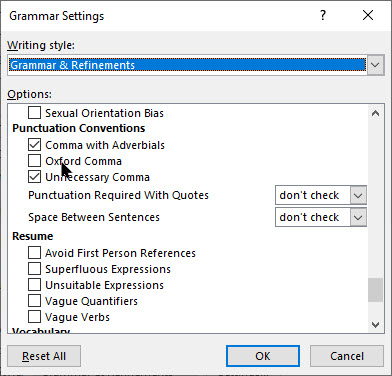
Now, scroll down the long list till you see the Oxford Comma checkbox in the Punctuation Conventions section. Refer to below image:

Oxford Comma 1
The Oxford Comma option

Setting the Oxford Comma

Checking the box will enforce the comma in lists. A missing Oxford comma will show a red dashed line with the suggestion “A comma before “and” or “or” could make this clearer.” See below image:

Oxford Comma 2
The Oxford Comma suggestion

Grammar checking in English is hard but the software does a remarkable job. This being said, the feature is not perfect and is no substitute for proof reading.

While discussing grammer, there is another similar situation. I see a lot of blog posts using words like “It’s” or Doesn”t”. The correct usage is to avoid using the apostrophe. In my examples, you would spell out the words to say “It is” and “Does not” for clarity.

I hope you have found this post helpful. If so, click the Tweet icon below. This will launch Twitter where you click its icon to post the Tweet.

I have found TechSavvy.Life blog posts extremely helpful. Check them out for posts on smart phone apps, PCs and Macs!

I Would Like to Hear From You

Please feel free to leave a comment. I would love hearing from you. Do you have a computer or smart device tech question? I will do my best to answer your inquiry. Please mention the device, app and version that you are using. To help us out, you can send screenshots of your data related to your question.

The author’s Vietnam eBook on the Battle for Tra Bong: Events and Aftermath

How to Use Performance Panels in Windows 10

Want to see live-updating resource usage stats from your system’s CPU, memory, disk, network or GPU? Windows 10 has some built-in perfomance monitors that can help. You can even have Windows show these panels always on top of other open windows.

Want to see live-updating resource usage stats from your system’s CPU, memory, disk, network or GPU? Windows 10 has some built-in perfomance monitors that can help. You can even have Windows show these panels always on top of other open windows.

The best way is to use the Task Manager.. It has some easy-to-ise performance panels displaying real time stats of your machine. Let’s explore how to use this feature.

This is for Windows 10 operating system

Dilbert and Social Media
Copyright Scott Adams, Inc./Distributed by Universal Uclick for UFS

Check out TechSavvy.Life for their blog posts on smartphone apps, PCs. and Macs!

Open the Task Manager

Windows 10’s Task Manager comes with performance stats that were added back in Windows 8. This post relates to Windows 10.

First, open the Task Manager by pressing Ctrl-Alt-Del and choosing Task Manager or by right-clicking the Taskbar or the Start button and selecting Task Manager. Refer to below image:

Performace A
Selecting the Task Manager

Floating Panels

Now, select the Task Manager Options and chose Always on Top if you want the tool’s panels to appear on top of other open windows. See below image:

Performace 1
Selecting Always on Too option

The Performance Tab

Next, click thePerformace tab. If you don’t see it, click More Details first, at the bottom of your screen. See following image:

Performace 1
The CPU performance panel

Now, choose the performance graph from the sidebar you want to see. You will see options for your computer’s CPUs, memory, storage devices (including SSDs, hard disks, and USB devices), network connections (wired Ethernet and Wi-Fi), and GPUs (graphics processors.)

To show just a performance graph, double-click anywhere on a graph in the right pane. You can also right-click a graph and select Graph Summary View. Refer to below image:

Performace 3
Selecting Grap Summary Virw option

The Performance Graphs

You can resize this smaller window and also click-and-drag anywhere inside it to position it wherever you like on your desktop. See below image:

Performace 4
The CPU Summary Graph

To enlarge or make the Task Manager window smaller, just double-click inside it,

If you want to change the graph to another one just right click in the graph, chose the View option and make your selection. See following image:

Performace 5
Selecting the Virw Option

Also, you can select a different graphfrom the sidebar. Refer to below image:

Performace 6
The C: drive view

That’s it. I hope you found this post helpful.

I have found TechSavvy.Life blog posts extremely helpful. Check them out for posts on smart phone apps, Macs and PCs!

I Would Like to Hear From You

Please feel free to leave a comment. I would love hearing from you. Do you have a computer or smart device tech question? I will do my best to answer your inquiry. Please mention the device, app and version that you are using. To help us out, you can send screenshots of your data related to your question.
The author’s Vietnam eBook on the Battle for Tra Bong: Events and Aftermath

How to Find Information About Windows 10

Let’s say you need to know information about your Windows 10 file system, version, build number, product key and more. If you are looking into configuration or troubleshooting, this information would be essential to know.

Let’s say you need to know information about your Windows 10 file system, version, build number, product key and more. If you are looking into configuration or troubleshooting, this information would be essential to know. Let’s explore how to find this.

This is for the Windows 10 operating system

Dilbert and Attention
Copyright Scott Adams, Inc./Distributed by Universal Uclick for UFS

Check out TechSavvy.Life for their blog posts on smartphone apps, PCs. and Macs!

Discover the File System

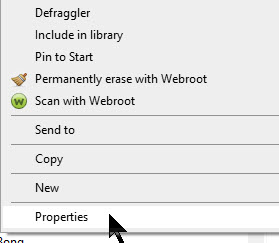
First, launch File Explorer. Next, locate a drive. ie, drive C; and right-click on it. Now, in the pop-up menu, select Properties. Refer to below image:

Windows Info 1
Selecting your drive’s Properties

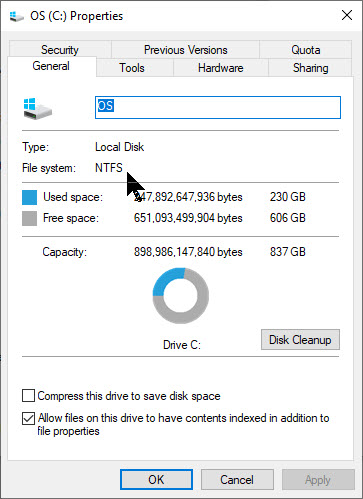
In the Properties window, under the General tab you will see the File System label followed by the type of File System. See below image;

Windows Info 2
Determining your File System

Normally you will see NTFS, shorthand for New Technology File System, the default for Windows 10. On older versions of Windows, you may see the legacy file system of FAT32, shorthand for File Allocation Table 32.

If you have multiple drives, simply repeat the above for each drive.

Discover the Version, Build Number and More

First, launch the Settings app by pressing the Windows+I keys. Next, go to System. See following image:

Windows Info 3
Accessing Settings

On the left, scroll to the bottom and select About. On the right, you see information about your system. The amount of information you see differs depending on the Windows 10 version that you have installed. Now, scroll down to the Device specifications section. Here you find the data you are looking for. Refer to below image:

Windows Info 4
Determining your Device and Windows specifications
  • System Type – it tells you whether you use a 32-bit or 64-bit version of Windows 10
  • Edition – displays the edition of Windows 10 that you have: Pro, Home, Enterprise, Education, etc
  • Version – displays the version of Windows 10 that is installed
  • OS Build – displays the Windows 10 build number that you use

The latest Version as of this writing is

  • 2004 – The ninth update to Windows 10, codenamed 20H1. It was named the May 2020 Update and released on May 27, 2020.
  • A number higher than a 2004 – The tenth major update for Windows 10 is codenamed 20H2. The update is expected to launch in October or November 2020.

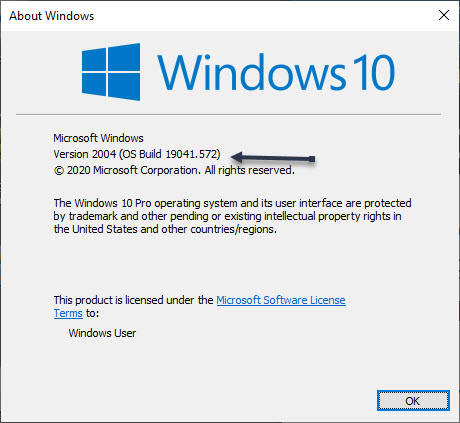
The most recent update to Windows 10, launched in May 2020, has a OS Build of 19041.264. As you can see from my PC screenshot, I do not have the latest version installed.

The OS Build number changes with each update made by Microsoft to Windows 10. This information along with the Version is useful for troubleshooting purposes when you call tech support.

Discover Your Product Key and Much More

Finding your product key was featured in a previous post. You can find this, the above information and much more in one program. Simply click the link below on downloading, installing and running BelArc Advisor.

How to Use the BelArc Advisor Program

That’s it. I hope you found this post helpful.

I have found TechSavvy.Life blog posts extremely helpful. Check them out for posts on smart phone apps, Macs and PCs!

I Would Like to Hear From You

Please feel free to leave a comment. I would love hearing from you. Do you have a computer or smart device tech question? I will do my best to answer your inquiry. Please mention the device, app and version that you are using. To help us out, you can send screenshots of your data related to your question.
The author’s Vietnam eBook on the Battle for Tra Bong: Events and Aftermath

How to Use Storage Sense to Manage Disk Space in Windows 10

Windows 10 can automatically free up disk space by getting rid of files and content that you don’t need by the Storage Sense feature. Whenever you are low on disk space, if enabled, Storage Sense will intelligently run and delete temporary files and applications no longer needed.

Windows 10 can automatically free up disk space by getting rid of files and content that you don’t need by the Storage Sense feature. Whenever you are low on disk space, if enabled, Storage Sense will intelligently run and delete temporary files and applications no longer needed. Let’s explore how to do this.

This is for the Windows 10 operating system

Dilbert and Argument
Copyright Scott Adams, Inc./Distributed by Universal Uclick for UFS

Check out TechSavvy.Life for their blog posts on smartphone apps, PCs. and Macs!

Set Storage Sense

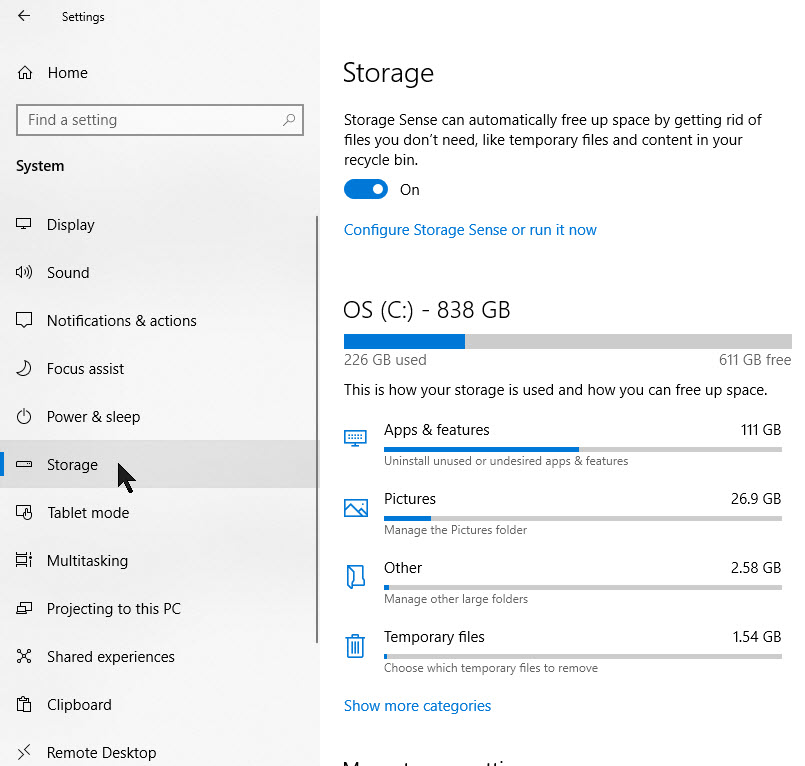
First, launch Settings by clicking the Start button, then click the Gear icon on the left side of your screen. Also you can press the Windows+I keys to open Settings. Next, click the System icon, then click Storage. Refer to below image:

Accessing the Storage option

At the top of Storage options, click the toggle to the On position. Next, under the toggle, click Configure Storage Sense or run it now blue ink. See below image:

Enabling Storage Sense

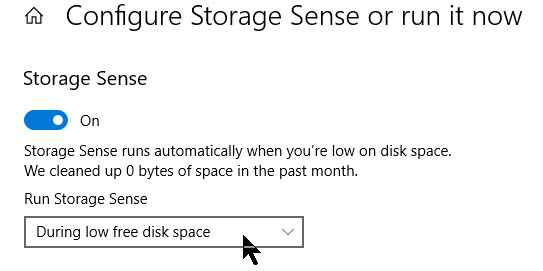
In the Storage Sense options, let’s examine a few different settings. First, is the frequency of when Storage Sense runs You set this option from a drop-down menu labeled Run Storage Sense. You can set it to run Every day, week or month; or whenever disk space is low (the default). Just click the menu and select the option that works best for you. See following image:

Configure when Storage Sense runs

Set Options

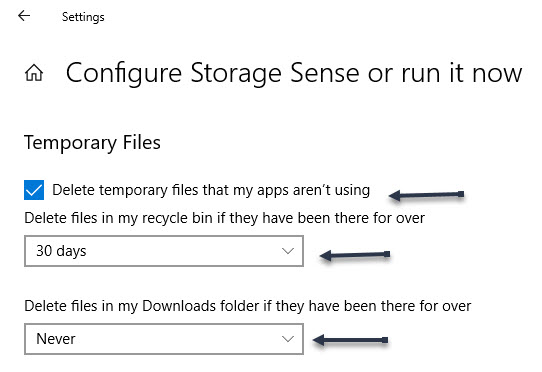
Under the Temporary Files section, the first option we want to enable is Delete temporary files that my apps aren’t using.

The second option is a drop-down menu labeled Delete files in my Recycle Bin if they have been there for over with selections of Never, 1 day, 14 days, 30 days, or 60 days. Select an option to your liking.

Finally, the third option is labeled Delete files in my downloads folder if they have been there for over and make your selection from the drop-down menu (default is Never). Automatically deleting files in your Downloads folder may not always be a great idea. However, if you don’t keep important files in the folder you can set a period of Never, 1 day, 14 days, 30 days or 60 days. In the example below we are enabling the first option, setting the second option to 30 days and the third option to Never. Refer to below image:

Storage Sense 4
Setting Temporary Files options

Setting OneDrive

Another feature of Windows 10 is  OneDrive which lets you access all the files saved in your OneDrive cloud, with File Explorer, regardless of whether they are downloaded or not on your PC. However, if you work with many of those files locally they can quickly add up and eat up space. If you want, you can configure Storage Sense to automatically mark the OneDrive files that you haven’t opened for a specified amount of time as online-only. That means that those files are still kept in your OneDrive cloud and are still accessible from File Explorer, but they no longer occupy space on your PC.

Under the Locally available cloud content heading there are two options. From the iCloud Drive option, chose an entry from thedrop-down menu. You can choose whethere Content will become online-only if not opened for more than Never, 1 day, 14 days, 30 days, or 60 days. Simply, repeat the above for the second option, iCloud Photos. However, note that this setting is available in Storage Sense only if the location of your OneDrive folder is on your C: drive, where Windows 10 is installed. See below image:

Storage Sense 5
Setting iCloud Drive and Photos option

Clear Space Now

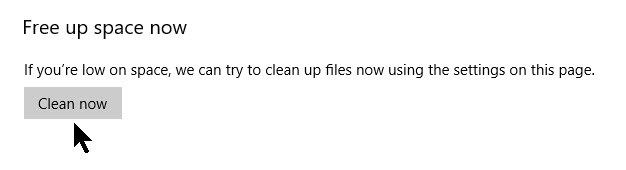
Finally, under the heading, Free up space now section is a Clear Now button. If you need to clean your Windows 10 C: drive urgently, click or tap this button. That runs Storage Sense immediately, without waiting for its schedule. See following image:

Storage Sense 6
Selecting the Clear Now button

Once you are finished, simply close Settings.

Related

Note! Coming soon if not available.

How to Set a Schedule to Empty the Recycle Bin

Storage Sense Contents Removal

Once activated, Storage Sense will intelligently run whenever your device is low on storage space or according to your schedule.

Storage Sense looks for and removes files such as, but not limited to:

  • Temporary setup files
  • Old indexed content
  • System cache files
  • Internet cache files
  • Device driver packages
  • System downloaded program files
  • Dated system log files
  • System error memory dump files
  • System error minidump files
  • Temporary system files
  • Dated Windows update temporary files

If you have turned on the removal of old files in your Downloads folder, these will be removed as well according to your time interval setting.

The fact that Windows 10 includes an option to clean your disk and recover free space automatically is a good thing. It can prove quite useful, especially for users who struggle with limited space on their Windows 10 computers and devices. As a end note, remember that Storage Sence can be very aggressive in removing files.

That’s it. If you didn’t already use it, try Storage Sense and let us know what you think about this feature and/or TechSavvy.Life in the Comments or click to Tweet below.

I have found TechSavvy.Life blog posts extremely helpful. Check them out for posts on smart phone apps, Macs and PCs!

I Would Like to Hear From You

Please feel free to leave a comment. I would love hearing from you. Do you have a computer or smart device tech question? I will do my best to answer your inquiry. Please mention the device, app and version that you are using. To help us out, you can send screenshots of your data related to your question.

The author’s Vietnam eBook on the Battle for Tra Bong: Events and Aftermath

How to Set a Schedule to Empty the Recycle Bin

The Recycle Bin is a temporary storage space for files, folders and programs that have been deleted. The feature is primarily meant as a safety net in case you ever want to go back and retrieve deleted data. To remove the deleted files from your system completely, you will need to empty the Recycle Bin. It is recommended that you clear out your Recycle Bin regularly to avoid accumulating junk files and slowing down your system.

The Recycle Bin is a temporary storage space for files, folders and programs that have been deleted. The feature is primarily meant as a safety net in case you ever want to go back and retrieve deleted data. To remove the deleted files from your system completely, you will need to empty the Recycle Bin. It is recommended that you clear out your Recycle Bin regularly to avoid accumulating junk files and slowing down your system.

You can empty it manually by a simple right-click on the Recycle Bin icon (usually on the Desktop) and selecting Empty Recycle Bin option.

But there is a more efficient option. We are going to use Storage Sense to delete files of a certain age automatically every day, week, or month. Let’s explore how to do this..

This is for the Windows 10 operating system

Copyright Scott Adams, Inc./Distributed by Universal Uclick for UFS

Check out TechSavvy.Life for their blog posts on smartphone apps, PCs. and Macs!

First, launch Settings by clicking the Start button, then click the Gear icon on the left side of your screen. Also you can press the Windows+I keys to open Settings. Next, click the System icon, then click Storage. Refer to below image:

Accessing the Storage option

At the top of the Storage options, click the toggle to the On position. Next, under the toggle, click Configure Storage Sense or run it now blue ink. See below image:

Enabling Storage Sense

In the Storage Sense options, let’s examine a few different settings. First, is the frequency of when Storage Sense runs You set this option from a drop-down menu labeled Run Storage Sense. You can set it to run Every day, week or month; or whenever disk space is low (the default). Just click the menu and select the option that works best for you. See following image:

Configure when Storage Sense runs

For now, we are only talking about deleting files in the Recycle Bin, uncheck the box beside Delete temporary files that my apps aren’t using if you don’t want Storage Sense removing old temporary files. Also, set the Delete files in my Downloads folder option to Never using the drop-down menu.

Between these two options, you’ll find a drop-down menu labeled Delete files in my Recycle Bin if they have been there for over with the options of Never, 1 day, 14 days, 30 days, or 60 days.

What does this mean? Whenever Storage Sense is run (as set previously above), it will automatically delete files that are in your Recycle Bin for longer than that period of time. Just set this option to your liking. Note! This only applies to the Recycle Bin on the your root drive (normally drive C:). Refer to below image:

Setting when to delete Temporary Files

Now, just close the Settings dialog box.

If you ever change your mind about the frequency of the Recycle Bin emptying (or want to disable it), just go to:

  • Settings > Storage
  • Set Storage Sense to Off. Or, you can change the interval options again to your your liking.

That’s it. You are finished. I hope you liked this blog post. Please feel free to leave a Comment or click the Tweet button below.

Related

Note! Coming soon if not available.

How to Use Storage Sense to Manage Disk Space in Windows 10

I have found TechSavvy.Life blog posts extremely helpful. Check them out for posts on smart phone apps, Macs and PCs!

I Would Likie to Hear From You

Please feel free to leave a comment. I would love hearing from you. Do you have a computer or smart device tech question? I will do my best to answer your inquiry. Please mention the device, app and version that you are using. To help us out, you can send screenshots of your data related to your question.

The author’s Vietnam eBook on the Battle for Tra Bong: Events and Aftermath

How to Clear Your Windows 10 Cache

Windows 10, stores significant amounts of cache to make the system faster and more responsive. This is very efficient if you have tons of storage and free RAM to work with or a high performance CPU. Unless you have a considerable amount of RAM you will eventually run into problems that will slow down your PC, causing it to lag and maybe even hang if you load it with a lot of tasks.

Windows 10, stores significant amounts of cache to make the system faster and more responsive. This is very efficient if you have tons of storage and free RAM to work with or a high performance CPU. Unless you have a considerable amount of RAM you will eventually run into problems that will slow down your PC, causing it to lag and maybe even hang if you load it with a lot of tasks.

Let’s explore how to clear your Windows 10 cache to keep your PC running smoothly.

This is for the Windows 10 operating system

Dilbert and Raise
Copyright Scott Adams, Inc./Distributed by Universal Uclick for UFS

Check out TechSavvy.Life for their blog posts on smartphone apps, PCs. and Macs!

Using Wise Disk Cleanup Tool

To cleanup your temporary file cache, browser cache like Chrome and Edge, Windows and Application traces and much more, I recommend using the free Wise Disk Cleanup tool over the built-in Disk Cleanup app in Windows 10. Click here to see my post on the Wisk Disk Cleanup tool. In this post, are instructions on downloading, installating and running the application.

Clear Your Domain Name Server (DNS) Cache

To clear your DNS cache, we need to open the Command Prompt with admin privileges. First, enter Command Prompt in the Cortana search box located in lower left hand corner of the Task Bar. Refer to below image:

Accessing the Command Prompt

The Command Prompt app will appear in the search results in upper left hand corner. Now, click on Run as administrator from the menu on the right. See below image:

Clear Cache 2
Running the Command Prompt as an Administrator

Next, enter the following command:

ipconfig/flushDNS

and press the Enter key. See following image:

Clear Cache 3
Entering the command to flush the DNS

You will receive a message about the status of clearing the DNS cache. Refer to below image:

Clear Cache 4
Message indicating clearing DNS was successful

Clear Your Windows Store Cache

First, open the Run command by pressing the Windows+R command. Next, enter WSReset.exe in the Run box and click OK. Refer to below image:

Clear Cache 5
Entering command to reset Windows Store cache

A black window will appear for a few seconds. Don’t be alarmed, it is clearing the Windows Store cache. See below image:

Clear Cache 6
While processing the clearing of Windows Store you will get a blank black screen

Once it is finished, the black window will disappear and the Windows Store app will launch. Just close this application.

Clear Your Location Cache

First, enter Settings in the Cortana search box located in lower left hand corner of the Task Bar. The Settings app will appear in the search results in upper left hand corner. Click on the Settings app and select the Privacy option. See following image:

Clear Cache 7
Accessing the Privacy option

Now, in the App Permissions section, select the Location option. Refer to below image:

Clear Cache 8
Accessing the Location option

Next, scroll down till you see the Location History group. Here, select Clear under the Clear location history on this device heading. See below image:

Clear Cache 8
Clearing your Location History

When finished, a small checkmark will appear beside the Clear button.

I hope you found this post helpful. Please feel free to comment or tweet out that you like TechSavvy.Life.

I have found TechSavvy.Life blog posts extremely helpful. Check them out for posts on smart phone apps, Macs and PCs!

I Would Like to Hear From You

Please feel free to leave a comment. I would love hearing from you. Do you have a computer or smart device tech question? I will do my best to answer your inquiry. Please mention the device, app and version that you are using. To help us out, you can send screenshots of your data related to your question.

The author’s Vietnam eBook on the Battle for Tra Bong: Events and Aftermath