Every once in a while you should delete Chrome’s data for faster load times and to correct erratic behavior. If this is your first time to do this, be patient, it may take a minute or so.
If you’re trying to fix loading or formatting issues to improve your browsing experience on Google Chrome, clearing your data is an excellent place to start.
For example, if Chrome is slow or unresponsive or you change a document like deleting a sentence but the sentence is still there after saving the document, its time to clear your Chrome browser data. Before doing this, log out or exit your running applications. If an application’s behavior is erratic, its recommended you log out instead of just exiting the program.
This is for Google Chrome on multiple platforms
Copyright Scott Adams, Inc./Distributed by Universal Uclick for UFS
What Happens When your Data is Deleted?
When you visit a website, it will save (or remember) certain information on your hard or SSD drive. Cookies save a user’s browsing data and cache (stored information) helps webpages load more quickly by remembering images, videos, text and other parts of the webpage from your last visit instead of reloading everything with each visit.
When you clear your data, all information gets deleted. You control how much data is deleted. The load time of previously visited sites will increase because Chrome needs to load the content of the webpage again.
Clearing Chrome’s Data
To clear your data in Chrome, you’ll need to access the browser’s Settings menu. There are three different ways to do this.
The first way is to click the three vertical dots icon (the hamburger icon) in the top-right corner of the screen, hovering over the More Tools option and then selecting Clear Browsing Data. Refer to below image:
Clear your browing data option
In the above image, you may notice the shortcut key. To go straight to the page to clear your data, hold and press down on the Ctrl + Shift + Delete keys.
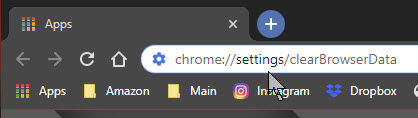
The third way is to enter chrome://settings/clearBrowserData in the address bar. See following image:
Alternate way to clear your browsing data
Now, the Clear Browsing Data window will be displayed.
The first thing you’ll do here is select the Time range for deleting the data. Click the drop down arrow next to Time range to expand the menu, then select the desired Time range; the default is All Time. It is recommended you use the default Time range. See below image:
Selecting your time range for clearing your data
Next, check the four boxes next to Browsing history, Download history, Cookies and 0ther site data and Cached images and files. If you want to clear passwords (not recommended), then checkmark Passwords and other sign-in data. Checking this box will force you to re-enter passwords you have setup before entering a website(s). Refer to below image:
Selecting your options for clearing data
Now click the Clear Data button to clear your data. See following image:
The last option for clearing your data
The process of clearing your data will take a litte while. If this is the first time, it may take several minutes, just be patient.
I Would Like to Hear from You
Please feel free to leave a comment. I would love hearing from you. Do you have a computer or smart device tech question? I will do my best to answer your inquiry. Please mention the device, app and version that you are using. To help us out, you can send screenshots of your data related to your question.
The author’s Vietnam eBook on the Battle for Tra Bong: Events and Aftermath
I recently read a post about finding your Microsoft Windows 10 product key. Microsoft likes to hide it but there are occasions you need to know the key. The key is a 25-characters code, making it virtually impossible to remember.
This is for Windows XP through 10 devices
Copyright Scott Adams, Inc./Distributed by Universal Uclick for UFS
That post gave a long command to use and a complicated Visual Basic Script (vbs) from an unknown author to be saved as a text file to run. To make things even more complicated, using two methods, the author showed two different keys. But there is a pain free way to find the key that I posted about using Belarc Advisor. This free software program is among the best to provide a detailed inventory of your device’s hardware and software.
Scroll down the report till you see the Software Licenses section. There you will find your Windows product key plus other software keys. See below image:
I Would Like to Hear from You
Please feel free to leave a comment. I would love hearing from you. Do you have a computer or smart device tech question? I will do my best to answer your inquiry. Please mention the device, app and version that you are using. To help me out, you can send screenshots of your data related to your question.
The author’s Vietnam eBook on the Battle for Tra Bong: Events and Aftermath
Over the past few months, I have researched on how to do this, create a footer that I can use repeatly without doing a manual insert of footer elements. I finally found an article on how to partly do this. In my example, we are going in inset a document footer with the latest date on the left, the document name in the middle and the page number on the right. Yes, it will take a little time but it’s worth the one-time investment. You will save time and effort in using this feature.
If you’ve got a favorite document footer like mine, you can save that using the Quick Parts feature of Microsoft Word. What a lot of users don’t know is that Quick Parts can be saved under different categories to be accessible under different menus.
Let’s use my favorite footer as an example. I’ve constructed one in a blank document using a three column table: the left column has the current Date, the middle column contains the File Name and the right column shows “Page X of Y“. Also, I’ve turned off the borders in the table; those lines you see are simply the grid lines that display in Word.
This is for Word for Office 365 PCs and Macs that support Quick Parts. Other versions of Word will be similar.
Copyright Scott Adams, Inc./Distributed by Universal Uclick for UFS
Lets get started.
Navigate to the the Insert tab, then to the Header option. Head to the bottom of the options and select Edit Footer. Your footer will be activated with the pointer in the left hand column.
Once again, go to the Insert tab, then select the Table option. Highlight the first 3 columns with your pointer. You will see 3 x 1 table description at top of your screen. Now, just click on the third grid element in the first row and the table will be inserted into your footer. See following image:
Selecting the table to be inserted for the custom footer
Inserting Current Date
In the first column of the footer table, type in the text Date: (there is one space after the text) then navigate to the Insert tab and click on the Date & Time option in the Text group. Select your date format and click OK. See below image:
Selecting the current Date format to be inserted into your custom footer
Inserting File Name
Now, hit the Tab key once, or move your pointer to the middle column. Again, go to the the Insert tab, then to the Footer option. Navigate to the bottom of the options and select Edit Footer. In the Insert group, select Document Info, then select File Name.
UPDATE: If you do not see Document Info, in the Search box type in “Add document info” and follow its steps.
Refet to below image:
Selecting the File Name to be inserted
Note! For demo purposes, I named this example document as &Filename. See below image:
Showing the inserteed Date and File Name for your custom footer
Inserting Page Number
Now, tab once more or position your pointer in the right column. Once again, from the Insert tab, select Page Number from the Header & Footer group. Next, hoover your pointer over Current Position and select Bold Numbers under the Page X of Y group. Refer to below image:
Inserting the Page Number as bold text for Page X of Y into your custom footer
Your footer elements will look similar to the following image:
Showing all elements for your custom footer
Formatting the Custom Footer
Now, you may want to align your footer elements. In my example, I am aligning the File Name to be centered. For the Page Number, I am choosing right justified. The Date is already left justified. At this point, you can change the font and/or font size and other formatting options. You may want to change font size for File Name to allow for long document names. Refer to below image:
Aligning the footer elements for your custom footer
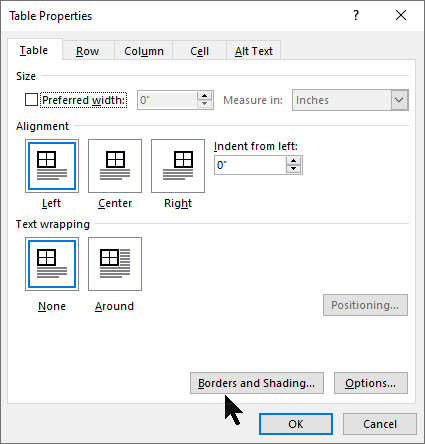
Next, lets remove the borders for our footer table. Right click on the “+” sign located to the left of the table, then select Table Properties. See below image:
Accessing the Table Properties for your custom footer
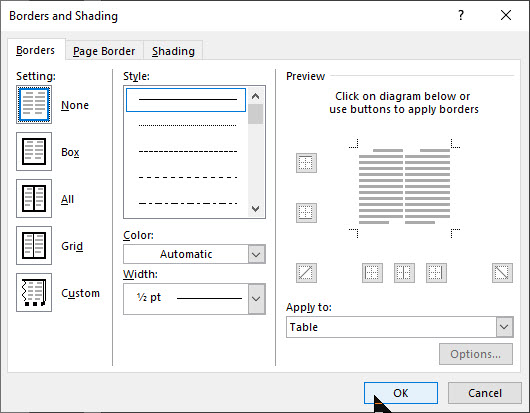
Now, select Borders and Shadings option. Under the Borders tab, select the None option, then click OK, then click OK again to remove the borders. Refer to below image:
Removing the borders for your custom footer
Your final footer result will be similar to the following image:
The final result of your custom footer
If you make a mistake, start from the miscue or start from stratch. As you can see, there are a lot of manual steps. So, instead of repeating all of the above just to insert a footer, we can easily access our favorite footer by using the Quick Parts feature.
Setting Up the Quick Part Feature
Highlight the footer with your pointer or click on the “+“sign located to the left of the table. Next, navigate back to the Insert tab. Select the Quick Parts option in the Text group. Then choose Save Selection to Quick Park Gallery. See below image:
Saving your custom footer to Quick Parts
Give the Footer a unique name, mine is My Best Footer. In the Gallery drop-down box, select Footers. In the Category drop-down box, select General. Now, give the footer a Description. When you are finished, click OK. Refer to below image:
Setting up the custom footer building block
Now your favorite footer will be an available selection whenever you click Footer on the Insert tab. Refer to following image:
Displaying your custom footer entry
Using Your Custom Footer
To try out your custom footer, open a blank document. Navigate to the Insert tab (click one), select the Footer option (click two). Locate your recent entry and click on it (click three). Your footer selection will be inserted. And you only used three clicks! See below image:
Inserting your custom footer into a document
There are a whole bunch of other Quick Parts Galleries available for you to save your favorite snippets in. For example, you could have a Quick Parts that inserts your “ Initials _____” on the last page of a draft. Another Quick Parts would be creating and inserting your favorite Watermark.
Edit Your Custom Footer Properties
Navigate to the Insert tab. Select the Quick Parts option in the Text group. Then choose the Building Blocks Organizer option. Next, locate and click on your custom footer entry. Then, click on the Edit Prolerties tab. Here you can change the custom Name, the Gallery, the Category, etc. Its best to leave the Gallery set to Footers and Category set to General.
UPDATE: To make your custom footer float to the top, select enter a new Category, and label it Alpha instead of selecting General.
Once you are finished, click OK. Refer to below image:
Editing your custom footer properties
Delete Your Custom Footer
Navigate back to the Insert tab. Select the Quick Parts option in the Text group. Then choose Building Blocks Organizer option. Next, locate and click on your custom footer entry. Then, click on the Delete tab. To complete the deletion process, click OK. See following image:
Deleting your custom footer
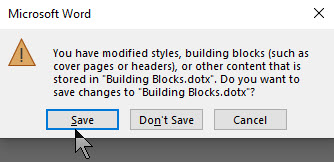
When you Exit Microsoft Word, you will see the following screen. Make sure you click Save to save your custom footer in the Building Blocks.dotx file, where your custom footer is stored. This is easy to overlook. If you don’t Save, you will lose your custom footer or any other snippet you created during your Word session.
Your final dialog box upon exiting Word. You must click Save to save your work.
You have successfully created, inserted, edited and deleted a custom footer.
I Would Like to Hear From You
Please feel free to leave a comment. I would love hearing from you. Do you have a computer or smart device tech question? I will do my best to answer your inquiry. Please mention the device, app and version that you are using. To help us out, you can send screenshots of your data related to your question.
The author’s Vietnam eBook on the Battle for Tra Bong: Events and Aftermath
In PowerPoint, it’s hard to remember what slide number you are presenting. As an aid, we can add the slide number to our slides.
One way, we could manually add a number using a text box. But what if you added or deleted a slide? This would require you to manually update your slide numbers; a time consuming and error prone task.
Instead, you can have the slide numbers update automatically on all your hidden and active slides. By default, your slide numbers appear in your slide footer, but you can move and format them.
This is for PowerPoint for Office 365 Windows and Mac versions. Other versions of PowerPoint will be similar.
Copyright Scott Adams, Inc./Distributed by Universal Uclick for UFS
Adding Slide Numbers
Open a PowerPoint presentation with several slides to see the feature. Click the Insert tab. In the Text section, click the Header & Footer icon. See below image:
Text dialog box
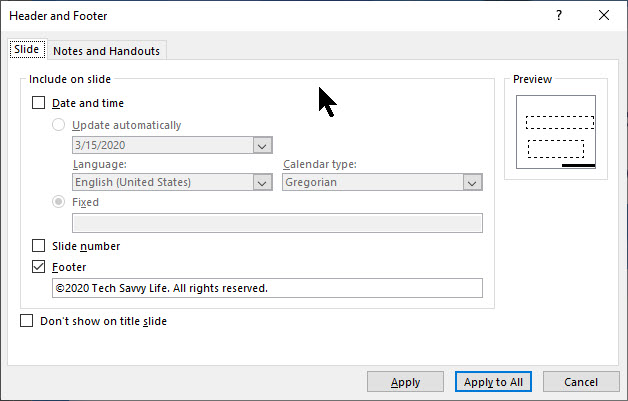
The Header & Footer options box will open. Refer to below image:
Slide Header and Footer options
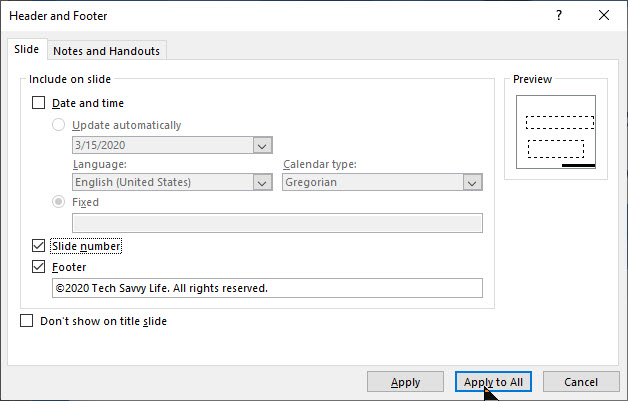
Under the Slide option, place a check in the Slide number checkbox. To add your slide number to all of your slides, select Apply to All button. Refer to below image:
Checkmarking the Slide Number option
Your slide number will appear in the bottom right corner. Note! The number place holder will be small. See following image:
Sliode Number placeholder
Remove Slide Numbers
To remove your slide numbers, follow the steps above. In the Header & Footer options options box, simply uncheck the Slide number checkbox. Then click Apply to All button. Your slide numbers will be removed.
Format Slide Numbers
We are going to use PowerPoint Slide Master to make the slide number in a different font, color, size or position.
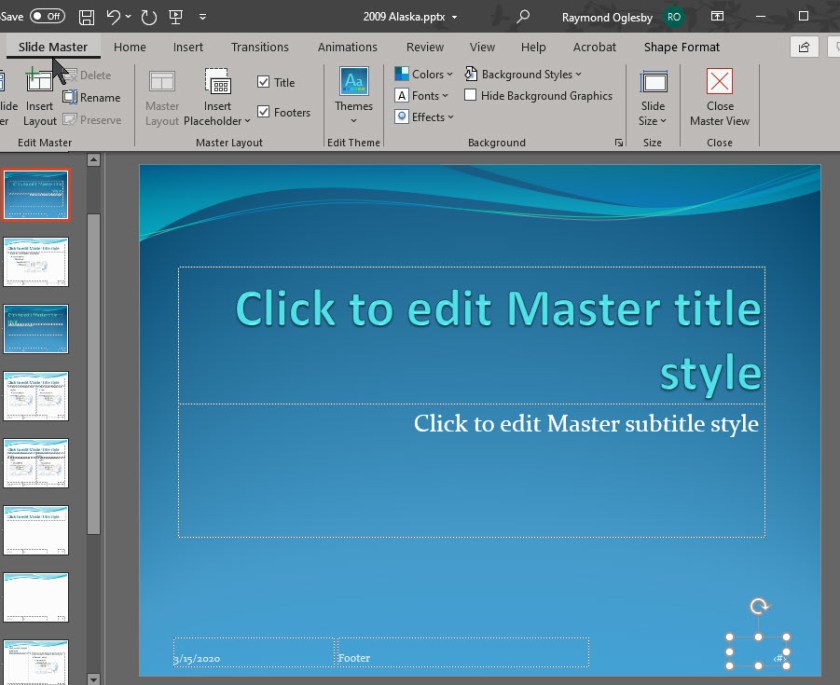
To do this, click View from the main menu, then select Slide Master. This will load the Slide Master editing box. You will see the slide number box in its default position at the bottom right section of the slide. See following image:
Accessing the Slide Master
Note! You could add a text box with the word “Slide” next to the slide number; this is not shown.
When you move or apply a different font, size or color, it will apply to all your slides.
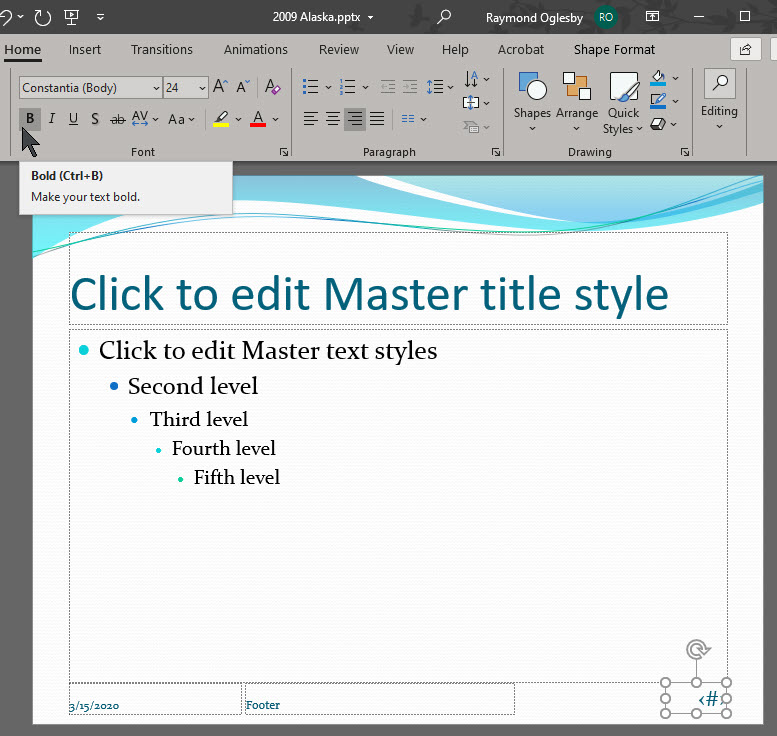
To edit the text box, select the box then select the Home tab. See below image:
Selecting the Home tab for editing
Then you can use the available options in the Font and Paragraph sections to format the number like choosing Bold, Underline, etc. I have set the number to be Bold and made the font size bigger. See below image:
Editing the Slide Number placeholder
Once you have finished editing, return back to the Slide Master tab and click Close Master View button. Refer to below image:
Closing the Slide Master
Be sure to Save your presentation with the automatic slide numbering feature.
Please feel free to leave a comment. I would love hearing from you. Do you have a computer or smart device tech question? I will do my best to answer your inquiry. Please mention the device, app and version that you are using. To help me out, you can send screenshots of your data related to your question.
The author’s Vietnam eBook on the Battle for Tra Bong: Events and Aftermath
This is a summary of Zoom posts I have blogged about over the past few weeks. During the COVID-19 pandemic, many of us are working from home using Zoom for video/audio conferencing. If you take some time, you can make the video meeting a smooth experience for all participants. The host of the Zoom meeting has the responsiblity to setup and run the meeting. By exploring the following blog posts, you can achieve your goal of hosting a successful meeting, making it easy for the participants to join the video conference and keeping the Zoom troll attacks at a minimum.
This if for a PCs and Macs browsers and smartdevices that support Zoom
Copyright Scott Adams, Inc./Distributed by Universal Uclick for UFS
Following are my blog links for a Zoom video/audio meeting:
Please feel free to leave a comment. I would love hearing from you. Do you have a computer or smart device tech question? I will do my best to answer your inquiry. Please mention the device, app and version that you are using. To help us out, you can send screenshots of your data related to your question.
The author’s Vietnam eBook on the Battle for Tra Bong: Events and Aftermath
Internet trolls are crashing Zoom video conferences and flooding them with inappropriate content. Here are some ways to stablize your meetings and keep Zoom running smoothly.
This if for a PCs and Macs browsers and smartdevices that support Zoom
opyright Scott Adams, Inc./Distributed by Universal Uclick for UFS
1. Close All Running Apps
Before you start your video conference call or join the on-line meeting, save your work and close all running apps. Too many open apps will slow down your computer while you’re on a video call. This is because the call requires a lot of resources, especially if you’re on a lightweight laptop.
2. Check the Speed of Your Browser
Before your call, use a speed test tool, like Fast.com or Speedtest.net, to test your internet speed. If you’re not getting enough speed, move closer to your Wi-Fi router or try some other tips to boost your Wi-Fi signal. You can also use one of these tools to speed up your internet connection. Minimum bandwidth is 600 Kbps (up/down) and recommended is 1.5 Mbps (up/down). You may need to call your internet service provider and/or upgrade your equipment, which would be the best choice, if your equipment does not meet the minimum.
If you run both programs, you will notice a signifance difference in the speed test. This is due to the time of day you run the test, servers they are using and its location. Hopefully, your equipment exceeds the minimum speed for a Zoom meeting.
Below are my results in running Speedtest for Windows (Note that I greatly exceed the minimum):
Results in running SpeedTest on my browser
3. Test Your Audio and Video
You can also launch a test Zoom meeting anytime at zoom.us/test. This will launch a meeting where you are the only participant (you can invite others). This option lets you test your audio and video even if you don’t have the Zoom app installed.
See the article Joining A Test Meeting in the Zoom Help Center for more information about using the using the Zoom Test Meeting feature.
4. Mute Yourself When Not Speaking
When you’re in a video meeting with a lot of participants, it’s best to keep yourself muted. Only unmute yourself when you need to speak.
This eliminates any background noise on your end. Also, if anyone walks in the room and starts talking while you’re on a call, you won’t have to rush to find the mute button.
5. Never Use Your Personal Meeting ID
Each Zoom user has a personal meeting ID; think of it as your Zoom phone number. When creating a meeting, you can use your personal ID or generate a random one. You should always generate a random meeting ID.
If your personal meeting ID is leaked to the web, Zoom trolls are free to harass you with calls whenever they please.
6. Always Use a Meeting Password
For a video meeting other than a large classroom, town hall or lecture meeting, passwords should be turned on.
Make sure the password is kept safe. Zoom sends meeting passwords out to all invitees when invitations are sent. If you’re worried that someone unwanted may get the password, create the meeting without one set, update the meeting to add a password and send it out to invitees in a separate email or via another form of communication.
7. Set Join the Waiting Room Option
When you enable the waiting room for a Zoom meeting, each user who connects is put in a queue that the meeting host has to approve. If you don’t recognize someone in the waiting room, simply don’t let them in.
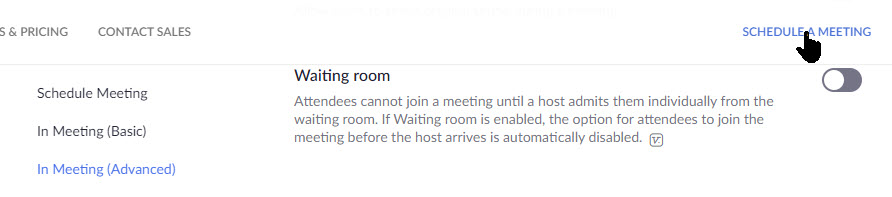
To enable this feature, navigate to Settings > In Meeting (Advanced), scroll down till you see the following option and toggle it to the On position. See below image:
Setting Join Waiting Room option
8. Set Meeting Options
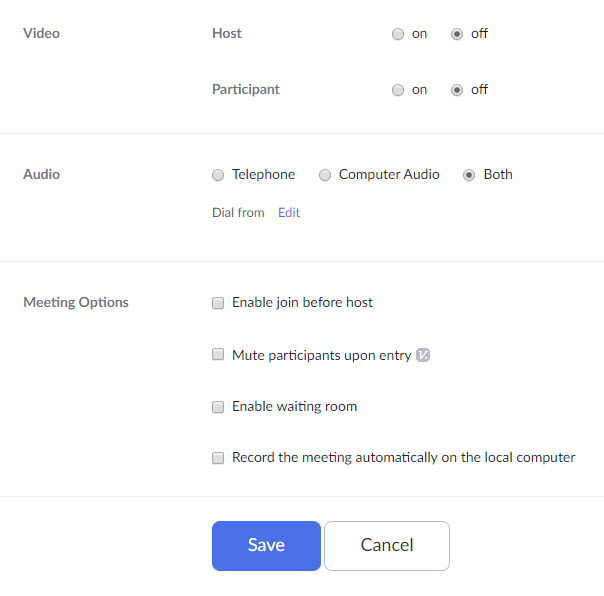
Under Meetings > Schedule a Meeting, set the following options:
Video > Host to On
Video > Participant to Off especially if your participates are using older equipment
Audio set to Both
Meeting Options set Emable waiting room to On. Set Record the meeting automatically on the local computer should only be set to On for the host. You don’t want each particpant to be recording and viewing at the same time. If a participate wants a recording, the host can send the video via email or some other form of communication.
Always Save you changes. Refer to following image:
Setting other options
9.Turn Off Screen Sharing
Zoom trolls need to be able to visually take over a meeting to be effective. Preventing anyone from sharing their screen aside from the meeting host stops them from being able to go on the attack.
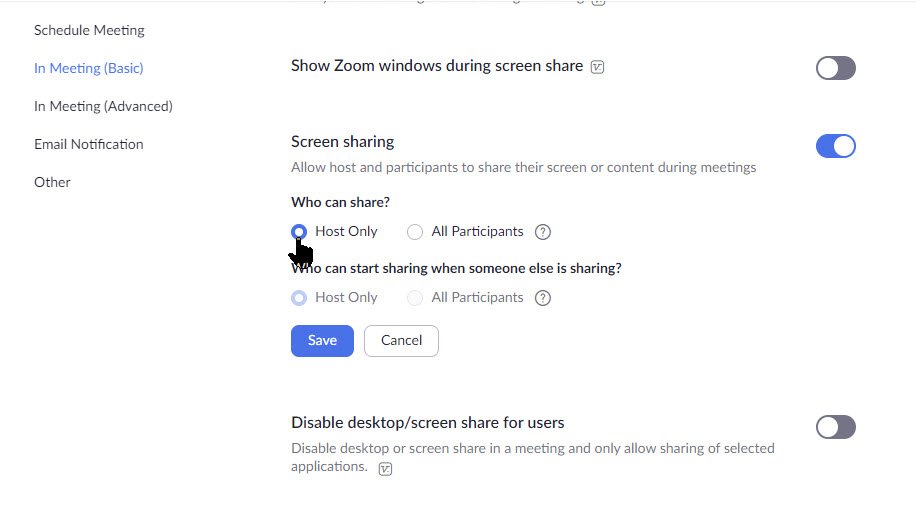
Under Settings > In Meeting (Basic), scroll down till you see the Show Zoom windows during screen share and set the following options:
Screen sharing, toggle to On
Who can share, toggle Host Only to On
Who can share when someone else is sharing, toggle Host Only to On
Always Save your changes. Refer to below image:
Setting screen share option
I Would Like to Hear from You
Please feel free to leave a comment. I would love hearing from you. Do you have a computer or smart device tech question? I will do my best to answer your inquiry. Please mention the device, app and version that you are using. To help us out, you can send screenshots of your data related to your question.
The author’s Vietnam eBook on the Battle for Tra Bong: Events and Aftermath
If you don’t want to see your own face during a Zoom video meeting, here’s how to hide, unhide and tweak your video settings.
A lot of us used to working in offices have found ourselves working at home due to the outbreak of theCoronavirus and that means a lot of virtual meetings. Users new to Zoom’s desktop app may find it a bit odd when their face appears while speaking. If you want to hide your own video, adjust it so you don’t take over the screen or bring it back once it’s hidden, then this post is for you.
There are several options for hiding and unhiding videos during a Zoom meeting, both for yourself and other. Lets get started.
This if for a PC, Macs, iPhone/iPad and Android devices that support Zoom
Copyright Scott Adams, Inc./Distributed by Universal Uclick for UFS
Accessing Zoom Settings
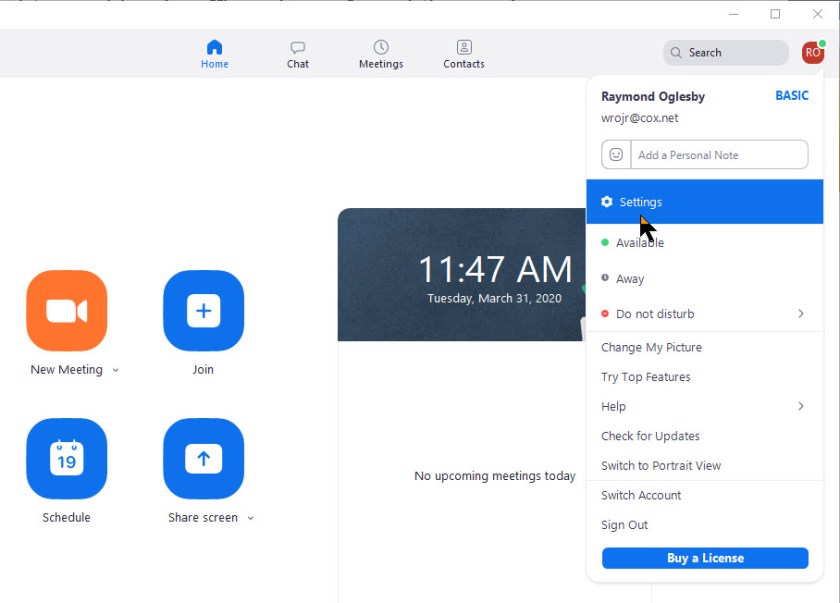
First, fire up Zoom and join an active meeting. Then click on your small profile photo in upper right-hand corner. This will open up the dialog options window. From here, click on the Settings option. See below image:
Accessomg the Settings option
The Video Settings
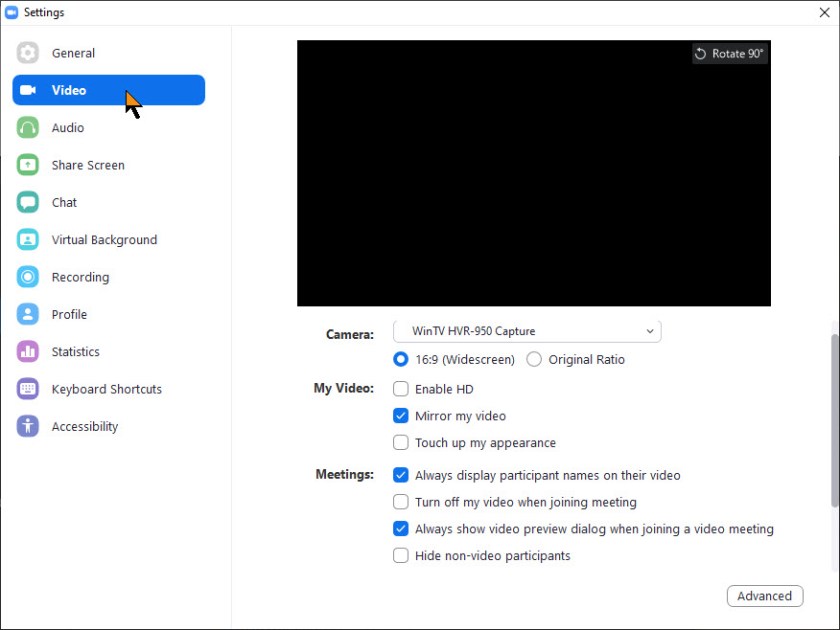
Once you click on the Settings option, the Settings dialog window will be revealed. Now, click on the Video tab. The below image only shows some of the settings.
Note!The black area on the below screens would show your online video image.
The Video tab part one
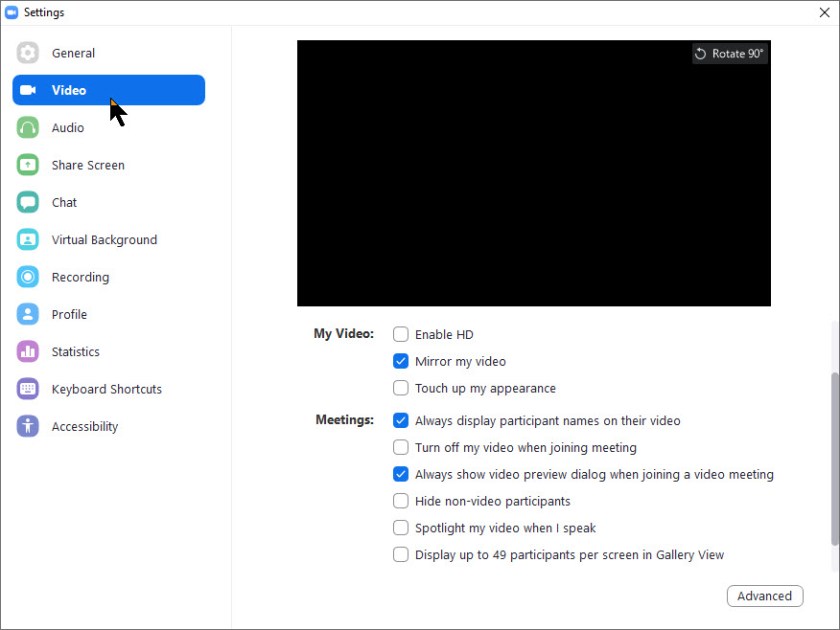
The Video tab has numerous options for configuring video in meetings that will change the way Zoom handles all videos in a meeting. The below image shows the rest of the settings.
The Video tab part two
Hide/Unhide a Video
During a meeting, if you wish to hide your video from your own screen to make room for other participants, just right-click on your video and choose Hide Myself. If you want to bring your own video back onto your screen, just right-click on any other user and select Show Myself.
Note! This won’t disable your video from showing up for other participants; only from from your screen.
To disable your own video completely, you can select the checkbox in the Video Settings screen shown above that says Turn off my video when joining a meeting to disable it, or click the Stop Video button in a meeting to temporary turn it off for the video session.
I Would Like to Hear from You
Please feel free to leave a comment. I would love hearing from you. Do you have a computer or smart device tech question? I will do my best to answer your inquiry. Please mention the device, app and version that you are using. To help us out, you can send screenshots of your data related to your question.
The author’s Vietnam eBook on the Battle for Tra Bong: Events and Aftermath
There is a way to have a Zoom web client meeting without the participates having to install the Zoom app. We are going to learn how to enable this option to make digital meetings even easier.
Zoom’s web client based system has many of the same features as the desktop app, but for users only needing to join meetings as participants it’s very useful. All a attendee has to do is click on the meeting invite link from the host and the web client will do the rest of the work.
There is a sticky problem in doing this type of meeting. The participtes joining a meeting without the app is not enabled by default. The host needs to turn this default on.
If you want your meeting attendees to be able to use the Zoom web client based system, you’ll have to start by logging into your Zoom account on Zoom’s website.
Note! We are NOT using the Zoom app; rather the Zoom web site program.
This if for a PCs and Macs browsers and smartdevices that support Zoom
Copyright Scott Adams, Inc./Distributed by Universal Uclick for UFS
Sign in or Sign up to Zoom
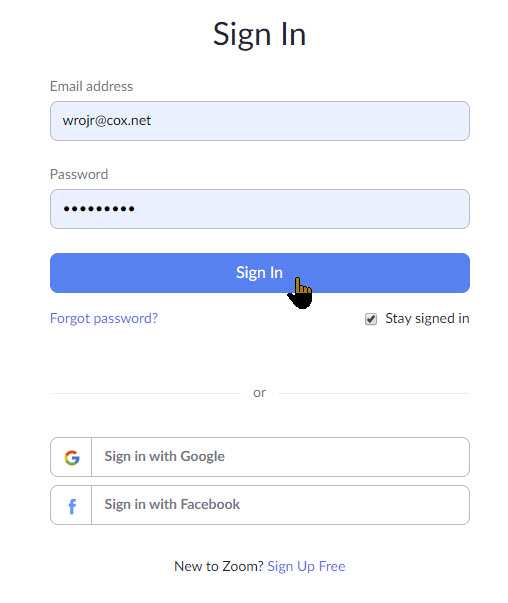
Open your browser and click here to sign in or sign up for Zoom. If the link does not work, with your browser open, type in https://zoom.us/signin in the search field. You will see the following screen for sign in or sign up. For my example, I have already signed up.
Sign in to Zoom web based client program
Once you’ve logged in, you should see your Profile screen:
Your Profile screen
Access the Settings Menu
Click on the Settings menu option. Refer to below image:
Accessing the Setttings
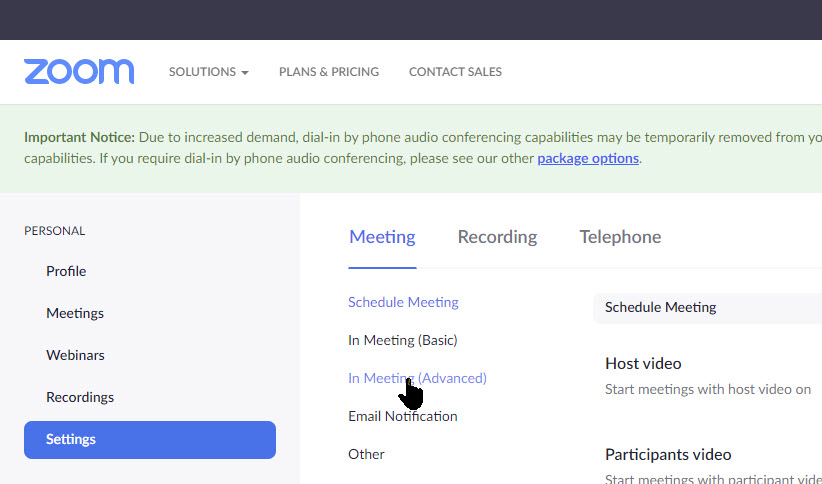
Now, click on In Meeting (Advanced) menu option. Refer to below screen:
Chosing the In Meeting settings option
Join Using Your Browser
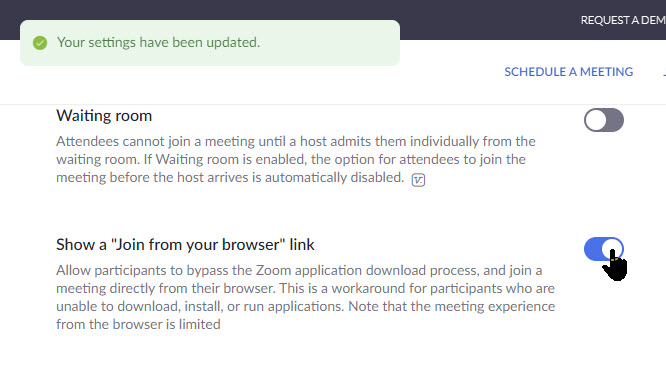
Then scroll down until you see the following screen displayed. Look for the option labeled Show a “Join From Your Browser” link.
The Join a Meeting option
Now click the toggle switch to the On position. See below image:
Enabling Join a Meeting option
Schedule a Meeting
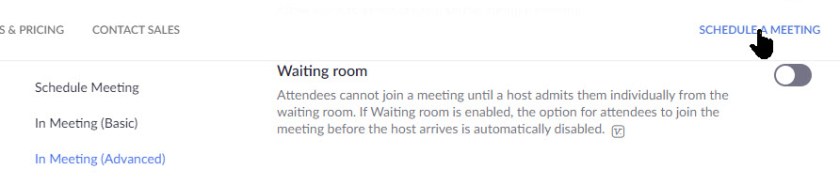
If you want to schedule a meeting at this time, click on the link SCHEDULE MEETING in the top menu bar. If you perfer to schedule a meeting later, you may want to set the following options as displayed on the next three screens. Refer to following image:
Selecting Schedule a Meeting option
Options for Scheduling a Meeting
There are two options you may want to enable. Select Schedule A Meeting>Meetings>My Meetings and scroll down till you see the option Video>Host which allows you to record a video of the meeting. Also, at the bottom, checkmark the option Record the meeting automatically on the local computer. You have the option to let the parcipates also record the meeting as well. It is recommended not to enable this option in order to save bandwidth during the on-line meeting. See following image:
Two Options to enable
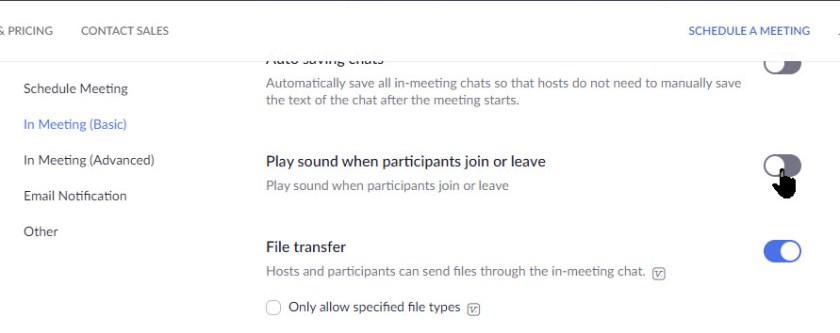
Additionally, under the In Meeting (Basic) menu option, you can turn on a sound when particpates either join or leave a meeting by enabling the Play sound when participates join or leave toggle. See below image:
The Sound option to enable
Invitation to Join a Meeting
When a meeting attendee clicks on your invitation link to join a meeting they’ll have the option to download and install Zoom or Start From Your Browser. Tell your attendees to select the latter option, install the plugin for your browser and follow the on-screen instructions. Refer to below image:
The participate invitation to Join a Meeting screen
There are fewer options, buttons and clicks required to join a meeting using the web client based Zoom, so hopefully it will eliminate some of the confusion that comes with using Zoom. Remember you are using your web browser to join a Zoom meeting, NOT the Zoom app on a smartdevice or the Zoom program on a PC or Mac.
I Would Like to Hear from You
Please feel free to leave a comment. I would love hearing from you. Do you have a computer or smart device tech question? I will do my best to answer your inquiry. Please mention the device, app and version that you are using. To help us out, you can send screenshots of your data related to your question.
The author’s Vietnam eBook on the Battle for Tra Bong: Events and Aftermath
When entering numbers into Microsoft Excel, leading zeros are removed by default. This can be problematic for ZIP codes, phone numbers, credit/debit card numbers and IDs that you type into a cell. We are going to explore some options on fixing this Excel behavior.
If you want to keep a leading zero on the fly, you can enter an apostrophe (‘) before you enter the number that begins with zero. Excel treats the number as a text field. The apostrophe (‘) is not displayed and calculations will still work. But who wants to do this every time, there has to be a better way.
This is for Excel for Office 365 Windows and Mac versions. Other versions of Excel will be similar.
Create the Excel Sheet
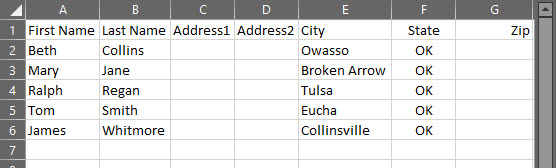
Create a simple Excel sheet like the example below:
Excel Sheet for Zip Codes
Setup the Zip Code Format
Select a cell or range of cells to format; in my case G2 thru G6
Click “Ctrl+1” to load Format Cells dialog. Also, you can right click and select Format Cells.
Select the Number tab
Select Custom from the Category list
In the Type box, type in 00000 for a five digit zip code or 00000-0000 for a nine digit zip code. This allows leading zeros to be placed in the cell, you only have to enter the Zip code numbers. This is not intuitive, you think you have to select a format from the list. Refer to the following image:
Setup Excel Sheet format
Using the Special Zip Code Format
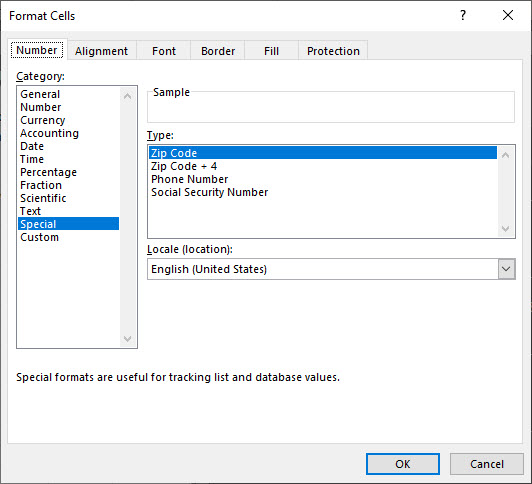
You can also click Special, then select Zip Code or Zip Code + 4. In Google Sheets, this special Zip code format is not available, but you can enter the format of leading zeros. See the following example:
Excel Special Zip Code format
Click OK to apply the format. The 00000 or 00000-0000 format is saved in the Type list for future use.
This will only effect Zip Codes that are entered after the format is applied.
You can also format the Zip Code as Plain Text. Anything you enter will show exactly how you typed it in text.
To do this:
Select your data range
Press “Ctrl+1” to launch the Format Cells dialog box
On the Number tab, click Text
What about Zip Codes entries that have more than 5 digits? We can use a Conditional Format in an adjacent column to flag the invalid Zip codes. I used the formula; if the length (cell reference)>5 is True then present an “Invalid Zip” message, if the expression is False, then no message is presented.
Flagging Invalid Zip Codes
Create a column adjacent to the Zip Code and label it Error Message
Set the Conditional Format for the first cell adjacent to the Zip Code. In my example, it is cell G2
Type in this formula, =IF (LEN(your cell reference)>5,”Invalid Zip”,””)
Copy this formula, then highlight a range of cells, then Paste
See the following image for the Invalid Zip message related to cell G2 and G6, both have more than 5 numbers. An important note, Excel lets you enter as many digits as allowed, there is no truncation. The template of 00000 formatting is for adding leading zeros if the number of digits is less than 5.
Flagging Invalid Zip Codes screen
I Would Like to Hear from You
Please feel free to leave a comment. I would love hearing from you. Do you have a computer or smart device tech question? I will do my best to answer your inquiry. Please mention the device, app and version that you are using. To help us out, you can send screenshots of your data related to your question.
The author’s Vietnam eBook on the Battle for Tra Bong: Events and Aftermath
Facebook’s new website interface change is not well known. At some point, it will probably be the new standard. The interface is getting a visual overhaul that almost everyone can access. You can now update to this brand new, less cluttered design with the click of a button. If you don’t like the change, you can easily switch back to the classic interface.
This if for a desktop/laptop, Macs and smartphones supporting Facebook
Copyright Scott Adams, Inc./Distributed by Universal Uclick for UFS
Enabling the New Interface
Note! This post relates to a PC, other devices will be similar. If you don’t see the new Facebook option then Facebook has yet to rollout the change to your device.
Fire up your device and log in to your Facebook account.
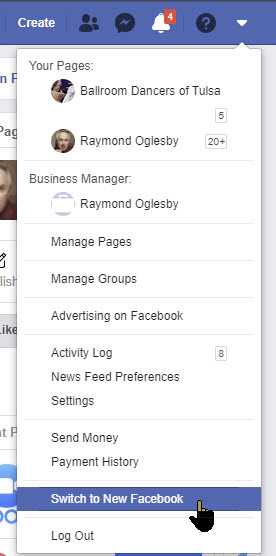
Next, click on the down arrow in the top-right corner of the interface. Select the Switch To New Facebook option. The page will refresh and the new interface design will load. Refer to below image:
Switch to the new Facebook option
A welcome message will appear the first time that you switch to the new Facebook design. Facebook claims that the redesign has faster loading time, cleaner look and bigger text. Additionally, Facebook now includes a dark mode that you can enable whenever you want.
Additionally, this update comes with a user-friendly redesign of the Groups tab and an overhaul of the News Feed. See below image:
The Welcome message for the new interface
Simply click the Next button. You will see the following image allowing you to select how yout interface will look.
Selecting your interface look
Just click the Get Started button. That’s it, you are all set with the new desktop interface. If you aren’t a fan of the Dark mode, you can switch back to Light whenever you like.
Switching Back to the Classic Interface
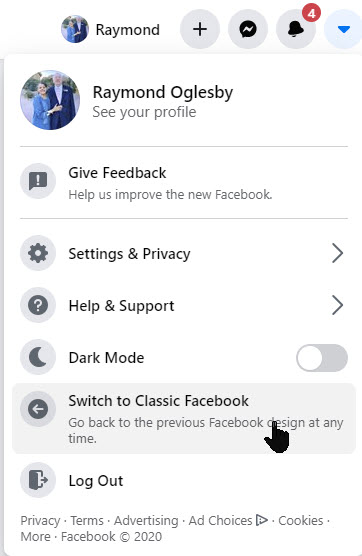
Once you’ve enabled the new interface, you can always revert the change from your Facebook account’s front page. Just click on the down arrow in the top-right and then select Switch To Classic Facebook. See following image:
Reverting back to the Classic interface
At some point in the future, Facebook may decide to roll out the new design permentally for all platforms. If so, reverting back to the classic interface will no longer be an option.
I Would Like to Hear from You
Please feel free to leave a comment. I would love hearing from you. Do you have a computer or smart device tech question? I will do my best to answer your inquiry. Please mention the device, app and version that you are using. To help us out, you can send screenshots of your data related to your question.
The author’s Vietnam eBook on the Battle for Tra Bong: Events and Aftermath


































 Tech Savvy Life