

RAYMOND OGLESBY @RaymondOglesby2
October 27,2026– 3 minutes read time
Overview
The latest version of iOS has brought us the long-awaited Siri upgrade. If you have an iPhone 15 Pro or newer, your iPhone’s virtual assistant is now powered by Apple Intelligence, making it smarter than ever before. You can even invoke Siri right from your Home Screen!
Key Takeaways
- Start using the new Siri AI without ever leaving your Home Screen.
- Use Siri even if you are in a situation where you cannot speak aloud.
System Requirement
This tip was performed on an iPhone 17 Pro running iOS 27.
Click here to learn how to update your iPhone to the latest iOS version.
Using Siri from Home Screen
Note! This post assumes you have Siri enabled and your are running iOS 27 or later.
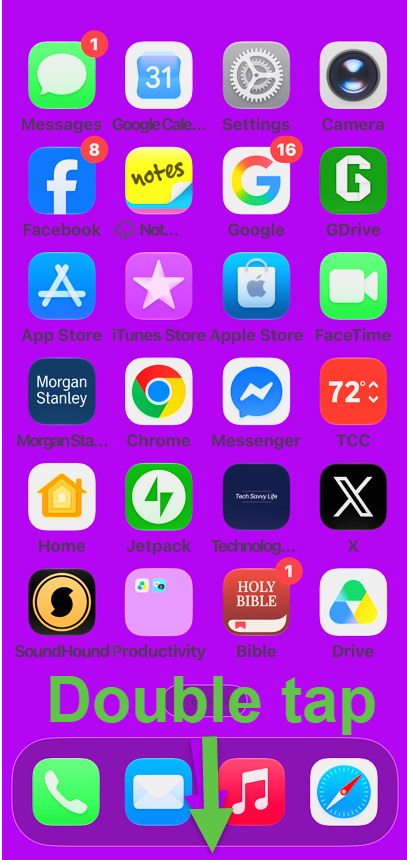
1. To activate “type to Siri” double tap on an the empty area below your Home Bar. Be careful not to tap on a Home Bar icon. Refer to the image below:
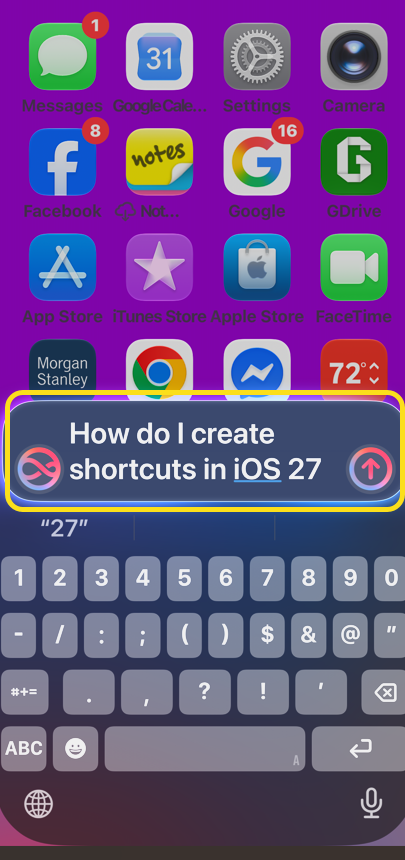
2. Start typing to Siri. See the image below:
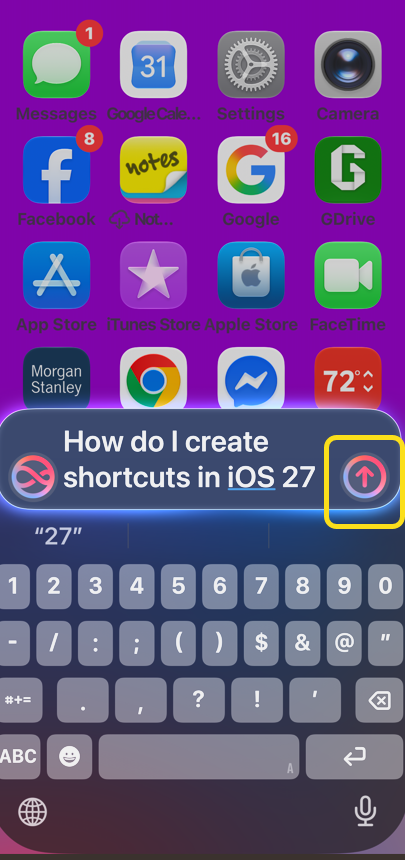
3. Tap the blue up arrow key to show results. See the following image:
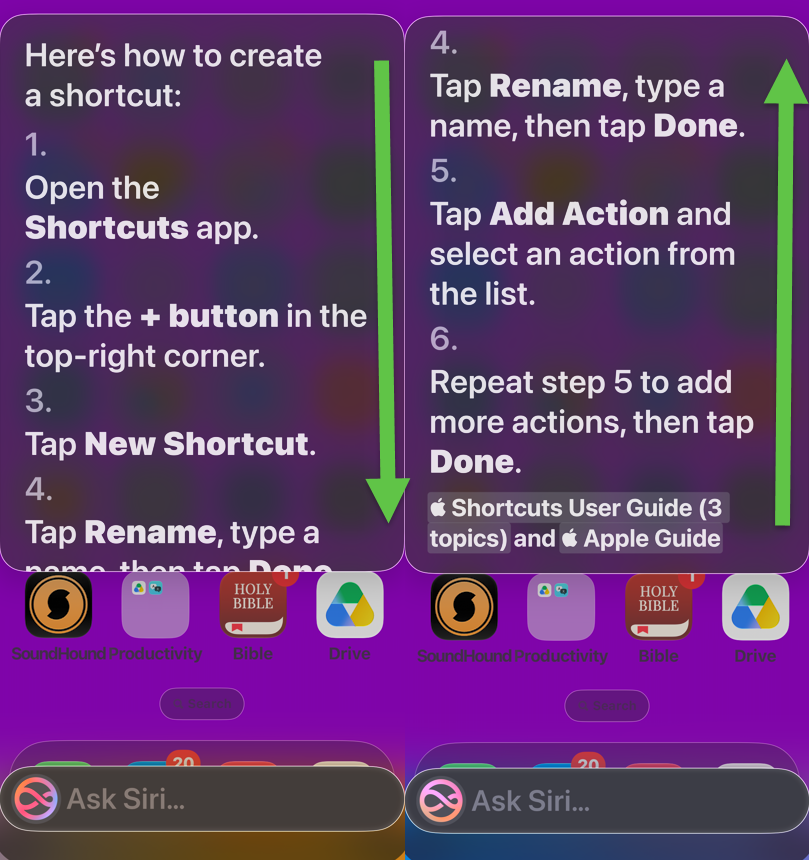
4. Siri will give you a response. Swipe down in the results window to view more. Swipe up to go back. Refer to the image below:
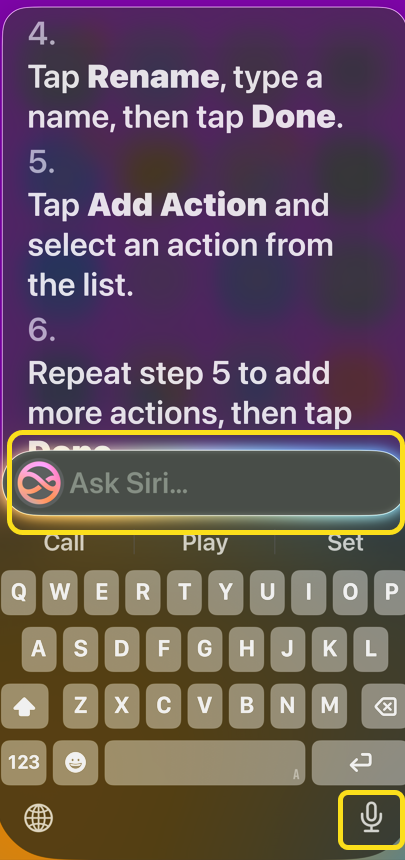
5. You can continue this conversation with Siri in this window, either my tapping the microphone icon and speaking, or tapping the text box and typing. See the image below:
That’s how to use the new Siri app on iPhone! Now you can easily use your AI assistant right from your Home Screen.
Disclaimer
Technology is constantly evolving, and smartphone and desktop tech rarely remains static. Therefore, the information in this post is only accurate as of the date it was written. Blog posts that are older than six months may contain instructions that are no longer compatible with your device or operating system. We hope that the content from previous posts continues to function as intended. Thank you for reading TechSavvy.Life, where technology works for you.
Quote For the Day
Technology feeds on itself. Technology makes more technology possible.
– Alvin Toffler
(X) Twitter Info
That’s it. Please feel free to share this post! One way to share is via Twitter.
Just click the Tweet icon below. This will launch Twitter where you click its icon to post the Tweet.
Checkout TechSavvy.Life for blog posts on smartphones, PCs, and Macs! You may email us at contact@techsavvy.life for comments or questions.
Tweet
I Would Luke to Hear From You
We value your feedback! Was this post helpful? Please share your comments with us. If you have a tech question related to your computer or smart device, feel free to reach out. Just send an email to contact@techsavvy.life, and be sure to include the device, app, and version you are using. To assist us further, you can also attach screenshots related to your inquiry.
The author’s Vietnam eBook, “Battle for Tra Bong Vietnam: Events and Aftermath”, is available on Kindle devices and the Kindle App for desktop, laptop, and smartphone. The apps are free.

