One of the most common forms of shorthand communication developed for the mobile age is the icon-based vocabulary known as Emoji. You have seen those seen Emoji pictures on social media. It’s available for Microsoft Word in Windows 10, MacOS, iOS, iPadOS, and Android.
One of the most common forms of shorthand communication developed for the mobile age is the icon-based vocabulary known as Emoji. You have seen those seen Emoji pictures on social media. It’s available for Microsoft Word in Windows 10, MacOS, iOS, iPadOS, and Android.
Microsoft Word is an indisputable application in the documentation world. When preparing documentations, you can easily insert Emoji to jazz up a Word document on various devices.
You can enter an Emoji in Word in the same way you can enter an Emoji in any other application. While typing in a Word document, just use the appropriate keyboard shortcut for your operating system. Let!s explore how this is done.
This is for devices supporting Microsoft Word. Screenshots are from Windows 10
Copyright Scott Adams, Inc./Distributed by Universal Uclick for UFS
Open Rmoji Keyboard
Open your Word document and position the cursor where you want to insert the Emoji.
For Windows 10 – Press, “Windows + Period” keys or “Windows + Semicolon” keys to open the Emoji picker.
For MaOS – Press “Command + Control + Space” keys to open Emoji keyboard on a Mac, which is a Character Viewer app in MacOS.
For iPhone, iPad, or Android phone, you can use the standard Emoji keyboard.
These keyboard shortcuts work in basically all Windows or Mac applications.
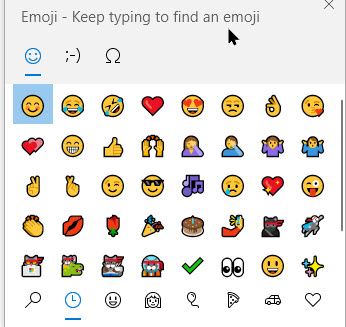
A pop-up will be displayed with all popular emoji symbols. The most frequently used Emoji will appear first. Refer to below image:
The Emoji keyboard
Searching for an Emoji
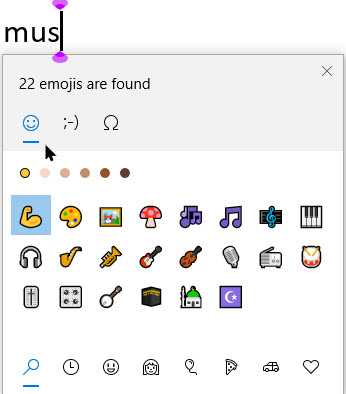
On both Windows and Mac, you can start typing the name of an Emoji to search for it. For example, to find “music” related Emoji, just start typing a few characters of the keyword. You can also just scroll through the long list of Emoji to find one.
Use the arrow keys and press Enter or click an Emoji to insert it. See below image:
Searching for a music Emoji
The Emoji you insert into your document will appear as a colorful icon. You can resize them. adjust their font size, just as you would with any other text in the document.
See following image for an inserted “music”Emoji followed by text:
Inserting an Emoji followed by some text
I hope you have found this post helpful. If so, click the Tweet icon below. This will launch Twitter where you click its icon to post the Tweet.
I have found TechSavvy.Life blog posts extremely helpful. Check them out for posts on smart phone apps, Macs and PCs!
Please feel free to leave a comment. I would love hearing from you. Do you have a computer or smart device tech question? I will do my best to answer your inquiry. Please mention the device, app and version that you are using. To help us out, you can send screenshots of your data related to your question.
The author’s Vietnam eBook on the Battle for Tra Bong: Events and Aftermath
The Translate app, introduced in iOS 14, allows you to quickly translate between languages using text or voice input. With speech output, support for a dozen languages, and a comprehensive built-in dictionary, it’s an essential tool for travelers or students.
The Translate app, introduced in iOS 14, allows you to quickly translate between languages using text or voice input. With speech output, support for a dozen languages, and a comprehensive built-in dictionary, it’s an essential tool for travelers or students.
By default, the app uses cloud services to perform translations. However, you can also enable offline translation on your iPhone running this app by downloading the languages.
As a disclaimer, Apple warns that the offline translations might not be as accurate as online translations. This is because in the offline mode, the app does not use Apple’s cloud computing’s ability to deliver the best translated results.
Still, it’s handy if you do not have a network connection, especially while traveling to third world countries where Internet bandwidth is poor. It is also ideal if you have a sensitive job and do not want any translation data transferred over the Internet or potentially stored in the cloud
Let’s explore how to setup offline translation.
This is for the iPhone running iOS 14
Copyright Scott Adams, Inc./Distributed by Universal Uclick for UFS
Accessing Translate
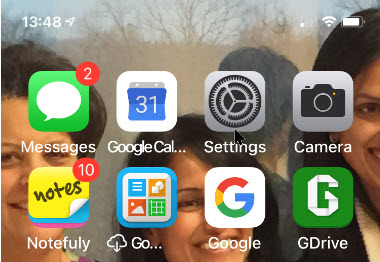
First, launch Settings (the Gear icon). Refer to below image:
Accessing Settings
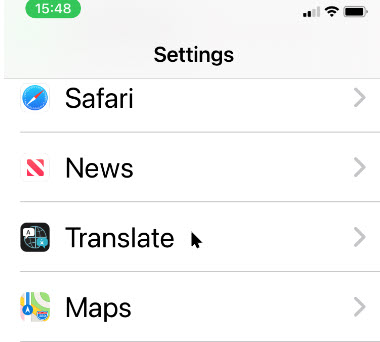
Next, scroll way down and tap Translate. See below image:
Accessing Translate option
Enable On Device
Now, toggle to On the label On device mode. See following image:
Enabling on=device mode
Download Languages
A pop-up will be displayed alerting you that you need to download languages to translate locally on your device. Just tap Open App. Refer to below image:
Accessing Open App link
Next, a pop-up message will be displayed about the download of languages. See below image:
Downlaod of languages message
On the next screen, tap either of the two language pair buttons at top of the page. See following image:
In the list that appears, scroll down to the AvailableOffline Languages section. Now, tap the language you want to use offline, and it will download automatically. Please wait for the download to finish.
Now, repeat the above procedure for other language(s).
Once a language is downloaded, a checkmark will appear beside it. In my example, I have downloaded Spanish, so now I have English and Spanish for offline translations. Refer to below image:
Checkmark of downloaded languages
Translate Off Line
Next, tap Done in upper right-hand corner and you will be returned to the main Translate screen. Now, type in your text and the app will translate as usual but without a network connection. All of your translations will stay on your local device. See below example for translation from English to Spanish:
Translating Englis to Spanish
To return to cloud service translation, just toggle Off the label On device mode in Settings.
You are finished! You now have mastered offline translation on your iPhone.
I hope you have found this post helpful. If so, click the Tweet icon below. This will launch Twitter where you click its icon to post the Tweet.
I hope you have found this post helpful. If so, click the Tweet icon below. This will launch Twitter where you click its icon to post the Tweet.
Please feel free to leave a comment. I would love hearing from you. Do you have a computer or smart device tech question? I will do my best to answer your inquiry. Please mention the device, app and version that you are using. To help us out, you can send screenshots of your data related to your question.
The author’s Vietnam eBook on the Battle for Tra Bong: Events and Aftermath
The Translate app, introduced in iOS 14, allows you to quickly translate between languages using text or voice input. With speech output, support for a dozen languages, and a comprehensive built-in dictionary, it’s an essential tool for travelers or students.
The Translate app, introduced in iOS 14, allows you to quickly translate between languages using text or voice input. With speech output, support for a dozen languages, and a comprehensive built-in dictionary, it’s an essential tool for travelers or students.
This is for the iPhone running iOS 14
Copyright Scott Adams, Inc./Distributed by Universal Uclick for UFS
Locate the App
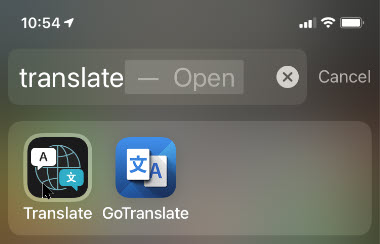
First, let’s locate the Translate app. From your first Home screen, swipe right to open Today View. Now, type “translate” into the search bar that appears, then tap the Apple Translate icon (the first one in my example). If this is the first time to launch the Translate app, you will be presented with a few introductory screens; just follow the instructions to start the app. Refer to below image:
Accessing the Apple Translate app
When Translate opens, make sure you are in translate mode by tapping the Translate button at the bottom of the screen. See below image:
Accessing Translate button
Select the Languages
Next, you willl need to choose the language pair using the two buttons at the top of the screen.
The button on the left sets the source language, and the button on the right sets the destination language. See following image:
Accessing Source and Destination lanuguage
Just tap either language to select your source or destination language. When finished, tap Done in upper right-hand corner. Refer to below image:
Selecting your languages
Translation by Text
Now it’s time to enter the phrase you would like to translate. If you would like to type it with an on-screen keyboard, tap the Enter Text area on the main Translate screen. See below image:
The text input area
Your screen will display an on-screen keyboard. Type in what you would like to translate , then tap Go at the bottome right-hand corner. See Following image:
Entering text to translate
Translation by Voice
Another method is to speak the phrase that needs translation. Just tap the Microphone icon at the bottom on the main Translate screen. Refer to below image:
Accessing microphone
When the screen changes, say the phrase you would like to translate out loud. As you speak, Translate will recognize the words and write them out on your screen. See below image:
The translated text
When you are finished, you will see the resulting translation on the main screen, just below the phrase you spoke or entered.
Favorites and Dictionary
At the bottom of your screen, you will see a toolbar. See following image:
The Translate toolbar
If you press the Favorite button (which resembles a star), you can add the translation to your Favorites list. You can access it later by pressing the Favorites button at the bottom of the screen. Refer to below image:
Saving to Favorites
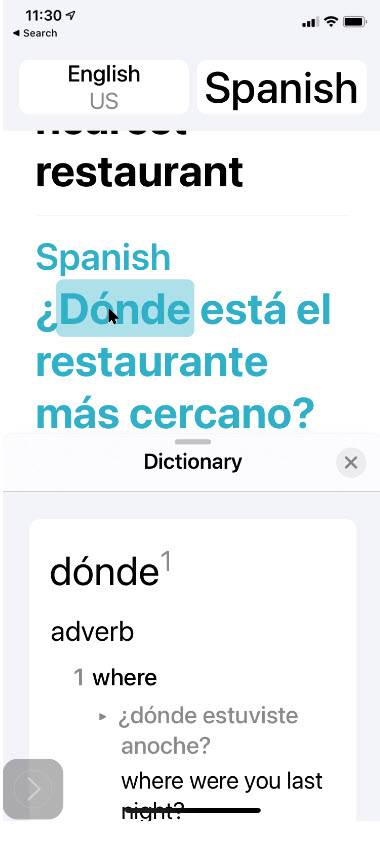
If you press the Dictionary button (which resembles a book) in the toolbar, the screen will to switch to Dictionary mode. In this mode, you can tap each individual word in a translation to see what it means. The Dictionary can also help you explore possible alternative definitions for the selected word. See below image:
Accessing the Dictionary
Playback
If you press the Play button (a triangle in a circle) in the toolbar, you can hear the translation result spoken aloud by a computer synthesized voice. See following image:
Playback your translation
That’s it. I hope you find this helpful on your travels to other countries or as a student mastering a different language.
I hope you have found this post helpful. If so, click the Tweet icon below. This will launch Twitter where you click its icon to post the Tweet.
I have found TechSavvy.Life blog posts extremely helpful. Check them out for posts on smart phone apps, Macs and PCs!
Please feel free to leave a comment. I would love hearing from you. Do you have a computer or smart device tech question? I will do my best to answer your inquiry. Please mention the device, app and version that you are using. To help us out, you can send screenshots of your data related to your question.
The author’s Vietnam eBook on the Battle for Tra Bong: Events and Aftermath
Does your iPhone earpiece sound muffled or somewhat weird? The iPhone has a microphone next to the iSight camera for noise cancellation, allowing the user to block out ambient noise and get a more clearer sound in the earpiece. But at times, noise cancellation can be a hit or miss, resulting in muffled or fuzzy sound, making things tough to understand. If you’re facing such an issue, let’s turn off noise cancellation to fix things in a jiffy.
Does your iPhone earpiece sound muffled or somewhat weird? The iPhone has a microphone next to the iSight camera for noise cancellation, allowing the user to block out ambient noise and get a more clearer sound in the earpiece. But at times, noise cancellation can be a hit or miss, resulting in muffled or fuzzy sound, making things tough to understand. If you’re facing such an issue, let’s turn off noise cancellation to fix things in a jiffy.
This is for the iPhone running iOS 14
Copyright Scott Adams, Inc./Distributed by Universal Uclick for UFS
To Tweet about this post, click the Tweet icon below to launch Twitter, then click its Tweet icon to post.
Check out TechSavvy.Life for their blog posts on smartphone apps, PCs. and Macs!
Phone noise cancellation, first introduced in iOS 7, monitors levels of ambient background noise and produces an inverse audio signal to cancel that background noise, so you don’t hear it on a phone call. The technology works best with continuous low-level background noise, and it typically works very well. But sometimes it can produce an eerily quiet phone conversation or unsettling audio sounds, such as small crowd noises or low-level background music.
Also, some people find the noise-cancellation effect physically uncomfortable especially when using a headset. Fortunately, phone noise cancellation is easy to turn off on the iPhone. Let’s explore how to do this.
Disable Noise Cancellation
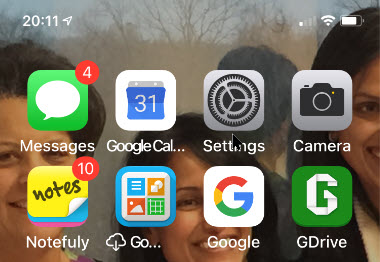
First, open Settings (the gear icon). Refer to below image:
Accessing Settings
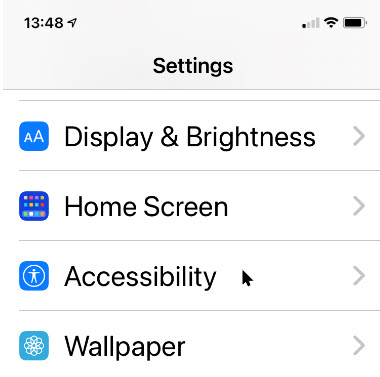
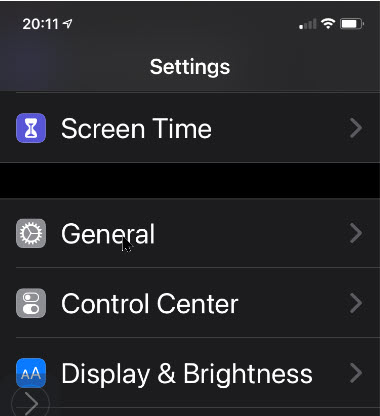
Now, scroll down and launch Accessibility. See below image:
Accessing Accessibility
Next, scroll down to the Hearing section and tap Audio/Visual. See following image:
Accessing Audio/Visual
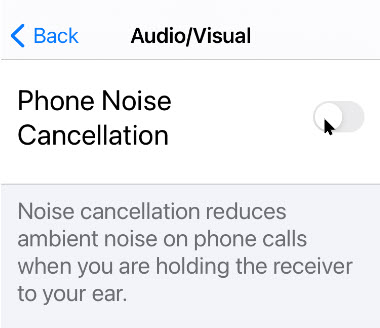
Now, tap the Phone Noise Cancellation toggle to turn it off (the default setting is On). Refer to below image:
Disabling Phone Noise Cancellation
Next, let’s go back one screen to make sure the change registers. You can now exit Settings. The next time you place or receive a phone call, noise cancellation will be disabled.
That’s it. You may enable the feature at any time by following the above steps.
I hope you have found this post helpful. If so, click the Tweet icon below. This will launch Twitter where you click its icon to post the Tweet.
I have found TechSavvy.Life blog posts extremely helpful. Check them out for posts on smart phone apps, Macs and PCs!
Please feel free to leave a comment. I would love hearing from you. Do you have a computer or smart device tech question? I will do my best to answer your inquiry. Please mention the device, app and version that you are using. To help us out, you can send screenshots of your data related to your question.
The author’s Vietnam eBook on the Battle for Tra Bong: Events and Aftermath
f you use a lot of terms, proper names, acronyms, or places, you may want to turn off Auto-Correct that is enabled by default.
If you use a lot of terms, proper names, acronyms, or places, you may want to turn off Auto-Correct that is enabled by default.
When your iPhone or iPad corrects a word automatically, it’s drawing on both a dictionary and a predictive text algorithm that learns from how you type. The dictionary may not include every proper name, acronym, or new term as it appears on the screen, so it can be frustrating when Auto-Correct changes what you know is correct. Also, if you misspell a certain word frequently enough, the predictive text algorithm will learn that typo, and it may begin “fixing” correct instances of a word or term when you do not want it to.
The easiest way to deal with Auto-Correct is to turn it off completely. (Note! IFfyou use an everyday language, it is recommended not to disable this feature to avoid typos). If you need to turn it off, here’s how to disable Auto-Correct.
This is for the iPhone or iPad running iOS 14
Copyright Scott Adams, Inc./Distributed by Universal Uclick for UFS
To Tweet about this post, click the Tweet icon below to launch Twitter, then click its Tweet icon to post.
Check out TechSavvy.Life for their blog posts on smartphone apps, PCs. and Macs!
Please feel free to leave a comment. I would love hearing from you. Do you have a computer or smart device tech question? I will do my best to answer your inquiry. Please mention the device, app and version that you are using. To help us out, you can send screenshots of your data related to your question.
The author’s Vietnam eBook on the Battle for Tra Bong: Events and Aftermath
Starting with iOS 14, you can choose whether to place downloaded apps either on the Home Screen or in the App Library on your iPhone. The latter option can help you keep the Home Screen uncluttered.
Starting with iOS 14, you can choose whether to place downloaded apps either on the Home Screen or in the App Library on your iPhone. The latter option can help you keep the Home Screen uncluttered. Let’s explore how this is done.
This is for the iPhone running iOS 14
Copyright Scott Adams, Inc./Distributed by Universal Uclick for UFS
To Tweet about this post, click the Tweet icon below to launch Twitter, then click its Tweet icon to post.
Check out TechSavvy.Life for their blog posts on smartphone apps, PCs. and Macs!
First, launch Settings (the gear icon). Refer to below image:
Accessing Settings
Now, scroll down to the Home Screen option and tap it. See below image;
Accessing the Home Screen option
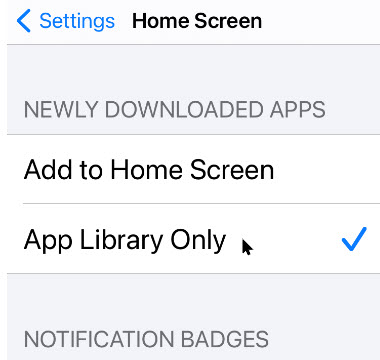
Locate the Newly Downloaded Apps section. There, you will find the two choices:
Add to Home Screen – If you want new apps you download to appear on the Home Screen (the default behavior prior to iOS 14). Apps will also appear in the App Library.
App Library Only – If you want new apps to appear only in the App Library. You can get to the App Library by swiping right through all of your Home Screen pages or swiping on the Dots Bar at bottom of your screen.
Regardless of what method you chose, your new app will appear in the App Library.
It appears that Apple is wanting to move away from the outdated Home Screen page(s) to the new App Library feature.
See following image:
Your Home Screen options
After you have made your selection, a checkmark will appear beside your choice.
Tap Settings and make sure your change has been saved. From now on, whenever you download a new app, it will appear in the location you have chosen.
If you have chosen App Library Only, you can find your new apps in the Recently Added section of the App Library. Refer to below image:
Recently Added app library
To move an app from the App Library to the Home Screen, simply hold and press down its icon, then tap Add to Home Screen in the menu that appears.
If you have chosen Add to Home Screen, newly downloaded apps will appear in the first blank spot on one of your Home Screen pages.
You can also move apps from the Home Screen to the App Library. To do so, just tap and hold a blank area of the Home Screen until the icons start to jiggle. Next, tap the app you want to move. Next, tap Remove App, then tap Move to App Library.
That’s it. I find the new App Library feature clunky and cumbersome to use. For now, you are unable to create new groupings or move apps between groupings. Apple has more work to do to make the App Library an easy to use feature.
I hope you have found this post helpful. If so, click the Tweet icon below. This will launch Twitter where you click its icon to post the Tweet.
I have found TechSavvy.Life blog posts extremely helpful. Check them out for posts on smart phone apps, Macs and PCs!
Please feel free to leave a comment. I would love hearing from you. Do you have a computer or smart device tech question? I will do my best to answer your inquiry. Please mention the device, app and version that you are using. To help us out, you can send screenshots of your data related to your question.
The author’s Vietnam eBook on the Battle for Tra Bong: Events and Aftermath
Do Mot Disturb is a helpful iPhone setting when you do not want to be interrupted, such as at meetings, formal events, driving, or at night.
Do Mot Disturb is a helpful iPhone setting when you do not want to be interrupted, such as at meetings, formal events, driving, or at night.
This option stops notifications, alerts, and calls from making any noise, vibration, or lighting up the iPhone when the screen is locked.
In this post, we are exploring how to send an “Auto-Reply” message when you receive a text message and who can receive that message once you have Do Not Disturb enabled.
This is for the iPhone
Copyright Scott Adams, Inc./Distributed by Universal Uclick for UFS
To Tweet about this post, click the Tweet icon below to launch Twitter, then click its Tweet icon to post.
Check out TechSavvy.Life for their blog posts on smartphone apps, PCs. and Macs!ds
First, open Settings by tapping the gear icon. Refer to below image:
Accessing Settings
Setup for Do Not Disturb
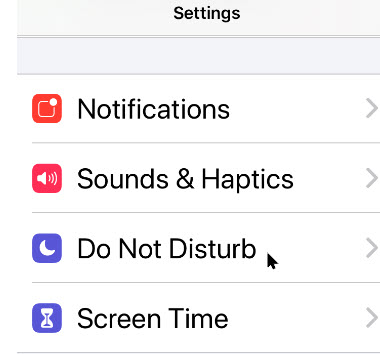
Now, locate and tap the Do Not Disturb option. See below image:
Accessing Do Not Disturb option
Next, enable the Do Not Disturb option. See following image;
Enabling Do Not Disturb toggle
Setup for “Auto-Reply” Message
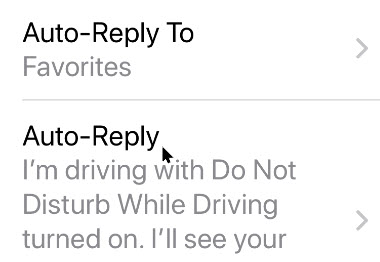
Now, scroll down until you see the “Auto-Reply” options. Tap Auto-Reply .Refer to below image:
Accessing “auto-reply” option
On the next screen, tap the text input area, and type any message you would like. Or, you can chose one of the canned messages. The message will be automatically texted to people you select that send you a message while your Do Not Disturb is enabled.
When you are done entering your message, or choosing one, tap the blue link Back button. See below image:
Choosing an “auto-reply” message
Setup Your Audience
Now, tap Auto-Reply To in the Do Not Disturb options.
You will see a list of options, including No One, which turns off “Auto-Reply”. Tap an option to select it. See following image:
Selecting your audience for the Do Not Disturb message
In my example, I am choosing the “I am driving…” canned message sent to my Contacts Favorities list.
When yo are done, tap the blue link Back button, then exit Settings.
That its. You have now set a Do Not Disturb “Auto-Reply” message.
I hope you have found this post helpful. If so, click the Tweet icon below. This will launch Twitter where you click its icon to post the Tweet.
I have found TechSavvy.Life blog posts extremely helpful. Check them out for posts on smart phone apps, Macs and PCs!
Please feel free to leave a comment. I would love hearing from you. Do you have a computer or smart device tech question? I will do my best to answer your inquiry. Please mention the device, app and version that you are using. To help us out, you can send screenshots of your data related to your question.
The author’s Vietnam eBook on the Battle for Tra Bong: Events and Aftermath
One unique feature of Microsoft Word is the ability to insert a PDF file directly into Word, and it can be done in only a few steps. You can insert it as an embedded object, a linked object, or text only.
One unique feature of Microsoft Word is the ability to insert a PDF file directly into Word, and it can be done in only a few steps. You can insert it as an embedded object, a linked object, or text only. Let’s explore how to do this.
This is for devices supportingMicrosoft Word
Copyright Scott Adams, Inc./Distributed by Universal Uclick for UFS‘
To Tweet about this post, click the Tweet icon below to launch Twitter, then click its Tweet icon to post.
Check out TechSavvy.Life for their blog posts on smartphone apps, PCs. and Macs!
When you embed a PDF file in Word, the first page of your PDF appears in the document. Since an embedded object becomes part of the document after it is inserted, it’s no longer connected to the source file. Any changes made to the original PDF in the future will not be reflected in the Word document.
Linking Explained
Inserting a PDF file as a linked object means it appears as the first page of the PDF, but it is also linked to the original file. Changes made to the PDF will also be reflected in the Word document. You can opt to display an icon instead of a preview. Either option will open the PDF file when selected.
Text Only Explained
Inserting a PDF as text involves the use of copy and paste. Copying the text from the PDF file and pasting it into a document is a straightforward way to insert a bit of text into Word.
Embed or Link a PDF
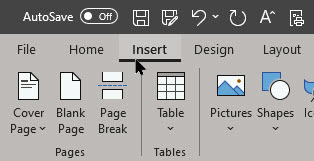
First, open a Word document, and place your cursor where you would like to insert the PDF file. Next, select the Insert tab. Refer to below image:
Selecting the Insert tab
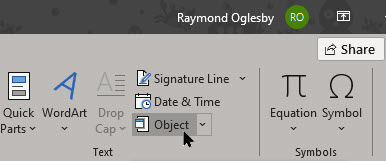
Now, click Object from the Text group. See below image:
Selecting the Object option
From the small drop-down menu, select Object. See following image:
Selecting the Object option from drop-down menu
From the Object window, click the Create from File tab. Next, select Browse. Refer to below image:
From the Create from file tab, selecting the Browse option
Navigate to the location of the PDF, select it, and then click Insert. See below image:
Selecting your PDF file to Insert into Word
Selecting Your Options
Now, it is time to decide if you want to (1) link directly to the source file, and/or (2) display the PDF as an icon. Link directly to the source file if you want to have the inserted file reflect any new changes made to the source file. To do so, just checkmark the Link to file option. You are linking to the PDF in your document.
While here, checkmark Display as icon if you don’t want to take up too much space on the page. If you do not enable any of these options, the PDF will be displayed in its entirety on the Word document and will not reflect any new changes made to the source file. You are embedding the PDF into your document.
To finish, select OK. Refer to below image:
Selecting ink your PDF file and display an icon
The PDF will now be inserted in the Word document. See below image:
Your linked PDF file displayed as an icon in Word
Copy and Paste
Copy
First, open your PDF file. Now, highlight some text you want to copy. Next, right-click your selection and select Copy.
Paste
Second, open your Word document. Now, place the cursor where you want to paste the text from the PDF file. Next, right-click and select a Paste option with or without formatting.
I hope you have found this post helpful. If so, click the Tweet icon below. This will launch Twitter where you click its icon to post the Tweet.
I have found TechSavvy.Life blog posts extremely helpful. Check them out for posts on smart phone apps, Macs and PCs!
Please feel free to leave a comment. I would love hearing from you. Do you have a computer or smart device tech question? I will do my best to answer your inquiry. Please mention the device, app and version that you are using. To help us out, you can send screenshots of your data related to your question.
The author’s Vietnam eBook on the Battle for Tra Bong: Events and Aftermath
IOS 13 or higher allows you to automatically close tabs in Safari after a specified period of time, which helps to keep your iPhone running smoothly.
IOS 13 or higher allows you to automatically close tabs in Safari after a specified period of time, which helps to keep your iPhone running smoothly.
You can have up to 500 open tabs. This number of active browser tabs can quickly get out of hand. It gets to be kind of a pain to go swiping through all your open tabs every few weeks to clean out the ones you no longer use.
Fortunately, in the Safari settings on your iPhone or iPad, you can set how long your tabs stay open before they automatically close; after one day, after one week or after one month. Let’s explore how to set this feature.
This is for the iPhone and iPad
Copyright Scott Adams, Inc./Distributed by Universal Uclick for UFS
To Tweet about this post, click the Tweet icon below to launch Twitter, then click its Tweet icon to post.
Check out TechSavvy.Life for their blog posts on smartphone apps, PCs. and Macs!
One solution is using the Close All Tabs option revealed by a long press on Done. But it’ is no good if you have a handful of newer tabs that are still useful to have open. Refer to below image:
Close All Tabs option
The Settings Solution
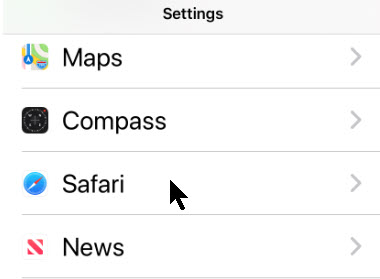
First, open Settings. Next, scroll down until you see the Safari option and tap it. See below image:
Safari option under Settings
Now, swipe down to the Tabs section, then tap Close Tabs. See following image:
Close Tabs option under Safari
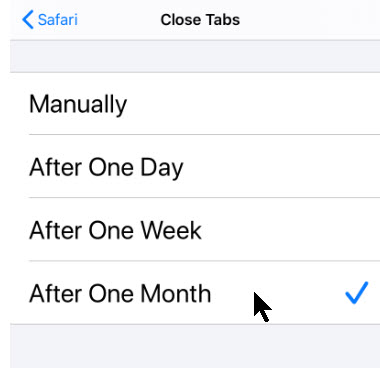
On this screen, you have the option to set the duration of open Safari browser tabs. When set, Safari will close tabs that have not been viewed within the period of time you set. The options are Manually, After One Day, After One Week or After One Month. This setting applies to Private tabs as well.
Checkmark an option that suits you. Refer to below image:
Select an option to automatically close Safari tabs
Now, you can exit Settings.
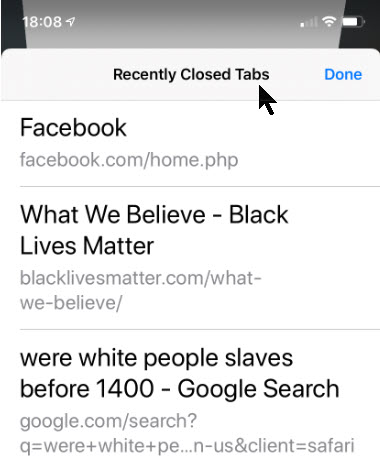
However, you can still find the automatically closed tabs as well as Private tabs in the Recently Closed Tabs menu by holding down the + (plus) button on the tab management screen in Safari. See below image:
Viewing Recently Closed Tabs
This is a potential downfall in using this feature. If you want to fully conceal recent browsing activity, it may be best to manually close the tabs.
I hope you have found this post helpful. If so, click the Tweet icon below. This will launch Twitter where you click its icon to post the Tweet.
I have found TechSavvy.Life blog posts extremely helpful. Check them out for posts on smart phone apps, Macs and PCs!
Please feel free to leave a comment. I would love hearing from you. Do you have a computer or smart device tech question? I will do my best to answer your inquiry. Please mention the device, app and version that you are using. To help us out, you can send screenshots of your data related to your question.
The author’s Vietnam eBook on the Battle for Tra Bong: Events and Aftermath
In addition to the App Library feature, another prominent change in iOS 14, is the addition of Widgets that can be added to any page.
In addition to the App Library feature, another prominent change in iOS 14, is the addition of Widgets that can be added to any page.
We have had Widgets on the Today View (the screen to the left of your first Home Screen) for years, but not a lot of people use that screen. And what’s the point of glanceable info if you have to swipe around to see it?
With iOS 14, Apple is replacing the old Widgets with all new ones that are more dynamic, can pull in more information, come in three sizes, and most importantly, can be placed anywhere on the Home Screen. Let’s explore how this is done.
This is for the iPhone running iOS 14
Copyright Scott Adams, Inc./Distributed by Universal Uclick for UFS
To Tweet about this post, click the Tweet icon below to launch Twitter, then click its Tweet icon to post.
Check out TechSavvy.Life for their blog posts on smartphone apps, PCs. and Macs!
Touch and hold an empty area on your screen until your apps jiggle and show minus (-) symbols. or tap Edit Home Screen. Refer to below image:
The Jiggle screen
Tap the plus /+) sign in the upper-left corner. See below image:
Selecting to add a Widget
You will bring up a menu of existing Widgets. See following image:
Existing Widgets to chose from
Tap on the Widget you want to add, or use the search bar to find one. Swipe left and right to choose the Widget’s size and shape.
Widgets can come in three sizes. Small Widgets are the same size as a 2 by 2 block of app icons. Medium Widgets are two icons high, but four icons wide (taking up the entire width of your Home Screen). Large Widgets are four icons wide and four icons tall.
Tap Add Widget. Refer to below image:
Adding a Widget
Once you have added the Widget, tap anywhere on the Home Screen to go out of edit (jiggle) mode.
Note! The first time you tap the new Widget, you may be asked to adjust its features (for example, to tell a weather Widget in what you want it to report).
You can even place multiple copies of the same Widget!
Move or Delete a Widget
To move the Widget around the screen or to another screen, just long-press it until it starts to shake and then move it where you want it.
If you want to get rid of the Widget, long-press to bring up a remove option or tap the little (-) button in the upper left corner of the Widget. See below image:
Remove a Widget
Create a Widget Stack
You can create a stack of Widgets if you want to save space or if there’s one Widget you will only want to use occasionally.
To create a stack:
Select a Widget for your Home Screen as described above and place it where you want it. Select the next Widget you want to stack (you can stack as many as 10) and save it to your Home Screen. See following image:
Selecting Widgets to create a stack
Long press the Widget so that you can move it around the screen, and place it on top of the first. Note that the Widget must be the same size and shape; you can not, say, place a small Widget on a medium-sized one. Refer to below image:
Creating the stack
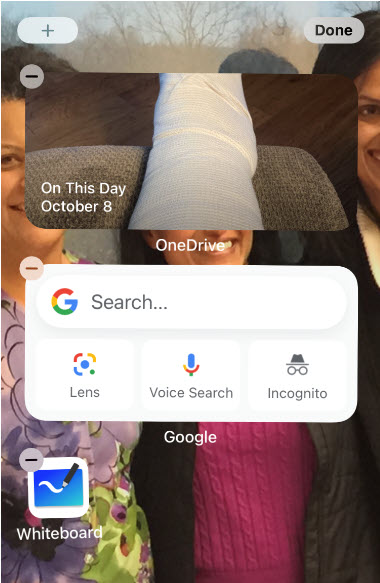
To see each Widget in your stack, swipe up or down on the top Widget and the next one will be revealed. In my example, I have stacked OneDrive on top of Google Search.
Tap Done when finished. See below image:
The finished stack consisting of OneDrive and Google Drive
Move or Delete a Widget Stack
If you want to change the position of or remove any of the apps in the stack:
Long press the stack and select Edit Stack. See following image:
Edit a stack
Press the three lines to the side of each app to change its position in the stack. Refer to below image:
Change an app position in the stack
In my example, I have stacked Google Drive on top, previously it was OneDrive. See below image :
Positioned Google Drive to be on top of OneDrive
To remove a Widget, swipe it to the left and tap Delete.
The Smart Rotateoption, if On, will automatically rotate the Widget you use the most to the top. If Off, the Widgets are fixed.
Use the Smart Stack
Apple has also created a feature it calls a Smart Stack, which will automatically choose which Widget should be on top depending on your location, what time it is, or what you most often look at. It takes into account your usual app use, the time of day, and your location, and does all of this locally on your iPhone so no data is sent to Apple or anyone else.
iOS 14 comes with a pre-built Smart Stack made up of a group of selected apps. You add that stack the same way you would add any widget:
Long press on your Home Screen and tap the plus (+) icon in the upper-left corner.
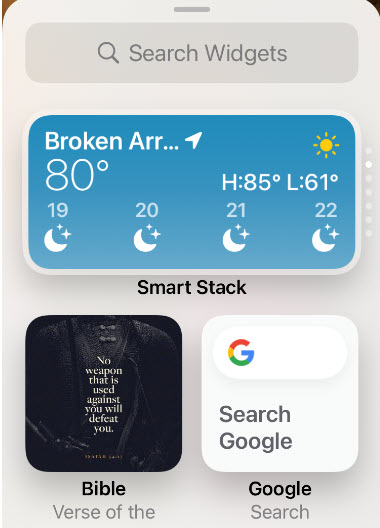
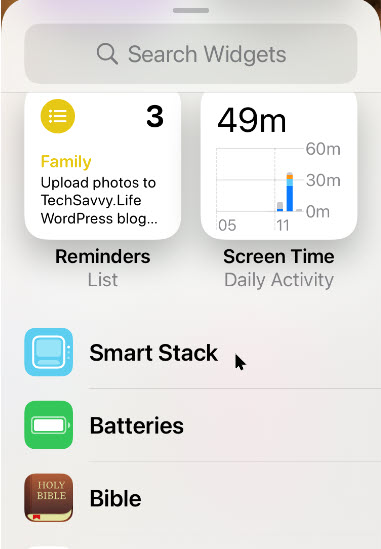
Scroll down until you see the Widget called Smart Stack. See following image:
The Smart Stack option
As with the other Widgets, scroll sideways to choose the size you want, and then tap Add Widget.
Note! There is no way to determine at a glance if apps are stacked. You have to swipe or chose Edit Stack.
Create a Smart Stack
You can make your own Smart Stack by simply dragging Widgets on top of each other.
Just place Widgets how you normally would. Drag any two Widgets of the same size on top of each other, and you have got a new stack! It works just like making a folder with app icons.
Move or DeleteSmart Stack
You can edit your stack the same way you do the Smart Stack. Turn Smart Rotate on or off, reorder the Widgets or remove the ones you no longer want.
Just long-press any stack you have created and select Edit Stack.
That’s it for the basics. There is much more on Widgets to explore, like third-party and the most popular ones.
I hope you have found this post helpful. If so, click the Tweet icon below. This will launch Twitter where you click its icon to post the Tweet.
I have found TechSavvy.Life blog posts extremely helpful. Check them out for posts on smart phone apps, Macs and PCs!
Please feel free to leave a comment. I would love hearing from you. Do you have a computer or smart device tech question? I will do my best to answer your inquiry. Please mention the device, app and version that you are using. To help us out, you can send screenshots of your data related to your question.
The author’s Vietnam eBook on the Battle for Tra Bong: Events and Aftermath















































 Tech Savvy Life