There is a way to compare the contents in two sheet tabs in the same workbook. Lets see how this is done. In my example, Sheet1 has eleven rows, Sheet2 has ten rows. See following image:
The two sheets
This is for Excel for Office 365 Windows and Mac versions. Other versions of Excel will be similar.
Opening a Second Window for Comparing Contents
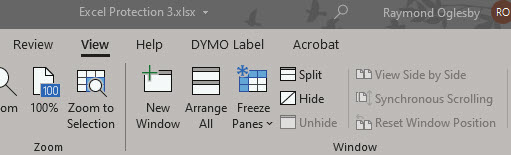
In the View tab of the Window group, click New Window
Setting up for a new window
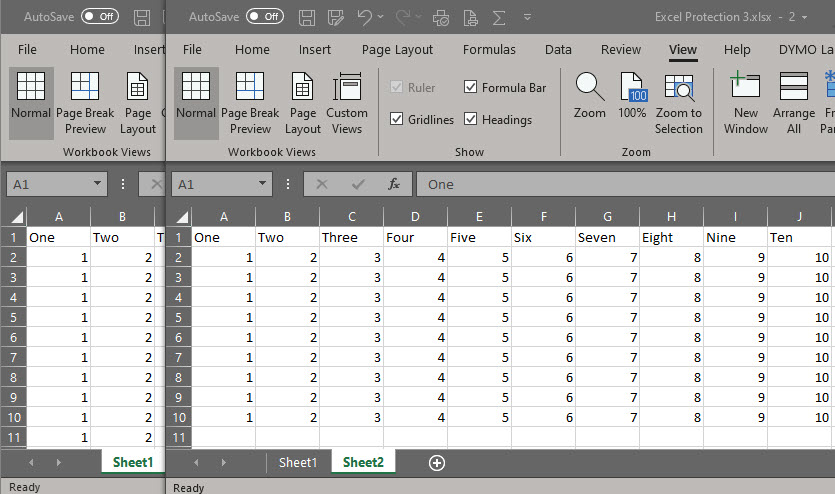
A second window of the same workbook opens, like a clone. At the end of the workbook name is a number denoting the sheet, either a one or a two. The new window becomes the active sheet.
The two windows
Setting Up Side by Side Viewing
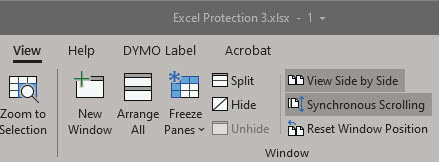
In the View tab of the Window group, click View Side by Side
A Compare Dialog box may appear. If so, choose the sheet you want to compare with the active sheet.
Click View Side by Side. When you select this view, Synchronous Scrolling should already be turned on. This allows you to scrool both worksheets at the same time. If its not turned on, click the View tab, then click Sychronous Scrolling. See below image:
Setting up for viewing side by side
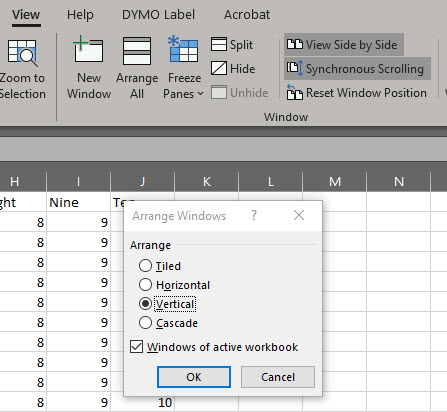
If the two windows didn’t arrange side by side, from the View tab, click Arrange All>Vertical and check the box for Windows of active workbook. Refer to following image:
Setting up how to view the side by side comparison
Viewing the Two Sheets Side by Side
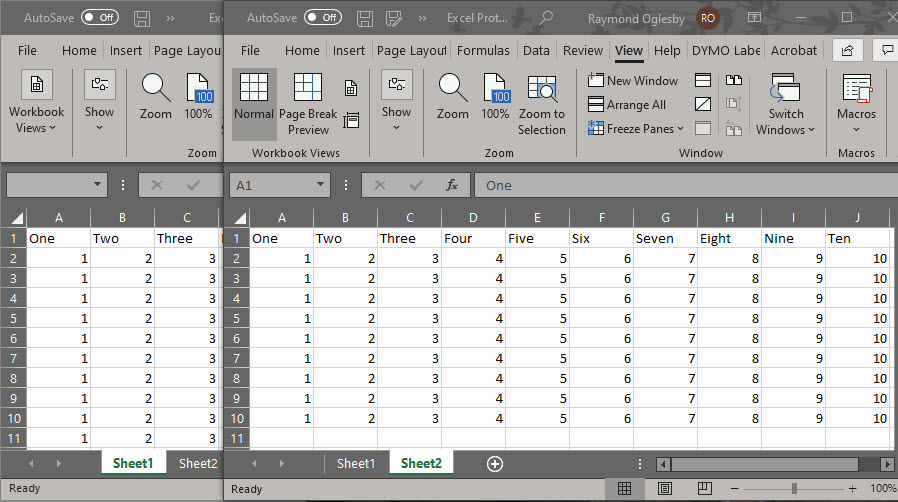
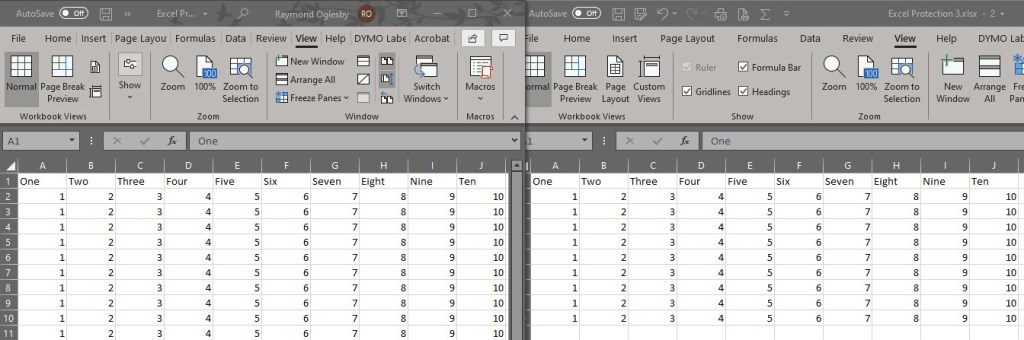
You can now synchronously scroll both up and down, left and right to compare the contents of the two sheet tabs in the same workbook. See final image below:
Comparing the two sheets in same workbook
When you are finished, to restore your window size, close one of the two windows, then click the Maximize Button in upper right hand corner of the worksheet window.
I Would Like to Hear from You
Please feel free to leave a comment. I would love hearing from you. Do you have a computer or smart device tech question? I will do my best to answer your inquiry. Please mention the device, app and version that you are using. To help us out, you can send screenshots of your data related to your question.
LinkedIn software can be a dauting task to setup and maintain. You should update your LinkedIn profile regularly to attract recruiters, coworkers and friends. Of course, most of us don’t have the time, so we put off this task. If you want to take a little time, you should addrtess fives areas of your profile.
This feature is for your iOS (iPhone/iPad), Android device, Windows 10 or whatever smart device supports LinkedIn
1. Your Heading Statement
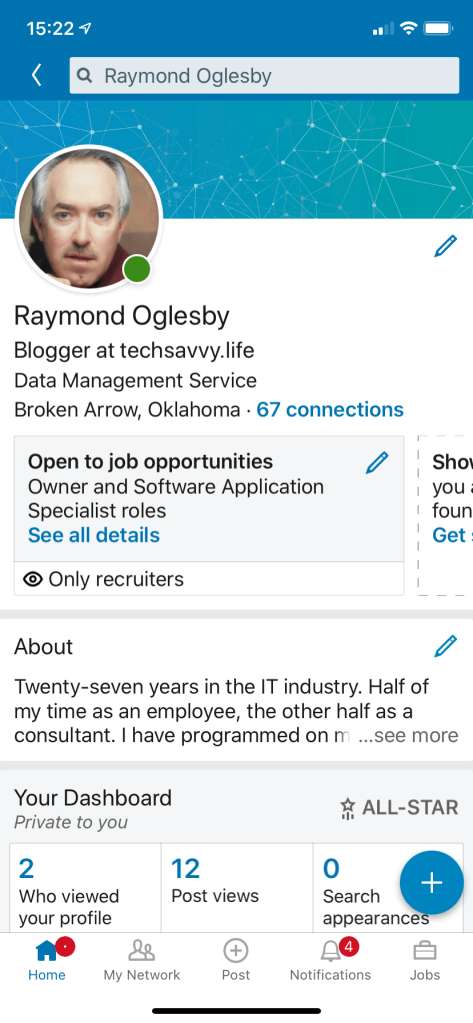
This is the short statement that appears below your name. That Heading is what the recruiter’s search for. The Heading needs to say what you do or want to do. It should hit these points using keywords. People who haven’t updated their profile in a while might have their current job title followed by a comma and then their employer or department name. If so, I suggest changing the Heading to some keywords that match what you want to do.
See below image for my Heading as a Blogger: (Note! I used the tips in this post to update my LinkedIn profile for blogging purposes).
LinkedIn Heading statement
2. Updating your Photo
Does the photo reflect who you are today? It would be unwise to visit a recruiter looking completely different from your photo. Of course, you want a headshot photo of you smiling. Put on an appropriate shirt or blouse because it might show up in the photo. You want a photo that will impress recruiters, coworkers or friends.
3. Using Keywords in your Profile
We have discussed using keywords in your Heading. Using keywords in your Skills & Endorsements is also very important. You can use a ton of keywords. Make sure you hit the top words that reflect your experience. Click the “plus” sign in upper right hand corner to add skill(s). Refer to following image:
LinkedIn Skills section
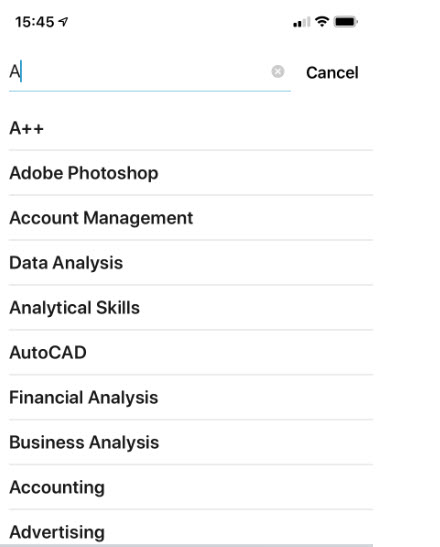
Tap in the Skill search box. Then go thru the aphabet, keying in one letter, ie, key in A, then select your keyword(s); then key in B, etc. through the alphabet to see which LinkedIn keywords to apply. See below image:
LinkedIn adding Skills using keywords
4. Using your Geography
If you are looking for work, it helps to provide a location. Its best to use a general location in a greater city areas, like Oklahoma City/Tulsa metro area instead of a just a single city. This will open up more possibilites for recruiters to locate a matching job.
5. How Open are you to Recruiters?
LinkedIn has a setting you can turn on which tells only recruiters that you are open to being contacted. When you turn on this setting, no one else can see it, only people who have recruiter accountgs. This setting is found in several places in your profile. The setting is labeled Only recuriters.
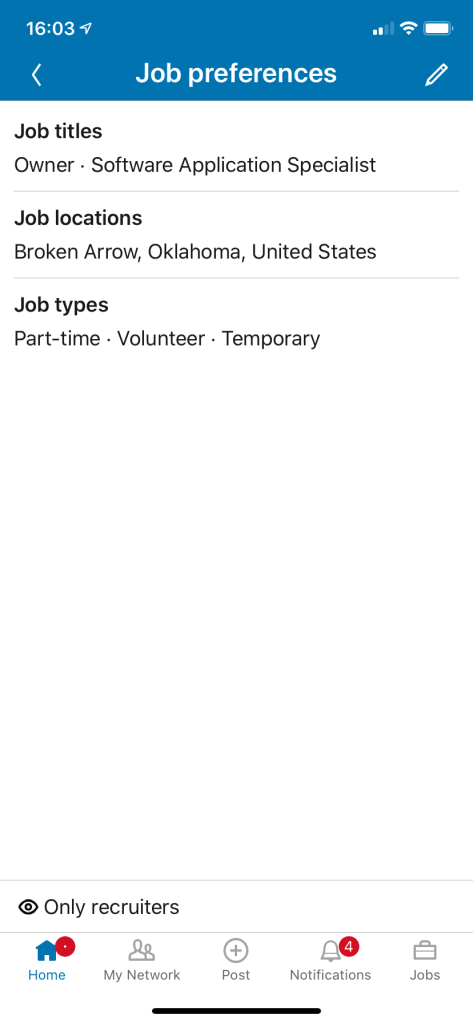
Go to your profile and look just below your Heading (refer to the first image in this post). When you tap Only recruiters, you are taken to the Job preferences screen. See below image:
LinkedIn Job Preferences
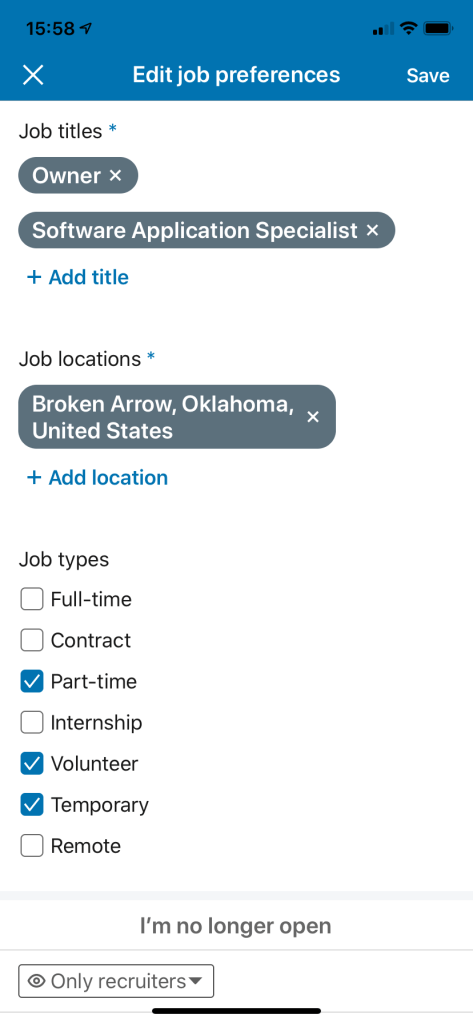
Tap the Edit icon (the pencil in upper right hand corner). Here you can add Job titles, Job locations and select Job types. Refer to below image:
LinkedIn adding Job titles, locations and types
Tap the Only recruiters drop down arror to allow your job information to be shown to anyone using LinkedIn or just Recruiters.
Updating these five areas of your profile will open up more job opportunities and attract more recruiters.
I Would Like to Hear from You
Please feel free to leave a comment. I would love hearing from you. Do you have a computer or smart device tech question? I will do my best to answer your inquiry. Please mention the device, app and version that you are using. To help me out, you can send screenshots of your data related to your question.
Microsoft Edge has a new “crapware” blocker. For some reason, it isn’t enabled by default, and it should be.
The browser can block “potentially unwanted programs (PUP)”, also known as “potentially unwanted apps”. These are obnoxious programs like adware, cryptocurrency miners, malware and browser toolbars, to name a few.
There is a simple toggle to block these “crapware” downloads. Let’s see how this is done.
This is for Microsoft Edge in Windows 10 and Mac versions
First, let’s check what version of Edge you are running. The stable release of Edge is 80+.
Check Your Version of Edge
Stable Version
Open Microsoft Edge
Click the Settings & more icon (the three dots in the upper right-hand corner)
Click Help & feedback
Click About Microsoft Edge
If you have the correct version, let’s enable the toggle. If not, go to Windows Update to check for updates or download and install from this link.
Set the Toggle to Block Unwanted Apps
Click the Settings & more icon (the three dots in the upper right-hand corner)
Click Settings
Click Privacy and services option
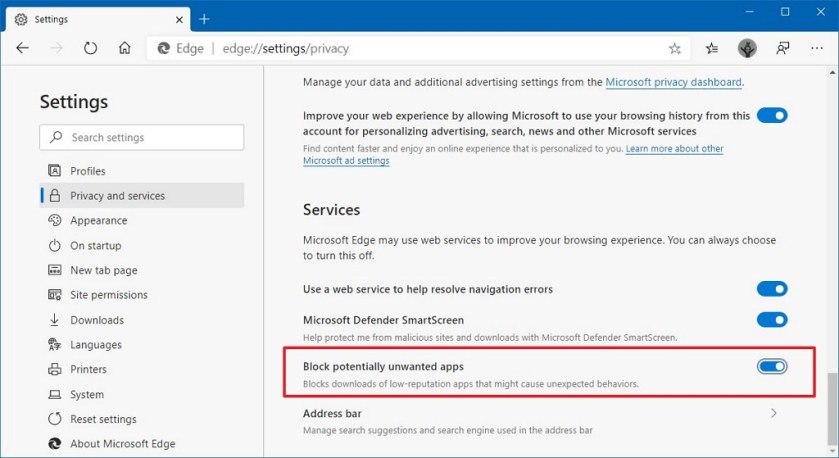
Under Services, toggle to On for Block potentially unwanted apps option
Close the Settings screen
You may now Close or Exit Edge
Microsoft Edge will now be more active in blocking unwanted software.
I Would Like to Hear from You
Please feel free to leave a comment. I would love hearing from you. Do you have a computer or smart device tech question? I will do my best to answer your inquiry. Please mention the device, app and version that you are using. To help me out, you can send screenshots of your data related to your question.
I have been blogging using WordPress as my hosting site for a couple of months. I have discovered a few tips and gotchas using WordPress that may be of interest to you.
First, if you noticed some strange highlighted text on your site, don’t panic. They will go away by exiting and relaunching your site. I had some highlighted text (in yellow) in my Categories section that I did not enter. After exiting and relaunching, the highlighted yellow text disappeared.
Second, if you have links in your posts, the linkage may add the words “opens in a new tab” at the end of your URL. This happens if you have the slider controlOpen in new tab turned off. This control is found in the drop down arrow next to the Return or the Edit (the pencil) icon). Your links will not work. You must remove the words (opens in a new tab) in the link URL. To open the link in a new tab, you must turn the slider control Open in new tab to the On position.
Third, when I am writing a post, I want to return to a previous block to add or change some text. I position the cursor in the text, but nothing happens. I am unable to add or change any text. I have to save whatever changes I have made, exit the post, then relaunch the post. Then I am able to make text changes. This is most frustrating aspect of WordPress.
Fourth, in my version of WordPress, the Dashboard does not automatically load. To get to the Dashboard, enter <your website name>/wp-admin in your browser search field. For my blog, I would enter the following in my browser: techsavvy.life/wp-admin.
I Would Like to Hear from You
Please feel free to leave a comment. I would love hearing from you. Do you have a computer or smart device tech question? I will do my best to answer your inquiry. Please mention the device, app and version that you are using. To help me out, you can send screenshots of your data related to your question.
We all have our favorite smart device apps. This would include Facebook, Twitter, Instagram, LinkedIn, Tumblr, Reddit and others. What happens when you turn off your device, power off or shutdown? These apps are still active and readily available when your device is turned back on.
These apps offer you convenient access by keeping you logged in. When you log into a financial institution, say Bank of America or Morgan Stanley, you are logged out within two minutes of no activity.
Our favorite apps should do the same. By staying logged in, the apps are more subjective to hacks by others.
Of course, by logging out, means you have to reenter a UserID, Password and Passcode, if using Two Factor Authentication, to gain access. And that can be a pain but it’s worth it.
If you are selling or disposing a smart device, you should log out all apps. Also, you may consider erasing all data and/or resetting your device. Only do this if you no longer need the device.
I would like the app industry to follow the same logging out protocol as financial entities. What do you think? Please take the one question survey.
I Would Like to Hear from You
Please feel free to leave a comment. I would love hearing from you. Do you have a computer or smart device tech question? I will do my best to answer your inquiry. Please mention the device, app and version that you are using. To help me out, you can send screenshots of your data related to your question.
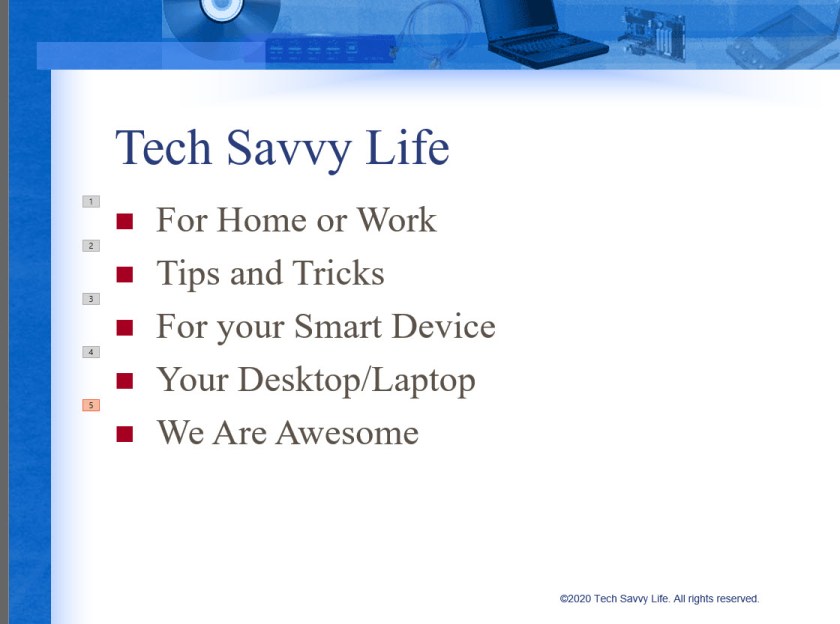
I ran across this neat feature of Microsoft PowerPoint that I want to share with you. As a presenter, you are in control of what is being displayed. Instead of presenting all your bullet points at once lets dim there appearance one at a time. The “dim text” feature allows the audience to focus on one topic. For my example I am using a single slide with five bullet points.
This is for PowerPoint for Office 365 Windows and Mac versions. Other versions of PowerPoint will be similar.
Launch PowerPoint
Open PowerPoint on your Desktop/Laptop or Mac
Find a slide that contains bullet points or text you want to dim. See my example below:
PowerPoint Slide Bullet Points screen
Highlight a bullet point or text
Select the Animations tab and choose the Appear animation
Set Animations
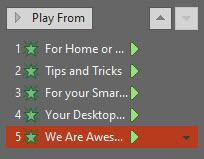
The animation will be successfully applied if you see a number next to the bullet point or slide.
Repeat the above steps until you have applied an animation to each bullet point or text. Refer to the following image:
PowerPoint Slide with Animation applied screen
Select all the Animations by using the “Ctrl” key and clicking on each animation.
Select the arrow next to the right side of the animation
PowerPoint Animations screen
Set Effects
Select Effect Options. See following image:
PowerPoint Effects screen
Change Behavior for Dimming
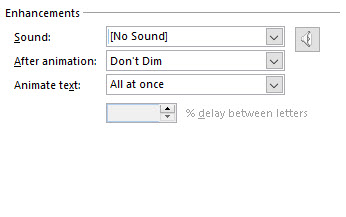
We are going to change the behavior of the default Don’t Dim option by clicking the arrow next to the item (a drop down box selection) and select a color slightly different than your bullet points or text. You want your color selected to be visible to the audience. For my example, I selected a light red color:
PowerPoint Color Selection for Animation screen
Click OK
Test Your Slide
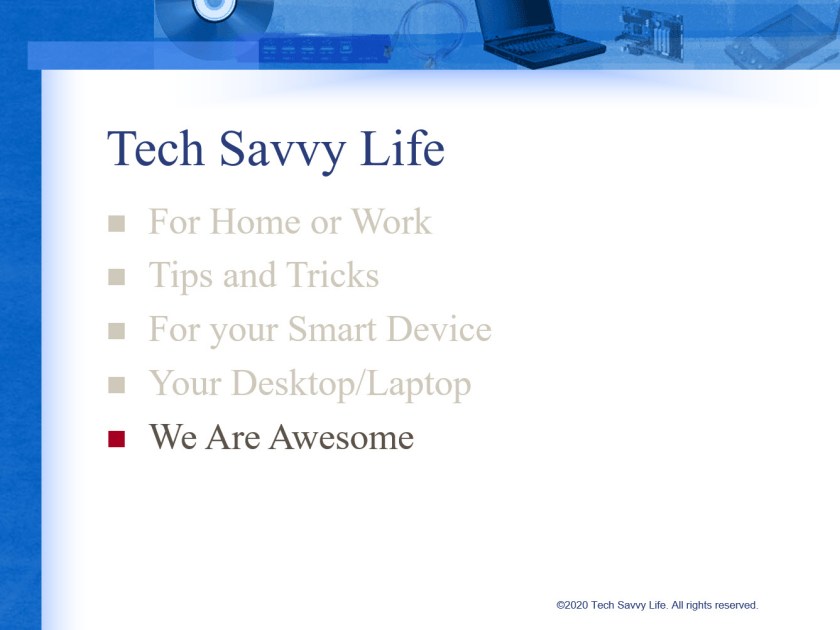
Now its time to test out your slide. You should see something like the following screen as you manually or automatically select each bullet point.
PowerPoint using the Dim Feature
This is a nifty feature for your next text presentation. Save your slide or presentation, you are finished.
I Would Like to Hear from You
Please feel free to leave a comment. I would love hearing from you. Do you have a computer tech question? I will do my best to answer your inquiry. Please mention the app and version that you are using. To help me out, you can send screenshots of your data related to your question.
Do you want to protect your Microsoft Excel workbook or a sheet in your workbook? If so, this blog post is for you. We are going to password protect a workbook, protect a sheet in a workbook and the Excel file itself.
This is for Excel for Office 365 Windows and Mac versions. Other versions of Excel will be similar.
Protect a Workbook
I recommend you start with a blank Excel workbook, just in case you forget a password. To assign a password to an Excel workbook, do the following:
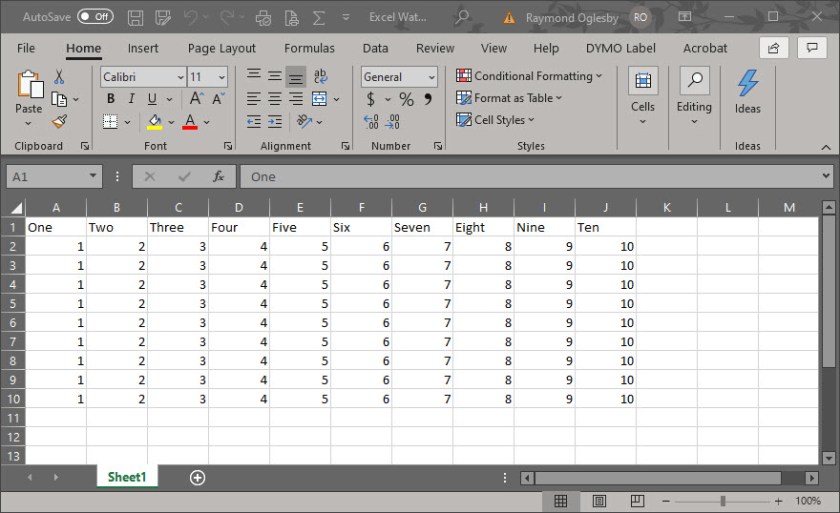
Open a blank Excel workbook. For demonstration purposes, I am using an Excel workbook that contains one sheet with cell data. You can choose an existing Excel workbook if you chose. See my workbook below :
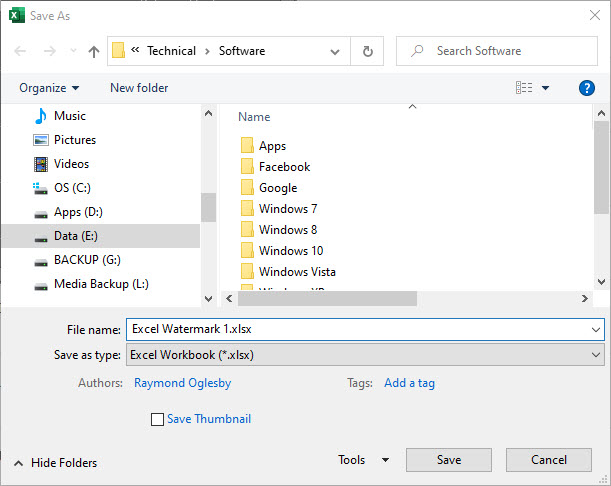
Select File>Save As
Select More options (underneath Excel Workbook drop down box)
Select the Tools drop down box
Chose General Options
Set the Password(s)
You will see notice two password boxes, one to open the workbook and one to modify the workbook
Enter one or both passwords. Make sure you write down these passwords and store them in a safe place.
You have two other options to set if you chose, Always create backup and Enable Read-only recommended. The first is self explanatory. The second option is an extra layer of protection by enabling the workbook to read-only status upon opening.
Confirm your password(s) by reentering the password(s)
Click OK
Click Save
Close or Exit Excel
Note! A user who doesn’t know the second password can open and view the data by clicking the Read Only option. This user can still modify the data, but they are unable to save their changes to the protected workbook. However, the user can save the workbook under a new name, which circumvents the protection process. Of course, password-cracking software will get you into the workbook.
Protect a Sheet
Open a blank Excel workbook. For demonstration purposes, I am using an Excel workbook that contains one sheet with cell data. You can choose an existing Excel workbook if you chose.
Select the Review tab
Click the Protect icon
Click Protect Sheet icon. Refer to following image:
Enter your password in the Password to unprotect sheet box
Click OK
In the Confirm Password dialog box, type the password again
Click OK
Save your changes
Close or Exit Excel
Tip! To remove a password, click Protect>Unprotect Sheet and enter your password. You can also select Protect Workbook icon to protect a workbook which follows.
Protect Excel Structure
Open a blank Excel workbook. For demonstration purposes, I am using an Excel workbook that contains one sheet with cell data. You can choose an existing Excel workbook if you chose.
Select the Review tab
Click the Protect icon
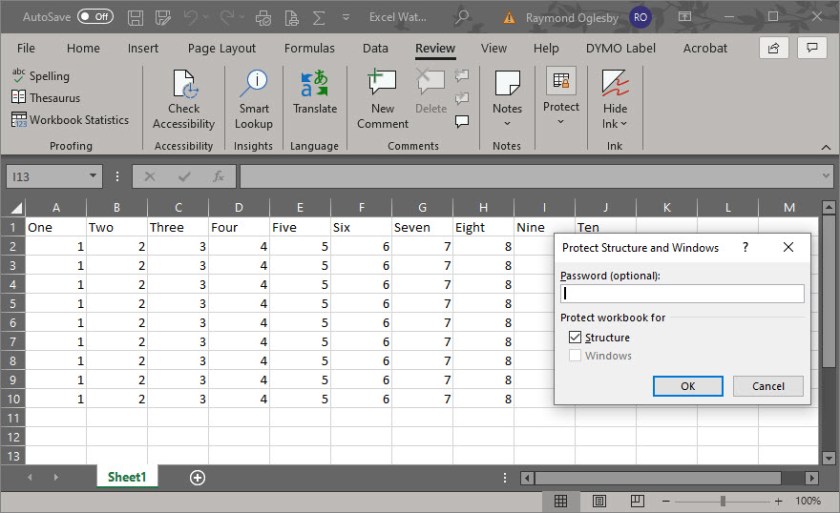
Click Protect Workbook icon. Refer to the following image:
Select the Windows option if you want to prevent users from moving, resizing, or closing the workbook window or hide/unhide windows
Enter your password
Click OK
In the Confirm Password dialog box, type the password again
Click OK
Save your changes
Close or Exit Excel
Protect the Excel File
To prevent users from accessing the data in your Excel file, we are going to protect the file with a password
Open a blank Excel workbook. For demonstration purposes, I am using an Excel workbook that contains one sheet with cell data. You can choose an existing Excel workbook if you chose.
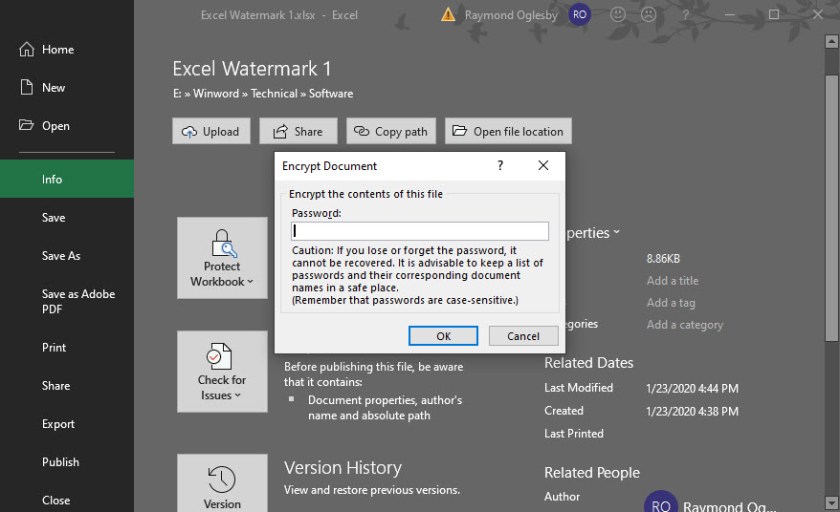
Select File>Info. Refer to my image below:
Click Protect Workbook icon
Chose Encrypt with Password option
Enter a password in the Encrypt Document dialog box
Click OK
In the Confirm Password dialog box, type the password again
Save your changes
Close or Exit Excel
Be cautious when sharing files or passwords with other users. You still run the risk of passwords falling into the hands of unintended users. Remember to write down your passwords and store them in a safe place.
I Would Like to Hear from You
Please feel free to leave a comment. I would love hearing from you. Do you have a computer tech question? I will do my best to answer your inquiry. Please mention the app and version that you are using. To help me out, you can send screenshots of your data related to your question.
Drop down lists are used to select specific data, in our example, a list of Salutations. If the user tries to enter a Salutation that is not in the list, Excel rejects the entry.
I am using a simple drop down list in an Excel sheet. This feature is not well known nor initiative.
Salutations was a BIG DEAL for a religious organization that I worked for as a Consultant. The company had a donor base of 25,000+ names/addresses. (Of course, I was using a database, not Excel, to manage the data.) If the Salutation was incorrect on a donor letter, some donors refused to give monies for the company projects. For example, do you address them as Mr. and Mrs. or Dr. and Mrs. or Mr. and Dr.? Some donors wanted no Salutation. I spent a lot time getting the Salutations correct.
This is for Excel for Office 365 Windows and Mac versions. Other versions of Excel will be similar.
Setting Up the Excel Sheet
Enter the headings in Row 1 (Optional)
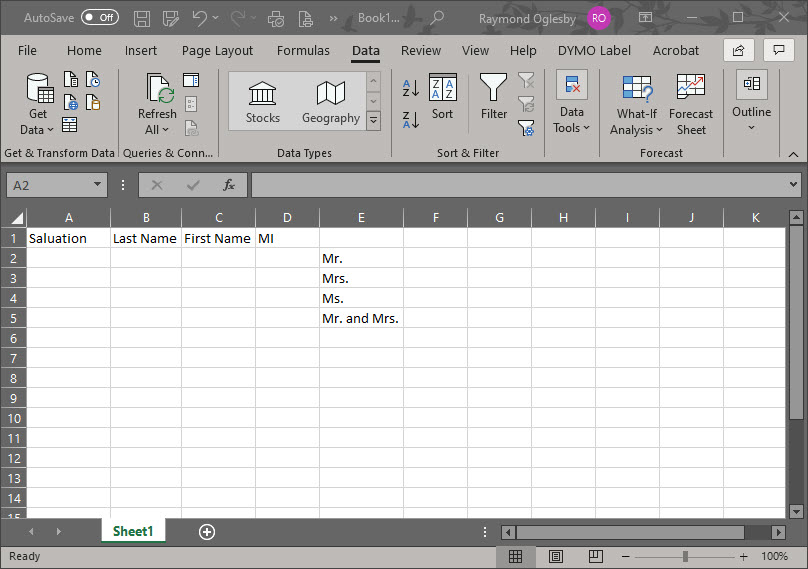
Create a list of cells E2:E5. Alternatively, you could put the list in another sheet.
Select the empty cell A2. (You can position the drop down list in most any cell or even multiple cells.)
Setting up Excel for a drop down list
Using Data Validation
Select the Data tab
Select Data Validation
Choose List from the Allow options drop down list
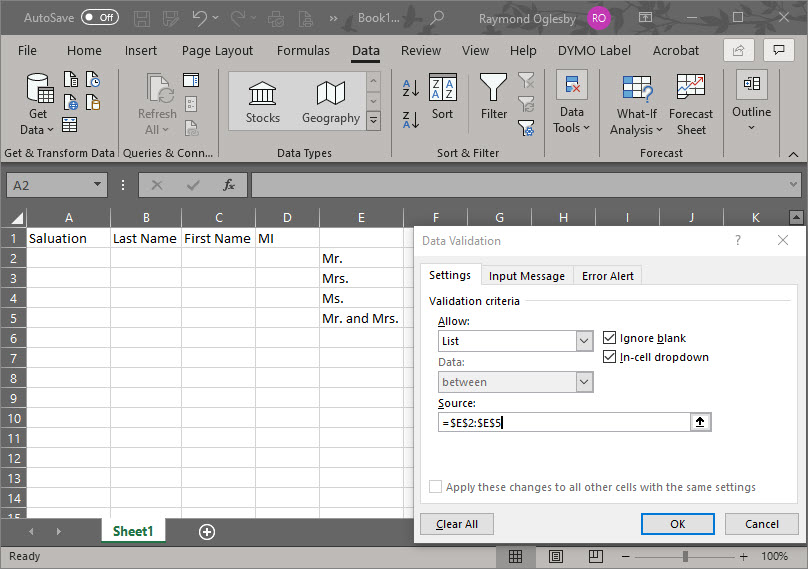
Click the Source control and drag to highlight cells E2:E5. Alternatively, you could enter the cell reference $E$2:$E$5 or use a sheet and cell reference if your list is in another sheet.
Ensure that the In Cell dropdown option is checked. If you leave this unchecked, Excel forces users to enter only the list values, but it won’t present a drop down list. The users would have to guess the values; not a good idea!
See the following screenshot:
Entering the Allow and Source option
Click OK
You can add the drop down list to multiple cells. Select the range of data input cells instead of a single cell. Also, you can select noncontinuous cells by holding down the Shift key while you click the appropriate cells.
You can copy and paste this drop down cell to any other cells in your sheet.
Below is a screenshot where Mr. was selected as a Salutation for cell A2:
Excel drop down list selection
I Would Like to Hear from You
Please feel free to leave a comment. I would love hearing from you. Do you have a computer tech question? I will do my best to answer your inquiry. Please mention the app and version that you are using. To help me out, you can send screenshots of your data related to your question.
Google Chrome is adding a new feature for controlling media within your Chrome browse on a desktop or laptop. Instead of trying to figure out where the video/sound is coming from, you can hear and/or see it in your Chrome browser. The update is rolling out gradually and is for Chrome version 79+. Instead of waiting for the update you can always go to the flags menu (see below) and manually trigger the new media playback controls.
This is for any device that uses Google Chrome.
Check Chrome Version
First, let’s check what version of Chrome you have; just follow these steps:
Click on the Menu icon in the upper right corner of the screen, the one with 3 dots
Click on Help
Click on About Google Chrome
Your Chrome browser version number is displayed like the example below:
Chrome version screen
Close Chrome
Update Chrome
If you have a lower a version than 79, let’s try to update by doing the following:
Open Chrome
Click on Menu icon in the upper right corner of the screen, the one with the 3 dots
Click UpdateGoogle Chrome. Note! If you don’t see this button, you’re on the latest version.
Close Chrome
Setup Media Control
Open Chrome
Type in chrome://flags as the URL like the screenshot below:
Chrome URL for flags
Type in Global Media Controls as your Search, like the example below:
Click on the Default drop down box and select Enabled
Click the Relaunch button in the lower right of the screen
Type in chrome://flags as the URL
Type in Global Media Controls as your Search
Your screen should show the Global Media Controls Enabled like the screen below:
Close Chrome
After a browser restart, a Play button should show up whenever you have media playing.
If you don’t see the option, head to YouTube and play a video. A Play button should show up next to the address bar. Clicking on it will display the media content like title, source of the content, the play/pause and skip buttons. This feature works for lots of websites to include Spotify, Netflix, Amazon Prime, Dailymotion and Microsoft.
I Would Like to Hear from You
Please feel free to leave a comment. I would love hearing from you. Do you have a computer tech question? I will do my best to answer your inquiry. Please mention the app and version that you are using. To help me out, you can send screenshots of your data related to your question.
Just how big can a Microsoft Word document be? The short answer, it depends. The amount of text, photos, images and videos content determines the document size. Also, your computer system resources plays a part.
The maximum file size of an “all text” document in Microsoft Word 2007 or later is 32 MB. If you add photos, images or videos, the maximum file size jumps to 512 MB or a half of a gigabyte. Although Word can handle a very large file, it becomes more unmanageable as you approach the 512 MB limit.
Older file formats use the “.doc” file extension while the newer versions, Word 2007 and above, use the “.docx” extension.
This is for Word for Office 365 Windows and Mac versions. Other versions of Word will be similar.
If you are working with the old format, “.doc” extension, you can covert the file to the newer format as follows:
Open Microsoft Word
Locate the file with a “.doc” extension
Click on File>Save As
From the drop down box, select Word Document (*.docx)
Click Save
Check Your Word Document File Size
There are several ways to check the size of your document. One way is as follows:
Open File Explorer
Locate the folder where the document resides
Click on View>Details
You will see the Size column denoting the file size
A second way is very similar.
Open File Explorer
Locate the file
Right click on the file name
Click on Properties
OR
Open File Explorer
Locate the file
Click Home on the main menu
Click Properties
Click Properties from the sub menu
A third way is from the Word document itself as follows:
Either using Word to locate and open the document or using File Explorer to locate the file; then double click to open
From the main menu, click on File>Info
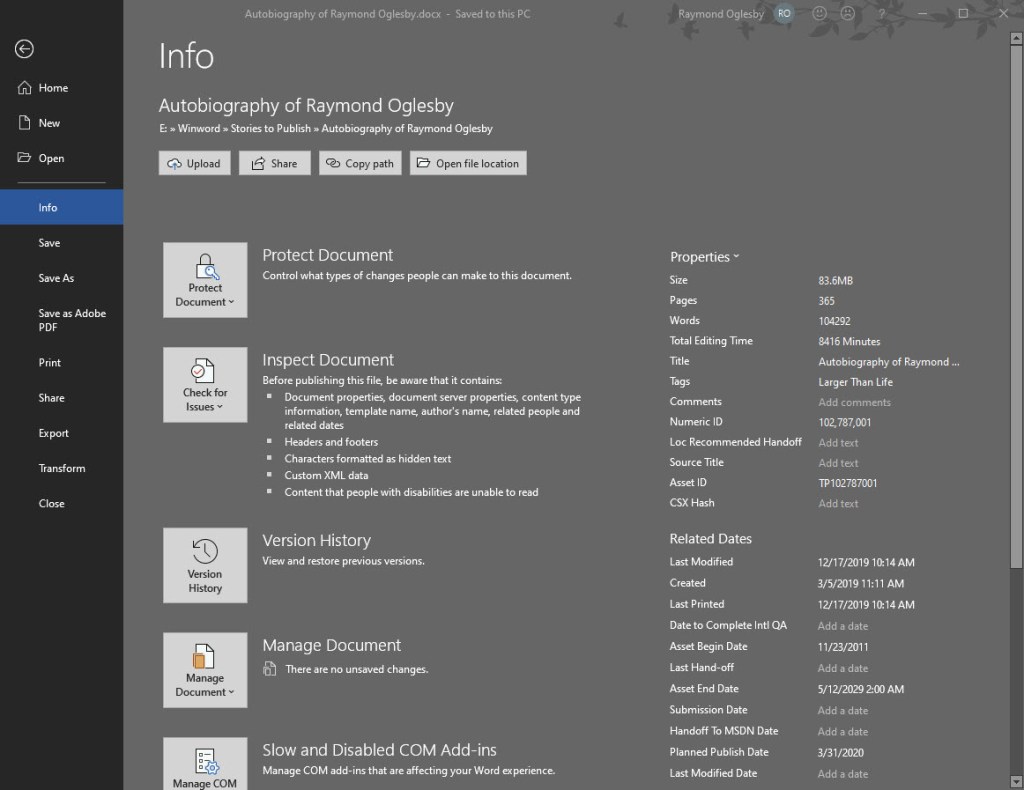
Under Properties is the Size of the document
Your screen should look like the below image:
File Info screenshot
File Info Properties
Document properties, also known as metadata, are details about a file that describe or identify it. They include details such as title, author name, subject and keywords that identify the document’s topic or contents. You can use these keywords for searching Word documents. For example, in Word, you can use the Keywords property (also called Tags) to add the keyword “customers” to your sales documents. You can then search for all sales documents with that keyword.
Some entries can be changed. At the bottom of the File Info screen is the Show All Properties. Click on this to see more detail about your document. The grayed out options are the ones you can update.
Other properties are automatically updated. You can also search for these entries. For example, you can search for all files created after January 1, 2020, or for all files that were last changed yesterday.
A Personal Observation
I have an autobiography Word document that is 356 pages with 375 photos and images. The file size is only 83.6 MB (see above image). You should be able to manage a Word document with 1400 pages and 1400 images/photos and still not reach the 500 MB limit. Currently, I have no videos in the document. If I did, that would drastically increase the file size.
How to Reduce the Size of your Word Document
One way would be to split the document into two Word files. Of course, this would result in two Table of Contents, Bibliographies, etc. This may not be the right choice.
Another way is to compress the size of your images/photos. First, you should covert a “.doc” file extension document into the new “.docx” format as mentioned in this post.
To compress your images/photos, do the following:
Make a backup copy of your original Word document. Although you are using the Save As option to Save the file with a new file name, I prefer working with a backup copy.
Open your backup Word document
Click on File>Save As>More Options at the top of the screen
A screenshot is below:
More Options screenshot
In the Save As dialog box, click Tools>Compress Pictures at the bottom of the screen
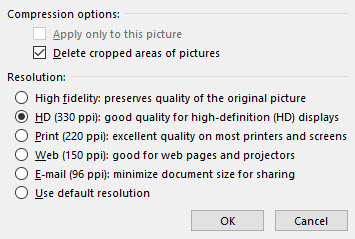
In the latest version of Word, you are presented with four Options as shown below:
Photos compression options
For the smallest possible size:
Click “Email (96 ppi) …“
Click OK
Click Save
This option will result in the poorest image quality. All your images/photos will be automatically compressed. Choosing any other option will result in a larger Word document.
Take a look at the results of your compressed document. Do you like the results? If not, then repeat the above steps with another backup copy of your document.
Once you are satisfied, then rename the compressed document back to the original file (overwrite the original file) or rename to a different file name.
I Would Like to Hear from You
Please feel free to leave a comment. I would love hearing from you. Do you have a computer tech question? I will do my best to answer your inquiry. Please mention the app and version that you are using. To help me out, you can send screenshots of your data related to your question.


















 Tech Savvy Life