I am Raymond Oglesby, an Information Technology (IT) specialist with 30 years in the field. I have taught Microsoft Applications and troubleshot computers in 15 countries and many States. My career was focused on mainframes and desktops from application development to implementation. I have written hundreds of programs for various architectures. I decided to start a blog to share my knowledge and experiences with you. I plan on updating this blog at least twice a week about smart phone apps to Windows.
Please feel free to leave a Comment or Tweet. I would love to hear from you. Do you have a computer tech question? I will do my best to answer your inquiry. Please mention the app and version that you are using. To help me out, you can send screenshots of your data related to your question.
Smartphone displays are rarely the same aspect ratio as YouTube videos. That leaves black bars on the sides. You can pinch-to-zoom to fill the screen, but if you are always doing that, you might as well make it default.
Smartphone displays are rarely the same aspect ratio as YouTube videos. That leaves black bars on the sides. You can pinch-to-zoom to fill the screen, but if you are always doing that, you might as well make it default. Let’s explore how to setup viewing a YouTube video in full screen.
This is is for the iPhone, iPad, and Android. Screenshots are from iPhone XR.
Copyright Scott Adams, Inc./Distributed by Universal Uclick for UFS
First, open the YouTube app on your iPhone, iPad, or Android device. Now, tap your profile icon in the top-right-hand corner. Refer to below image:
Accessing your Profile icon
Next, tap Settings from the menu. See below image:
Accessing Settings
Now, go to the General section. See following image:
Accessing General section
Next, toggle the switch for Zoom to fill screen to ON. Refer to below image:
Toggle ON the Zoom to fill screen
Now, you will no longer need to zoom in on every YouTube video to take up the entire screen.
Quote For the Day
An iPod, a phone, an internet mobile communicator… these are NOT three separate devices! And we are calling it iPhone! Today Apple is going to reinvent the phone. And here it is.
Steve Jobs
You are finished. Please feel free to share this post! One way to share is via Twitter.
Just click the Tweet icon below. This will launch Twitter where you click its icon to post the Tweet.
Check out TechSavvy.Life for blog posts on smartphones, PCs, and Macs! You may email us at contact@techsavvy.life for comments or questions.
Please feel free to leave a comment. I would love hearing from you. Do you have a computer or smart device tech question? I will do my best to answer your inquiry. Just send an email to contact@techsavvy.life. Please mention the device, app and version that you are using. To help us out, you can send screenshots of your data related to your question.
The author’s Vietnam eBook on the Battle for Tra Bong Vietnam: Events and Aftermath
With so many devices and so many social media accounts, it can be hard to remember where you are logged in to which accounts. To protect yourself from potential hacks, it’s a good idea to log out of social media sites, like Facebook, once you are done with your session, especially if you are using someone else’s device.
But, if you forgot to log out, or suspect an unauthorized third-party login, you can still log out of all devices at once from your Facebook’s account settings. Let’s explore how this is done.
This is for devices running Facebook
Copyright Scott Adams, Inc./Distributed by Universal Uclick for UFS
Use Mobile App
If you use an iPhone, iPad, or Android phone, you can use the official Facebook app to sign out from Facebook on all your devices at once.
First, launch the Facebook app on your smartphone.
In the Facebook app, tap the three horizontal lines menu. On an iPhone or iPad, this menu is at the bottom of the screen. On an Android phone, you will find this menu at the top-right corner of the display. Refer to below image:
Accessing the Menu
Next, scroll down the Menu screen that opens, and tap Settings & Privacy. See below image:
Accessing Settings & Privacy option
Now, select Settings. See following image:
Accessing Settings option
Next, scroll down to the Account section. Here, tap Password and Security. Refer to below image:
Accessing Password and Security option
Now, on the Where you’re logged In header, tap See All. (Note! My display text automatically changes size and the See All may be somewhat hidden depending on font size. See below image:
Accessing See All option
Facebook will display the list of devices where you use your account. At the bottom of this screen, tap Log Out of All Sessions. See following image:
Accessing Log Out Of All Sessions option
Next, select Log Out. Refer to below image:
Confirm your action by tapping Log Out
And Facebook will log you out from all your logged-in devices!
To use your Facebook account on those devices again, you will have to enter your Facebook username and password.
If you just want to log out of one session, tap the 3-dot icon to the right of a session, then tap Log Out and the session will be removed. See below image:
Log Out of one session
Use Facebook Site
If you are on a Windows, Mac, Linux, or Chromebook computer, use the Facebook site to sign yourself out from all your Facebook logged-in devices.
First, launch a web browser on your computer and open the Facebook site.
Next, at the top-right corner, click the down-arrow icon. See following image:
Accessing the Menu
Now, select Settings & Privacy. Refer to below image:
Accessing Settings & Privacy option
Next, choose Settings. See below image:
Accessing Settings option
Facebook will take you to your account’s settings page. Here, in the sidebar to the left, click Security and Login. See following image:
Accessing Security and Login option
Now, from the Where You’re Logged In section, click the See More option. Refer to below image:
Accessing See More option
Next, you will see a list of devices where you use your Facebook account. To sign out of all these devices, click Log Out Of All Sessions at the bottom-right corner of the Where You’re Logged In section. See below image:
Accessing Log Out Of All Sessions
Now, a Log Out of All Sessions prompt will appear. Next, click Log Out in the prompt to confirm your choice. See following image:
Confirm your action by tapping Log Out
And Facebook will log you out from all your logged-in devices!
To use your Facebook account on those devices again, you will have to enter your Facebook username and password.
If you just want to log out of one session, click the 3-dot icon to the right of the session, then click Log Out and the session will be removed. Refer to below image:
Log Out of one session
Quote For the Day
The thing that doesn’t fit is the thing that’s the most interesting: the part that doesn’t go according to what you expected.
Richard P Feynman
That’s it. Please feel free to share this post! One way to share is via Twitter.
Just click the Tweet icon below. This will launch Twitter where you click its icon to post the Tweet.
Check out TechSavvy.Life for blog posts on smartphones, PCs, and Macs! You may email us at contact@techsavvy.life for comments or questions.
Please feel free to leave a comment. I would love hearing from you. Do you have a computer or smart device tech question? I will do my best to answer your inquiry. Just send an email to contact@techsavvy.life. Please mention the device, app and version that you are using. To help us out, you can send screenshots of your data related to your question.
The author’s Vietnam eBook on the Battle for Tra Bong Vietnam: Events and Aftermath
Do you have videos on your smartphone that you want to upload to YouTube but not sure how to do this? If you have recorded videos with your smartphone, you can upload them directly to your YouTube channel from your iPhone or Android device.
Do you have videos on your smartphone that you want to upload to YouTube but not sure how to do this? If you have recorded videos with your smartphone, you can upload them directly to your YouTube channel from your iPhone or Android device. Let’s see how this is done.
This is for iPhone and Android
Copyright Scott Adams, Inc./Distributed by Universal Uclick for UFS
First, to upload a video to YouTube from your iPhone or Android device, you will need the official YouTube app on your phone. Download and install the app on your iPhone or Android device, if you have not already done so. To search for the app on an iPhone, go to your very first screen, the Spotlight Search, and type in “YouTube” to locate the app.
Uploading a Video
Next, launch the YouTube app on your phone and log in to your YouTube (Google) account. Then, from the bar at the bottom of the app, select the “+” (plus) sign. Refer to below image:
Accessing the Add icon
Now, YouTube will open a Create menu. Select Upload a video from this menu. Note! If you want to make a YouTube Short, tap the Create a Short option, or, to stream a video, tap the Go live option. See below image:
Selecting to Upload a video
Next, you will see an Upload screen that displays all your phone’s videos. Here, tap the video that you would like to upload to YouTube. Then, when the video begins to play, tap NEXT at the top-right corner of the app. See following image:
Your Video to upload
Add Details
Now, you are on the Add details screen. Here, tap the Title field and enter a title for your video. Then tap Public to choose who can watch your video on YouTube. Refer to below image:
Add some details about your Video
Set Visibility, Schedule, and Audience
Next, on the Set Visibility screen, select one of these visibility options for your video:
Public: This allows anyone on YouTube to watch your video.
Unlisted: With this option, only the people you share your video’s link with can watch the video.
Private: Only you and the people you choose can watch the video.
Now, tap Schedule to release your video on YouTube at a specific time. See below image:
Selecting who can see your Video
Set your date then tap OK. See following image:
Selecting the Video scheduled date
Set your time then tap OK. Refer to below image:
Selecting the Video scheduled time
Your scheduled release of the video is displayed. See below image:
Your Video release date and time
Next, tap the Select audience option. See following image:
Selecting your Audience
If your video is meant for kids, select the Yes, it’s made for kids option. Otherwise, select the No, it’s not made for kids option. If you choose the No… option, you can specify further options by tapping Age restriction (advanced). Next, at the top-right corner of the app, tap Upload (not shown). Refer to below image where we selected the video is made for kids:
Selecting who is your Audience
Edit Your Video Details
Your video will begin to upload to YouTube. When that’s done, go to Library > Your videos section of the YouTube app. Then, tap the video 3 dots menu button. Now, tap Edit to open the Edit Details screen and make any changes. When you are finished, tap Save. See below image:
Edit your Video details
Your Videos Listing
Next, access Your videos section to see your uploaded video. See following image:
Your recently uploaded Video
And that’s how you begin your journey of becoming a YouTuber!
Quote For the Day
Remembering that you are going to die is the best way I know to avoid the trap of thinking you have something to lose. You are already naked. There is no reason not to follow your heart.
Steve Jobs
You are finished. Please feel free to share this post! One way to share is via Twitter.
Just click the Tweet icon below. This will launch Twitter where you click its icon to post the Tweet.
Check out TechSavvy.Life for blog posts on smartphones, PCs, and Macs! You may email us at contact@techsavvy.life for comments or questions.
Please feel free to leave a comment. I would love hearing from you. Do you have a computer or smart device tech question? I will do my best to answer your inquiry. Just send an email to contact@techsavvy.life. Please mention the device, app and version that you are using. To help us out, you can send screenshots of your data related to your question.
The author’s Vietnam eBook on the Battle for Tra Bong Vietnam: Events and Aftermath
Do you find yourself doing a lot of copy and paste of data in your spreadsheets? Did you know that you can use a special Excel’s paste feature to perform simple calculations? You can add, subtract, multiply, or divide in a few clicks with the paste special in Excel.
Do you find yourself doing a lot of copy and paste of data in your spreadsheets? Did you know that you can use a special Excel’s paste feature to perform simple calculations? You can add, subtract, multiply, or divide in a few clicks with the paste special in Excel. Let’s see how this is done.
This is for devices using Microsoft Excel. We are using Excel for Office 365.
Copyright Scott Adams, Inc./Distributed by Universal Uclick for UFS
Maybe you have prices that you want to increase or costs that you want to decrease by dollar amounts. Or, perhaps you have inventory that you want to increase or decrease by unit amounts. You can perform these types of calculations quickly on a large number of cells with Excel’s paste special operations.
Setup Paste Special
For each of your simple calculations, you will open the Paste Special dialog box. Next, you will start copying the data and then selecting the cell(s) that you are pasting to.
First, open Microsoft Excel. To copy, you can press Ctrl+C or right-click and select Copy. Refer to below image:
Selecting Copy option
Now, do one of the following to access Paste Special.
Click the Paste drop-down arrow in the ribbon on the Home tab, then select Paste Special.
Right-click cells that you are pasting to and select Paste Special in the shortcut menu.
See below image:
Selecting Paste Special option
Use Simple Calculations With Paste Special
For basic numbers, decimals, and currency, you can choose from All, Values, or Values and Number Formats in the Paste section of the window. Use the best option for your data.
Next. you will use the section labeled Operation to add, subtract, multiply, or divide. See following image:
The Paste Special dialog box
Let’s look at a simple example of one operation to see how it all works.
Add With Paste Special
For this example, we want to add $50 to each of the amounts for our ski jacket prices to accommodate an increase.
We enter $50 into a cell outside of our data set and copy it. You might already have the data in your sheet or workbook that you need to copy. Refer to below image:
Selecting the amount for the increase
Now, we select the cells that we want to add $50 to and access Paste Special as described. Next, we choose Add in the Operation section and click OK. See below image:
Selecting to Add
And that’s it. All of the cells in your selection have increased by $50. See following image:
Your final result; all Ski Jackets are increased by $50
Subtract, multiply, or divide an amount works the same way. For multiply or divide, you would use units instead of currency.
Be sure to switch the operation back to None when you are finished.
The next time you need to add, subtract, multiply, or divide a large group of cells in Excel by the same amount, remember this trick using Paste Special.
Quote For the Day
I’m sorry, if you were right, I’d agree with you.
Robin Williams
That’s it. Please feel free to share this post! One way to share is via Twitter.
Just click the Tweet icon below. This will launch Twitter where you click its icon to post the Tweet.
Check out TechSavvy.Life for blog posts on smartphones, PCs, and Macs! You may email us at contact@techsavvy.life for comments or questions.
Please feel free to leave a comment. I would love hearing from you. Do you have a computer or smart device tech question? I will do my best to answer your inquiry. Just send an email to contact@techsavvy.life. Please mention the device, app and version that you are using. To help us out, you can send screenshots of your data related to your question.
The author’s Vietnam eBook on the Battle for Tra Bong Vietnam: Events and Aftermath
If you are a private reader, do not want your kids (or anyone else) having free access to your books, or just want to password protect your Kindle, it’s really easy to do.
If you are a private reader, do not want your kids (or anyone else) having free access to your books, or just want to password protect your Kindle, it’s really easy to do. Let’s explore this feature.
This is for the Kindle
Copyright Scott Adams, Inc./Distributed by Universal Uclick for UFS
How to Set a Kindle Passcode
First, on the Home screen, tap the three little dots (the hamburger menu) in the upper-right hand corner. Refer to below image:
Accessing the Hamburger menu
Next, tap Settings in the p0p- up menu. See below image:
Accessing Settings
Now, tap Device Options. See following image:
Accessing Device Options
Next, you will see a list of options, tap Device Passcode. Refer to below image:
Accessing Device Passcode
Now, enter your Passcode between 1 and 12 digits long, then enter it again to confirm, and then tap OK. See below image:
Entering and confirming a Passcode
When you unlock your Kindle, you will be prompted to enter your passcode, then tap OK.. See following image:
Entering a Passcode upon unlocking your Kindle
How to Turn Off or Change a Kindle Passcode
Go to your:
Settings > Device Options > Device Passcode
To cancel your Passcode, tap
Turn Off Passcode > enter your passcode > OK
To change your Passcode, tap
Change Passcode > enter your current passcode > OK
and then enter and confirm your new Passcode.
Cancel or Change a Passcode
Forget Your Kindle Passcode?
In your Settings, there is a Reset option which you can try. If you are unable to access this option, there’s a special way to reset a locked Kindle.
On a 6th Generation Kindle or newer, enter “111222777” as the Passcode, and then tap OK.
On a 5th Generation Kindle, enter “resetmykindle” as the Passcode, and then press the Enter key.
You will need to log in to your Amazon account and re-download all your books, audiobooks, and files.
Quote For the Day
If God treats you well by teaching you a disastrous lesson, you never forget it.
Ray Bradbury
You are finished. Please feel free to share this post! One way to share is via Twitter.
Just click the Tweet icon below. This will launch Twitter where you click its icon to post the Tweet.
Check out TechSavvy.Life for blog posts on smartphones, PCs, and Macs. You may email us at contact@techsavvy.life for comments or questions.
Please feel free to leave a comment. I would love hearing from you. Do you have a computer or smart device tech question? I will do my best to answer your inquiry. Just send an email to contact@techsavvy.life. Please mention the device, app and version that you are using. To help us out, you can send screenshots of your data related to your question.
The author’s Vietnam eBook on the Battle for Tra Bong Vietnam: Events and Aftermath
Features like Google account’s password and bookmark sync, extension support, cross-device migration, etc., make Chrome the number one choice over competitors. Chrome is the most installed web browser used today.
Features like Google account’s password and bookmark sync, extension support, cross-device migration, etc., make Chrome the number one choice over competitors. Chrome is the most installed web browser used today. Let’s explore how to set Chrome as your default browser.
This is for Windows 10 and iPhone/iPad running Chrome
Copyright Scott Adams, Inc./Distributed by Universal Uclick for UFS
Before we go any further, you need to have the Google Chrome browser installed on your computer or iPhone/iPad. You can download the Chrome app from the app or play store for your iPhone/iPad or from Google’s website if you are using a desktop or laptop.
Set Chrome as Default Browser on Windows 10
First, open System settings by pressing Windows key+I, and then click on Apps. Refer to below image:
Selecting Apps from Settings
Next, from the pane on the left side, click Default Apps. See below image:
Selecting Default Apps
Now, locate the Web Browser section, click on your current default browser, and then scroll through the list and select Google Chrome. See following image where Google Chrome is already my default browser:
Setting Chrome as default web browser
Next, close Settings. Chrome is now your default web browser.
Set Chrome as Default Browser on iPhone/iPad
If you are running iOS 14 and iPadOS 14 or higher, Apple made it possible to change the default web browser on iPhone/iPad.
First, locate your Settings app on your iPhone/iPad and tap it. Use Apple’s built-in Spotlight Search (your first screen) to quickly find the app if you can not locate it on your Home screen. Refer to below image:
Accessing Settings
Next, scroll down and select the Chromeapp. See below image:
Selecting Chrome
Now, select the Default Browser App from the menu. If the setting has not been changed before, it will list Safari as the default. See following image:
Selecting Default Browser app
Next, choose Chrome from the list of installed web browser apps. Refer to below image:
Setting Chrome as default web browser
Now, close Settings. The next time you click on a link in any app installed on your iPhone/iPad, it will automatically open Chrome.
Quote For the Day
I was born not knowing and have had only a little time to change that here and there.
Richard Feynman
And that’s it. Please feel free to share this post! One way to share is via Twitter.
Just click the Tweet icon below. This will launch Twitter where you click its icon to post the Tweet.
Checkout TechSavvy.Life for blog posts on smartphones, PCs, and Macs! You may email us at contact@techsavvy.life for comments or questions.
Please feel free to leave a comment. I would love hearing from you. Do you have a computer or smart device tech question? I will do my best to answer your inquiry. Just send an email to contact@techsavvy.life. Please mention the device, app and version that you are using. To help us out, you can send screenshots of your data related to your question.
The author’s Vietnam eBook on the Battle for Tra Bong Vietnam: Events and Aftermath
Apple’s iPhone and iPad takes photos in the HEIF image format by default. These photos have the HEIC file extension. Windows 10 can view HEIC files in just a few clicks; or you can convert them to standard JPEGs and view them anywhere.
Apple’s iPhone and iPad takes photos in the HEIF image format by default. These photos have the HEIC file extension. Windows 10 can view HEIC files in just a few clicks; or you can convert them to standard JPEGs and view them anywhere. Let’s explore how this is done.
This is for devices running Windows 10, iPhone, and iPad
Copyright Scott Adams, Inc./Distributed by Universal Uclick for UFS
What is HEIC
HEIC is the name that Apple gave to its container for the HEIF (High Efficiency Image File) image format and is based on the HEVC (High Efficiency Video Compression) video format.
What it means for you are high-quality images that take up less storage space thanks to a more modern compression method.
You can disable HEIC on the iPhone, but since its introduction in iOS 11, it has become Apple’s default photo storage format.
How to View HEIC Files
On modern versions of Windows 10, you can install support for HEIC image files.
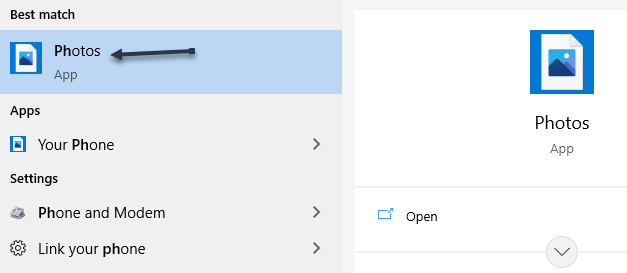
First, locate an HEIC file in File Explorer on your computer and double-click it. If you are asked which application you want to open it in, select Photos.
Note! If the HEIC file does not open in the Photos app, right-click the HEIC file and select
Open With > Photos
Refer to below image:
Selecting how to open HEIC photos
The Photos app will tell you that the HEIF Image Extension is required to display this file. Click the Download and install it now link to get it from the Microsoft Store. It’s a free download. If you do not see this requirement screen, do a Google search and install the extension. See below image:
Google search for HEIF extension
If Windows asks Did you mean to switch apps?, select Yes.
This will open the HEIF Image Extensions page in the Microsoft Store app. Click the Install or Get button to download support for HEIC image files (which use the HEIF format.) See following image:
Get or Install the HEIF extension
On the next screen, if the extension is already installed, you are set. If not, the Launch button will display Install instead. Just click to install the extension. Refer to below image:
Status of the extension
Now, when you open an HEIC image in the Photos app, you will be able to view it like you would any other image file, like a JPEG, PNG, GIF, or BMP. See below image:
HEIC photo
Windows 10’s File Explorer will automatically generate and display thumbnails for your HEIC image files, too. See following image:
Thumbnails of HEIC photos in File Explorer
Convert HEIC to JPEG
To quickly and easily convert HEIC files to standard JPEG images on Windows, we recommend you download and install CopyTrans HEIC for Windows.
This tool installs full support for HEIC images in Windows, so it’s particularly useful on Windows 7 and older versions of Windows 10 that do not have integrated support in the Photos app. It adds support for HEIC images to the classic Windows Photo Viewer.
CopyTrans HEIC also allows you to right-click an HEIC file in File Explorer and select Convert to JPEG to easily convert it to a JPEG file. Select the option and you will get a JPEG version of the image automatically placed in the same folder as the original HEIC file.
JPEG files are more widely supported, so this will help you use the HEIC file in applications that support JPEG images but not HEIC files. Refer to below image:
Selecting to convert HEIC to JPEG
Change the Default
If you find dealing with HEIC files inconvenient, you can also configure your iPhone to always take photos in JPEG format.
Go to
Settings > Camera > Formats > (and checkmark) Most Compatible
instead of High Efficiency. See below image:
changing the default on iPhone
However, HEIC offers higher image quality in smaller file sizes. It’s a more modern image format, and we recommend sticking with it if the applications you use support it.
Quote For the Day
When you’re older you want to learn from other people.
Ray Bradbury
That’s it. Please feel free to share this post! One way to share is via Twitter.
Just click the Tweet icon below. This will launch Twitter where you click its icon to post the Tweet.
Checkout TechSavvy.Life for blog posts on smartphones, PCs, and Macs! You may email us at contact@techsavvy.life for comments or questions.
Please feel free to leave a comment. I would love hearing from you. Do you have a computer or smart device tech question? I will do my best to answer your inquiry. Just send an email to contact@techsavvy.life. Please mention the device, app and version that you are using. To help us out, you can send screenshots of your data related to your question.
The author’s Vietnam eBook on the Battle for Tra Bong Vietnam: Events and Aftermath
Adding your signature into a Microsoft Word document is a way to put your own stamp on it and make it look official and professional. Let’s explore how this is done.
This is for devices running Word. We are using Word for Microsoft 365 on Windows 10.
Copyright Scott Adams, Inc./Distributed by Universal Uclick for UFS
There are several ways to add your signature to a Word document. You can add a signature line for a post-print signature, or insert your own handwritten signature as a picture.
Add a Signature Line
A Signature Line provides you, or somebody else, with a location to sign a printed document. If you are planning on printing your Word document, adding a Signature Line is probably the easiest way.
First, open a Word document. In the Text section, click
Insert > Signature Line
Refer to below image:
Selecting Signature Line option
Next, in the Signature Setup box that appears, fill out your signature details. You can include the name, title, and email address of the signer. This can be you or somebody else.
You can also provide instructions for the signer. Once you are ready, click OK to insert your Signature Line. See below image:
Setting up Signature details
Now, once you have confirmed your signature options, a Signature Line is inserted with a cross and a line to signify where to sign. See following image:
Your Signature Line
You can now drag-and-drop this into an appropriate position within your Word document. The document can then be signed at this position after printing.
Add a Picture Signature
If you would prefer to use your handwritten signature, you can take a picture or scan a copy of it and upload it to your computer. You can then insert a picture of your signature into the Word document.
First, place your cursor where you want to locate the signature, preferably just below the Signature Line box.
To insert the image into your document, click
Insert > Pictures > This Device
Your File Explorer will open for you to choose your signature image, then click Insert. Highlight your Signature Line box, and click the Layout Options icon. From here, choose the Layout Option, In Front of Text.
Selecting In Front of Text for Layout Option
Next, drag-and-drop your signature picture onto the Signature Line. See below image:
Your final result
Optionally, following the above steps, you could add a photo below or to the side of your Signature Line box.
Quote For the Day
People are always asking for the latest developments in the unification of this theory with that theory, and they don’t give us a chance to tell them anything about one of the theories that we know pretty well. They always want to know things that we don’t know.
Richard P Feynman
That’s it. You now know how to add a signature into a Word document. Please feel free to share this post! One way to share is via Twitter.
Just click the Tweet icon below. This will launch Twitter where you click its icon to post the Tweet.
Check out TechSavvy.Life for blog posts on smartphones, PCs, and Macs! You may email us at contact@techsavvy.life for comments or questions.
Please feel free to leave a comment. I would love hearing from you. Do you have a computer or smart device tech question? I will do my best to answer your inquiry. Just send an email to contact@techsavvy.life. Please mention the device, app and version that you are using. To help us out, you can send screenshots of your data related to your question.
The author’s Vietnam eBook on the Battle for Tra Bong Vietnam: Events and Aftermath
The all-new compact Siri interface, available with iOS and iPadOS 14, renders just a small animated orb at the display bottom along with a compact, banner-style response that slides into view.
The all-new compact Siri interface, available with iOS and iPadOS 14, renders just a small animated orb at the display bottom along with a compact, banner-style response that slides into view. Lets explore how this is done with a few simple steps.
This is for iPhone and iPad
Copyright Scott Adams, Inc./Distributed by Universal Uclick for UFS
That’s an improvement over Siri in earlier iOS version that would take up the whole display. To keep the interface as minimal as possible, Siri in iOS and iPadOS 14 does not show Caption for spoken text nor does it display a live transcription of what you have spoken.
Thankfully, you can easily enable Siri Captions on an iPhone, iPad or iPod Touch. Doing so will help you verify that you have heard Siri’s response correctly.
Enable Siri Captions
First, open Settings on your iPhone or iPad. Refer to below image:
Selecting the Settings app
Next, in Settings, tap Siri & Search. See below image:
Selecting Siri & Search option
Now, in Siri & Search, scroll down and tap Siri Responses. See following image:
Selecting Siri Responses option
Next, in Siri Responses, toggle the switch beside Always Show SiriCaptions into the ON position.
Note! if you have trouble seeing toggle colors, you can turn on toggle labels in Settings as well. Refer to below image:
Toggle on Captions
Now, close Settings. Launch Siri and ask it a question. If your phone is not silenced, Siri will speak the response, and you will see the same response written on the screen in the form of a Caption. See below image:
Your Siri Caption
Disable Siri Captions
If you ever want to disable the Captions, revisit
Settings > Siri & Search > Siri Responses
and toggle Always Show Siri Captions to OFF.
Note! you will still see Siri’s responses as Captions if your device is set to silent mode and you have Spoken Responses in Settings > Siri & Search > Siri Responses set to When Silent Mode is OFF.
Quote For the Day
It has not yet become obvious to me that there’s no real problem. I cannot define the real problem; therefore, I suspect there’s no real problem, but I’m not sure there’s no real problem.
Richard Feynman
You are finished. Please feel free to share this post! One way to share is via Twitter.
Just click the Tweet icon below. This will launch Twitter where you click its icon to post the Tweet.
Check out TechSavvy.Life for blog posts on smartphones, PCs, and Macs! You may email us at contact@techsavvy.life for comments or questions.
Please feel free to leave a comment. I would love hearing from you. Do you have a computer or smart device tech question? I will do my best to answer your inquiry. Just send an email to contact@techsavvy.life. Please mention the device, app and version that you are using. To help us out, you can send screenshots of your data related to your question.
The author’s Vietnam eBook on the Battle for Tra Bong Vietnam: Events and Aftermath
Based on reading other blog posts and websites, we recommend you wait to upgrade. Microsoft even seems to be reluctant about this upgrade. Why else would they offer a 10 day rollback to Windows 10? One thing it does is allow you to try out the upgrade.
Windows 11 arrived on October 5, 2021. Unlike the big Windows 10 upgrade offer that felt impossible to avoid, Microsoft is recommending many PC owners not to upgrade.
This is for devices running Windows 10 and 11
Copyright Scott Adams, Inc./Distributed by Universal Uclick for UFS
How the Upgrade Will Work
Windows 11 will be a free upgrade for PCs running Windows 10, just as Windows 10 was a free upgrade for PCs running Windows 7 and Windows 8.
However, this time, Windows 11 is not designed for all those PCs. Windows 11 officially supports only very recent hardware. In addition to requiring TPM 2.0 and UFFI with Secure Boot, Windows 11 only supports certain recent CPUs.
Specifically, PCs with Intel processors must have an Intel 8th generation or newer processor. AMD PCs must be running at least AMD Zen 2. ARM PCs must have Qualcomm 7 or 8 Series hardware.
Microsoft refuses to explain exactly why only certain CPUs are supported.
Can your PC Run Windows 11
Not sure what hardware your PC has and whether it will support Windows 11? Microsoft offers an official PC Health Check app (yes the app is back) that will tell you whether your PC can officially run Windows 11. If not, the PC Health Check will tell you what the problem is. First, to check on your PC, download the PC Health Check app and scroll down to the bottom, then click on the download button. Refer to below image:
Download PC Health Check
Next, after the download, click on the .msi file to install. Once installed, click the big blue Check now button. See below image:
Run the PC Health Check
Now, the app will tell you whether your PC can officially run Windows 11. See following image:
A possible result in running the PC Health Check
However, the tool will not tell you the full story. Even if your PC can run Windows 11, you might not want to upgrade yet. And, even if your PC does not officially support Windows 11, you can upgrade anyway.
If Your PC Does Supports the Upgrade
Next, if Windows 11 officially supports your PC and you are not too worried about any missing options or potential bugs, feel free to upgrade. Refer to below image:
Your PC supports Windows 11
For example, Windows 11’s Taskbar is missing some features that were found in Windows 10’s. Windows 11’s Taskbar is glued to the bottom of your screen, and you can not drag and drop files and other items to Taskbar icons, as you could on Windows 10.
If Your PC Does Not Support the Upgrade
Now, if Windows 11 does not officially support your PC, you have a more difficult decision to make. Microsoft recommends against installing Windows 11 on computers that have older CPUs it does not officially support. We would also recommend against installing Windows 11 on these PCs.
Sure, it may work, but you may encounter bugs; and Microsoft says it will not guarantee security updates will be available in the future. After all, Windows 10 will be officially supported until late 2025.
So that’s our official recommendation: Do not do it, particularly if you use your PC for work or other critical tasks and you just need it to work. See below image where the processor is outdated:
Your PC does not support Windows 11
However, if you really want to get your hands on Windows 11 on a PC that is not officially supported, feel free to install the upgrade anyway. Just know what you are getting into. That’s why Microsoft makes you agree to a waiver full of legalese before you install Windows 11 on such a PC.
Try It For 10 Days
Next, if you are on the fence about Windows 11, you can give it a try. For the first 10 days after you upgrade, you will have the option to downgrade back to Windows 10.
It will be at;
Settings > System > Recovery > Go Back
under Recovery options. If the option is grayed out, it’s no longer available. See following image:
Revert back to Windows 10 within 10 days
After 10 days, the option to downgrade will silently vanish as Windows 11 will delete your old Windows 10 files from your system drive to free up space.
You can still downgrade a PC running Windows 11 back to Windows 10. However, you will have to perform a full reinstall of Windows 10, so you will have to reinstall all your applications and set everything up from scratch.
Quote For the Day
Design is a funny word. Some people think design means how it looks. But of course, if you dig deeper, it’s really how it works.
Steve Jobs
That’s it. Please feel free to share this post! One way to share is via Twitter.
Just click the Tweet icon below. This will launch Twitter where you click its icon to post the Tweet.
Check out TechSavvy.Life for blog posts on smartphones, PCs, or Macs! You may email us at techsavvy.life for comments or questions.
Please feel free to leave a comment. I would love hearing from you. Do you have a computer or smart device tech question? I will do my best to answer your inquiry. Just send an email to contact@techsavvy.life. Please mention the device, app, and version you are using. To help us out, you can send screenshots of your data related to your question.

The author’s Vietnam eBook on the Battle for Tra Bong Vietnam: Events and Aftermath