Have you ever noticed the message you see when you install a browser extension in Chrome, for example? For most browser extensions, a message appears stating that the extension can “Read and modify all of your information on the websites you visit.”
Have you ever noticed the message you see when you install a browser extension in Chrome, for example? For most browser extensions, a message appears stating that the extension can “Read and modify all of your information on the websites you visit.” Refer to below image where we are looking at DuckDuckGo Privacy Essentials extension, an Internet privacy company, on their permissions:
Viewing a Chrome extension for permissions
What! Does not look secure to me as it reads all data on your device. You want to remove this browser extension and similar extensions for privacy issues.
To review your Chrome browser extensions:
Open Chrome, and click the 3-dot hamburger icon in upper-right hand corner.
Click on More Tools, then Extensions. They will be listed alphabetically.
Find a browser Extension that is enabled. Click on its Details button. Now, scroll down to the Permissions and Site Access sections to view how it is accessing your data.
You may be surprised as to the information the Extension is collecting on you. Let’s explore what this is about.
This is for modern day browsers like Edge, Chrome, Firefox, and Safari. Screenshots are from Chrome desktop version
Copyright Scott Adams, Inc./Distributed by Universal Uclick for UFS
This means that the browser extension has full access to all web pages you visit. It can see which web pages you are browsing, read their content and look at everything you write. It can even modify the web pages; for example by inserting additional ads. If the extension is malicious, it can collect all your private information; from web activity and emails you write to your passwords and financial information; and send it to a remote server on the Internet.
I am tired of receiving fake emails, texts, tweets, posts, and so on. Recently I have been receiving media from Thank You, USPS, Wells Fargo, Cox Communications, and so on.
This is primarily due to my accounts being compromised and sold. Another reason is some browser extensions is watching my activity.
If a browser extension is completely reliable and trustworthy, that’s fine. The browser extension may behave responsibly and not capture any data or interfere with your banking information.
We do not say that you have to uninstall every browser extension you have. Instead, you just realize the enormous access you give to the browser extensions you install and act on accordingly.
See below image for a popular Chrome extension, Todolist, permissions allowing access to its web site:
Viewing a Chrome extension for permissions
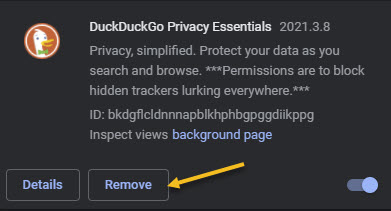
But keep this in mind; if you do not trust the add-on, you may not want to run it in the first place. We recommend you click the Remove button to delete any extension you do not trust. See following image:
Removing a Chrome extension
That’s it. Please feel free to share this post! One way to share is via Twitter.
Just click the Tweet icon below. This will launch Twitter where you click its icon to post the Tweet.
Check our TechSavvy.Life for blog posts on smartphones, PCs, and Macs! You may email us at contact@techsavvy.life for comments or questions.
Please feel free to leave a comment. I would love hearing from you. Do you have a computer or smart device tech question? I will do my best to answer your inquiry. Just send an email to contact@techsavvy.life. Please mention the device, app and version that you are using. To help us out, you can send screenshots of your data related to your question.
The author’s Vietnam eBook on the Battle for Tra Bong: Events and Aftermath
No matter who you are or what your profession is, the Calculator app is one of the most used applications. If you use the Calculator app extensively, here is how you can keep Calculator “always on top” in Windows 10.
No matter who you are or what your profession is, the Calculator app is one of the most used applications. If you use the Calculator app extensively, here is how you can keep Calculator “always on top” in Windows 10.
This is for devices running Windows 10
Copyright Scott Adams, Inc./Distributed by Universal Uclick for UFS
In the Windows 10 build 18956 (20H1), Microsoft added this new option to the Calculator app.
The Calculator has a number of different modes, including Standard, Scientific, Graphing, CurrencyConversation, and more. Note! This feature only works with the Standard mode, but it is still handy.
This feature is pretty useful when you use the Calculator in conjunction with some other app. If you are writing a document and need to do a couple of quick calculations, switching between applications each and every time is a bit annoying. So let us save some time and enable this feature.
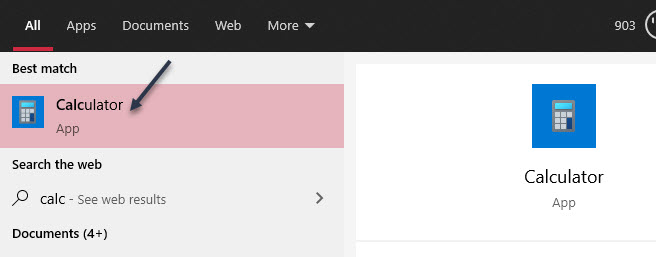
First, open the Calculator app from the Start Menu pinned apps or Tiles; or click the Cortana Search box in the taskbar, type calc then open Calculator from the search result. Refer to below image:
Accessing the Calculator app
Now, the Calculator will open in the last mode you used. If you are not already in Standard mode, click the hamburger icon in the top left and select it. See below image:
Accessing the drop-down menu to select Standard calculator
Next, tap the keep-on-top icon next to the Standard title. See following image:
Selecting the “always on top” icon
The Calculator will pop-out to a slightly smaller window that will always “stay on top”. You can drag it around by grabbing the top bar. To slightly resize it, grab the edges of the window. Refer to below image:
The Standard calculator
To close the window, just click the “X”. No more switching back and forth between windows to do simple math.
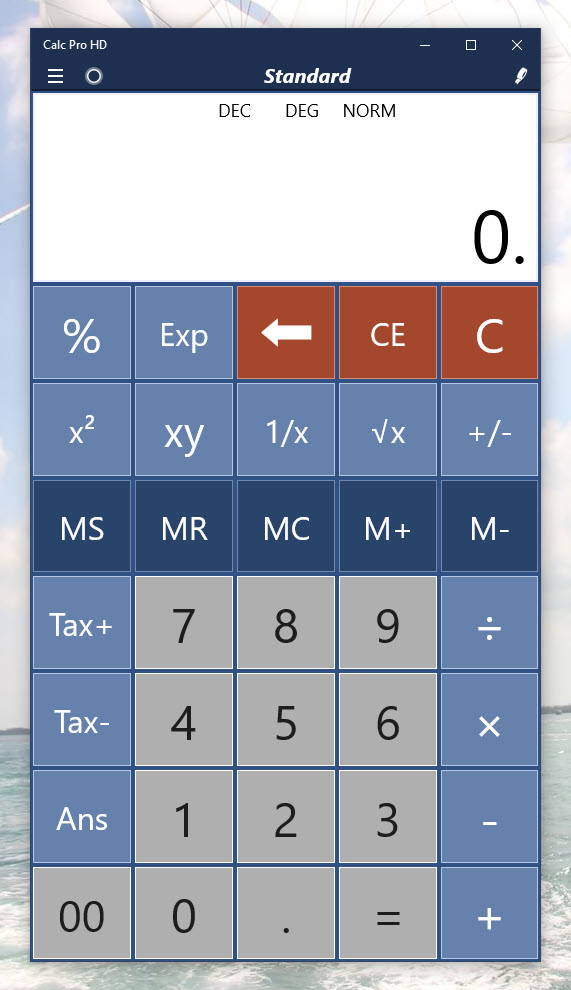
An alternative Calculator that I recommend is Calc Pro HD. There is a free and paid version. It offers a more attractive interface plus more features. The paid version offers 10 calculators to meet your needs.
Although “not always on top”, it is “always available” by allowing you to use voice commands to perform your calculations!
Please feel free to leave a comment. I would love hearing from you. Do you have a computer or smart device tech question? I will do my best to answer your inquiry. Just send an email to contact@techsavvy.life. Please mention the device, app and version that you are using. To help us out, you can send screenshots of your data related to your question.
The author’s Vietnam eBook on the Battle for Tra Bong: Events and Aftermath
Windows 10 has a hidden video editor that works a bit like Windows Movie Maker or Apple iMovie. You can use it to trim videos or create your own home movies and slideshows. You can even have it create videos automatically. Lets explore how to find and use the Video Editor.
Windows 10 has a hidden video editor that works a bit like Windows Movie Maker or Apple iMovie. You can use it to trim videos or create your own home movies and slideshows. You can even have it create videos automatically. Lets explore how to find and use the Video Editor.
This is for devices running Windows 10
Copyright Scott Adams, Inc./Distributed by Universal Uclick for UFS
Open Video Editor Inside of Photos App
You can get started with a custom video project by launching the Photos app from your Start menu. Enter “Photos” (without quotes) in the Cortana search box next to Start. Now, click the the New Video button and select an entry from the drop-down list. Also, you can switch to the Video Editor app. This is confusing; launching the Video Editor inside of Photos. Where to launch the Video Editor depends on what you are trying to do. (See section on DetermineWhere to Launch the Video Editor below). Refer to below image:
Selecting a new video inside the Photos app
Open Video Editor Outside of Photos app
Also, Windows 10 now lets you launch the Video Editor from the Start menu, too. First, click the Start menu. Next, in the Cortana search box next to Start, enter “Video Editor” (without quotes). Now, in the upper left-hand corner, click the Video Editor app shortcut. See below image:
Selecting the Video Editor app outside of the Photos app
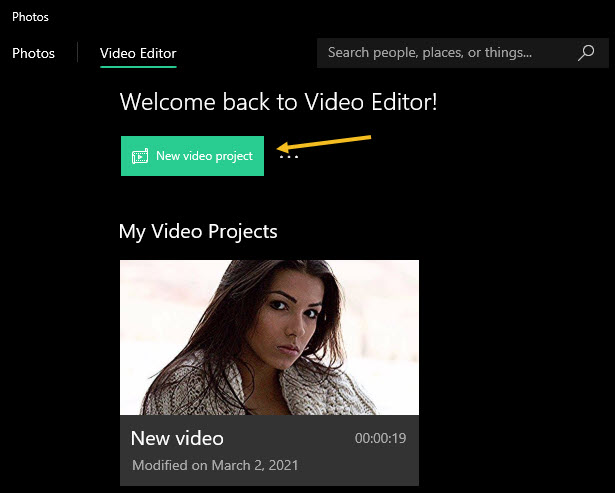
Now, launch the Newvideo project shortcut in the upper left-hand corner. If you have used the Video Editor, a Welcome Back message will be displayed. Note! You are now in the Photos app under the Video Editor tab. See following image:
Selecting a new video project
This shortcut opens the list of “Video Projects” in the Photos app. From here, you can create a new video using the New Video tab, then click the Add button and chose a location for your photos. Also, you may edit an existing video using the Pencil icon. Refer to below image:
Create or Edit a video
Determine Where to Launch the Video Editor
To quickly make smaller edits on individual videos—for example, to trim an individual video rather than combining multiple videos together; you must open those videos directly in the Photos app from File Explorer.
Using the File Explorer
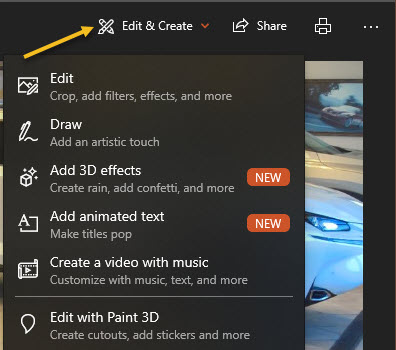
First, select an image from the File Explorer, open the image in the Photos app, Now, click on the Edit & Create button and select an entry from the drop-down list. See below image:
Create. add effects, or edit a video
From here, play around with the various tools and effects. Click Finish when done to export your video in mp4 format. Have fun in creating and editing your videos.
That’s it. Please feel free to share this post! One way to share is via Twitter.
Just click the Tweet icon below. This will launch Twitter where you click its icon to post the Tweet.
Check out TechSavvy.Life for blog posts on smartphones, PCs, and Macs! You may email us at contact@techsavvy.life for comments or questions.
Please feel free to leave a comment. I would love hearing from you. Do you have a computer or smart device tech question? I will do my best to answer your inquiry. Just send an email to contact@techsavvy.life. Please mention the device, app and version that you are using. To help us out, you can send screenshots of your data related to your question.
The author’s Vietnam eBook on the Battle for Tra Bong: Events and Aftermath
Has Windows been acting flaky? It could be a specific piece of software that’s wreaking havoc on your system. Maybe you have installed a new application or driver. Perhaps Windows is crashing or blue screening and you have no idea why. Do not worry because all is not lost if you have a system Restore Point waiting to roll your PC back to functionality.
Has Windows been acting flaky? It could be a specific piece of software that’s wreaking havoc on your system. Maybe you have installed a new application or driver. Perhaps Windows is crashing or blue screening and you have no idea why. Do not worry because all is not lost if you have a system Restore Point waiting to roll your PC back to functionality.
This is for devices running Windows 10. Also works for Windows 8 and 7. Screenshots are from Windows 10
Copyright Scott Adams, Inc./Distributed by Universal Uclick for UFS
A Restore Point is essentially a snapshot of Windows at any given time. You can create restore points on a regular basis, and if Windows ever breaks, you can bring it back to a point from before the problem occurred. The best part of using this method over a Recovery Drive is that only system files and settings will be affected, while all your documents and personal files will be left untouched.
Windows automatically creates a Restore Point, if enabled, at key moments, such as when you install certain software programs and drivers or apply Windows updates. However, you should manually create these points yourself on a regular basis, perhaps once a month, to ensure that your system can be restored to a recent state in the event of a mishap. You should also create one before you attempt any type of major change to Windows that could inadvertently lead to unstable behavior or other issues.
Create a Automatic Restore Point
First, locate the Restore Point utility by clicking Start and entering the text “restore” (without quotes) in the Cortana search box located next to Start. Refer to below image:
Entering the Restore search criteria in Cortana search boc
Next, click your search result, Create a restore point, in upper left-hand corner. See below image:
Selecting the Control Panel applet to Create a Restore Point
Now, you will be taken to the System Protection tab of the System Properties window.
If System Protection has not yet been enabled, the Create button is grayed out. In this case, select the drive you want to protect and then click the Configure button.
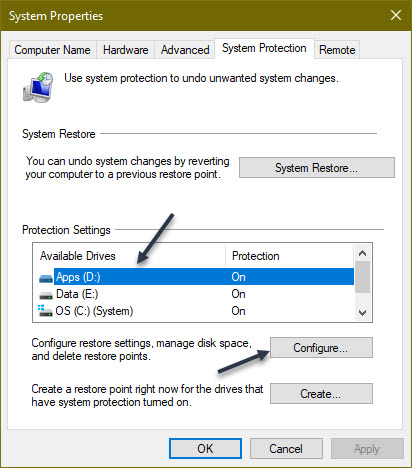
If System Protection is enabled for a drive, highlight the drive and click the Configure button. See following image:
Selecting a drive to Configure
Next, click the Turn on System Protection radio button if not enabled. You will now need to decide how much disk space you want to devote to all your restore points. If you run out of space, the oldest restore points will start getting deleted. If you have ample free space, then you may want to devote more storage for the restore points. Otherwise, you can stick with the suggested percentage, usually anywhere from 1% to 3% depending on the overall size of the drive or move the slider to the percentage you want. Once set, click OK. Refer to below image:
Configuring the drive and amount of storage space for a Restore Point
Your restore points will be created automatically at certain key moments. You can repeat these steps if you have other drives that you wish to protect. You can also return to this screen in the future to delete all existing system restore points if you are running low on disk space. To do this, click the Delete button and click Continue to confirm the deletion.
Create a Manual Restore Point
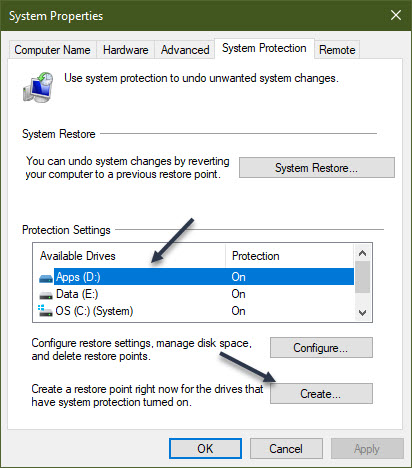
Head back to the Configure screen (second image above). This time, highlight an available drive and click the Create button. See below image:
Selecting to create a manual Restore Point
Next, type in a name for the restore point. Since the current date and time will automatically be added to the name, you might want to include a note about the action you are about to take or another reason for the restore point. If you have multiple drives, include the drive name or letter in the name. Now, click the Create button. See following image:
Assigning a name for the Restore Point
Windows will tell you if the restore point was created successfully. Now, click the Close button. Refer to below image:
Pop-up message indicating the success of creating a Restore Point
You can repeat the above steps if you want to create a restore point for your other drives. When done, click OK to shut down the System Protection window
Restore to a Previous State
If you have an issue, you can return to the System Protection window and click the System Restore button. See below image:
Selecting the System Restore button
At the Restore system files and settings screen, Windows explains what SystemRestore does. Click Next to continue. See following image:
Verbage screen about the Restore
Now, select a drive restore point, then click the Scan for affected programs button. Refer to below image:
Selecting Scan for affected programs button
Windows scans for any applications that were added since the last restore point in order to delete them and looks for any that were removed in order to restore them. It also scans for any programs and drivers that might be restored but may not work correctly and may need to be reinstalled. Note the results if Windows finds anything important. After the scan completes, click Close to return to the previous SystemRestore window. See below image:
Displaying the results (if any) of the scan. PAY CLOSE ATTENTION to this screen!
Make sure the restore point you want to use is selected. Now, click Next. See following image:
Continuing the Restore
Windows will display a Confirm your restore point window. Next, click the Finish button. Refer to below image:
Confirming your Restore. PAY CLOSE ATTENTION to this screen!
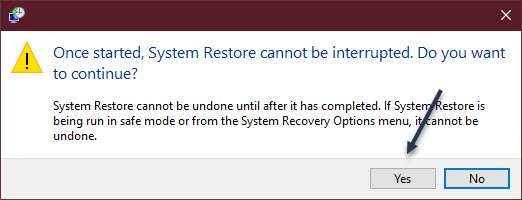
You will be told that the System Restore cannot be interrupted. Next, click Yes to continue. See below image:
One last chance to back out of the Restore. PAY CLOSE ATTENTION to this screen!
Windows will bring your system back to the restore point you selected and reboot, telling you that your files and settings are being restored. Once Windows is back up again, you can log back in.
Next, you should receive a pop-up screen regarding the success of the Restore. You may now need to reinstall any applications, drivers, or other software that were removed. You will also want to play around in Windows to see if the problem that prompted you to restore it has been eliminated.
You are now finished. Now you know how to create a system RestorePoint for all your hard drives and restore your system to a previous state. Please feel free to share this post! One way to share is via Twitter.
Just click the Tweet icon below. This will launch Twitter where you click its icon to post the Tweet.
Check out TechSavvy.Life for blog posts on smartphones, PCs, and Macs! You may email us at contact@techsavvy.life for comments or questions.
Please feel free to leave a comment. I would love hearing from you. Do you have a computer or smart device tech question? I will do my best to answer your inquiry. Just send an email to contact@techsavvy.life. Please mention the device, app and version that you are using. To help us out, you can send screenshots of your data related to your question.
CThe author’s Vietnam eBook on the Battle for Tra Bong: Events and Aftermath
Have you ever been getting things done with a bunch of apps open then suddenly need to logout or restart your PC? It can be annoying when you log back in and having to restart all the apps you were using. For some good news, Windows 10 offers a switch in Settings that will resume select apps after logging out and back in again. This makes Windows remember which apps to reopen so you can resume where you left off.
Have you ever been getting things done with a bunch of apps open then suddenly need to logout or restart your PC? It can be annoying when you log back in and having to restart all the apps you were using. For some good news, Windows 10 offers a switch in Settings that will resume select apps after logging out and back in again. This makes Windows remember which apps to reopen so you can resume where you left off.
This is for devices running Windows 10
Copyright Scott Adams, Inc./Distributed by Universal Uclick for UFS
This feature works with most modern apps like Office, Edge, other apps you have downloaded from the Microsoft Store, or those apps considered restartable. It might not work with legacy desktop apps like Photoshop, for example. Still this is a nice feature, so let’s explore how this is done.
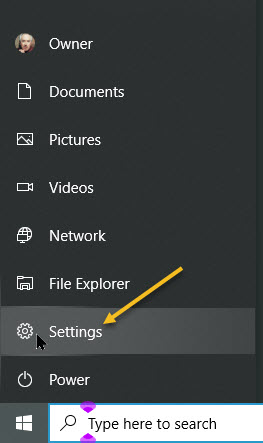
First, open Settings by clicking the Start menu and select the small gear icon, or press Windows+I. Refer to below image:
Accessing Settings
Next, in the Settings screen, click on Accounts. See below image:
Accessing Accounts
Now, on the Accounts screen, click Sign-in options in the sidebar. See following image:
Accessing Sign-in options
In Sign-in options, scroll down the page until you see the Restart apps option. Toggle the switch just below it until it’s turned On.
Turning on Restart apps
Now, you may exit Settings.
The next time you log out and log back in, what Microsoft calls your “restartable apps” will be reloaded automatically.
These are its universal apps available through the Store. The Windows Store only includes apps written for Microsoft’s new “Universal Windows Platform,” or UWP.
Legacy apps (that use the Win32 API) written for Windows versions prior to Windows 8 may not be restarted automatically. Still, you may find this feature useful.
That’s it. Please feel free to share this post! One way to share is via Twitter.
Just click the Tweet icon below. This will launch Twitter where you click its icon to post the Tweet.
Check out TechSavvy.Life for blog posts on smartphones, PCs, and Macs! You may email us at contact@techsavvy.life for comments or questions.
Please feel free to leave a comment. I would love hearing from you. Do you have a computer or smart device tech question? I will do my best to answer your inquiry. Just send an email to contact@techsavvy.life. Please mention the device, app and version that you are using. To help us out, you can send screenshots of your data related to your question.
The author’s Vietnam eBook on the Battle for Tra Bong: Events and Aftermath
If you do not want Google Chrome to remember your activity, you can browse the web privately in Incognito mode.
If you do not want Google Chrome to remember your activity, you can browse the web privately in Incognito mode.
It is easy to quickly open an Incognito window using a keyboard shortcut. Lets explore how to do this.
This is devices running Google Chrome
Copyright Scott Adams, Inc./Distributed by Universal Uclick for UFS
First, open Chrome. Next, with any Chrome browser window open, press the following keyboard combination to open a new Incognito window:
Windows, Linux, or Chrome OS: Press Ctrl + Shift + N.
Mac: Press ⌘ + Shift + N.
After pressing the keyboard shortcut, a special Incognito window will open. If you want to block third-party cookies, just toggle the switch to On, the default setting. Refer to below image:
Your Incognito window
Whenever you are in Incognito mode, you will be able to tell because the Chrome browser window’s toolbar will have a darker color scheme and there will be a small Incognito icon beside the address bar in the toolbar. See below image:
The icon and text telling you are in Incognito mode
You can switch between Incognito windows and regular Chrome windows. You will only browse in private when you are using an Incognito window.
While browsing within an Incognito window, Chrome will not locally store your browsing history, site data, cookies, or saved form data once you close the Incognito window. However, downloaded files and bookmarks will be saved unless you manually remove them.
At any time, you can press Ctrl+T (or ⌘ + T on Mac) to open a new tab within the Incognito window, and browsing activity within that tab will be locally private as well.
Remember that Incognito mode is not perfect, and it does not protect you from those who might view your activity on the web remotely, such as your employer, school, ISP, or the websites you visit. It is only to prevent local snooping of your browsing history.
If you see a number next to the Incognito text at the top right, you have more than one Incognito window open. See following image:
Your number of Incognito windows open
When you are ready to stop private browsing, you will need to close the Incognito window(s). To do so using a keyboard shortcut:
Windows, Linux, or Chrome OS: Press Alt + F4
Mac: Press ⌘ + Shift + W
Or you can just click the “X” in the corner of the window with your mouse.
That’s it. Please feel free to share this post! One way to share is via Twitter, as mentioned below.
I hope you have found this post helpful. If so, click the Tweet icon below. This will launch Twitter where you click its icon to post the Tweet.
Check out TechSavvy.Life for blog posts on smartphones, PCs, and Macs! You may email us at contact@techsavvy.life for comments or questions.
Please feel free to leave a comment. I would love hearing from you. Do you have a computer or smart device tech question? I will do my best to answer your inquiry. Just send an email to contact@techsavvy.life. Please mention the device, app and version that you are using. To help us out, you can send screenshots of your data related to your question.
The author’s Vietnam eBook on the Battle for Tra Bong: Events and Aftermath
Nobody wants their communications to have spelling errors left in, so let Microsoft Outlook help by automatically spell checking emails before they are sent.
Nobody wants their communications to have spelling errors left in, so let Microsoft Outlook help by automatically spell checking emails before they are sent. Of course you can manually check before sending by opening an Outlook email and head to:
Review > Spelling & Grammar
But who wants to do this for every email you send. Instead, the Microsoft Outlook desktop client has a setting that forces spell check to take place after you click the Send button. If no errors are found, the email is sent like normal. If a spelling error is found, Outlook gives you the option to correct it before the email is sent.
This is for PCs running Outlook
Copyright Scott Adams, Inc./Distributed by Universal Uclick for UFS
To enable this feature, open the Outlook desktop application and click:
File > Options
Refer to below image:
Accessing Options
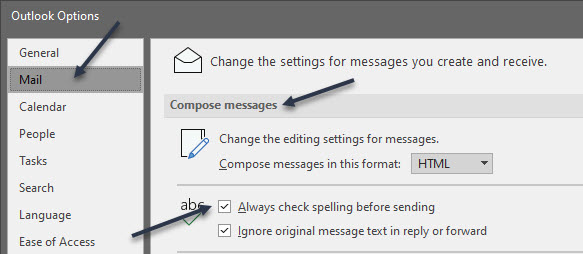
Next. in the Mail > Compose Messages section, toggle on the Always check spelling before sending checkbox. See below image:
Enabling Spell Check
Now, click OK in the bottom-right corner to save and close the Options panel. See following image:
Saving your change
Now, when we click Send on an email with a spelling error, Microsoft Outlook will pick it up and give you the chance to change it. Refer to below image:
Spell Check in action
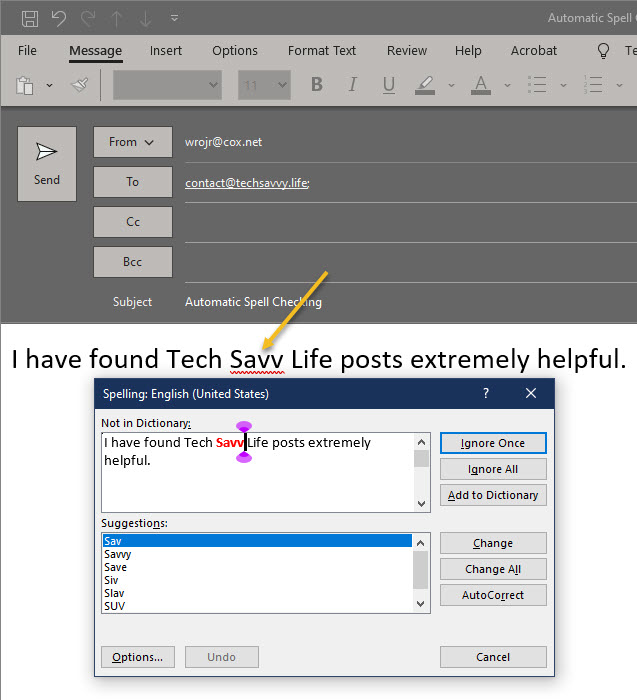
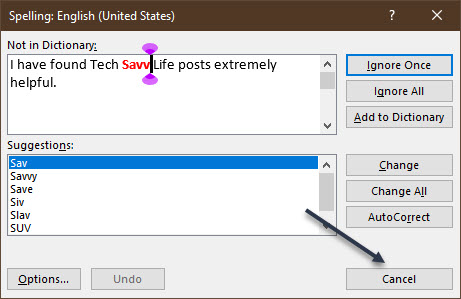
If the spell checker has found a misspelled word and you want to change it, click Cancel. Or, you could use one of its suggestions. See below image where “Savvy” is misspelled:
Cancel your email
If you choose to cancel, a dialog box will open that lets you quit sending the email. Click No to stop the email from being sent. See following image:
Cancel sending your email
Note! The spell checker will not pick up the wrong words, just words that are spelled incorrectly. So, if you meant to type in “Savvy” but instead typed “Savoy”, the spell checker will not pick that up because “Savoy” is a correctly spelled word.
You are finished. Please feel free to share this post! One way to share is via Twitter.
Just click the Tweet icon below. This will launch Twitter where you click its icon to post the Tweet.
Check out TechSavvy.Life for blog posts on smartphones, PCs, and Macs! You may email us at contact@techsavvy.life for comments or questions.
Please feel free to leave a comment. I would love hearing from you. Do you have a computer or smart device tech question? I will do my best to answer your inquiry. Just send an email to contact@techsavvy.life. Please mention the device, app and version that you are using. To help us out, you can send screenshots of your data related to your question.
The author’s Vietnam eBook on the Battle for Tra Bong: Events and Aftermath
Unfortunately, not all microphones are created equal. Baseline volume levels differ significantly between models, and while one may sound more than adequate, another may be vastly underpowered. The issue can be particularly pronounced when using microphones with communication applications such as Skype.
Unfortunately, not all microphones are created equal. Baseline volume levels differ significantly between models, and while one may sound more than adequate, another may be vastly underpowered. The issue can be particularly pronounced when using microphones with communication applications such as Skype. Let’s explore how to adjust your microphone volume.
This is for devices running Windows 10
Copyright Scott Adams, Inc./Distributed by Universal Uclick for UFS
All microphones, whether you are using an internal or external one, have different base volumes when transmitting your voice to other parties. If you find that people often complain of not being able to hear you during meetings, the most likely culprit is the out volume of your PC’s microphone.
Use Settings
First, click the Start menu, then select the gear icon on the bottom left to open Settings. You can also press Windows+i to open it. Refer to below image:
Accessing Settings
Now, click the System option. See below image:
Selecting the System option
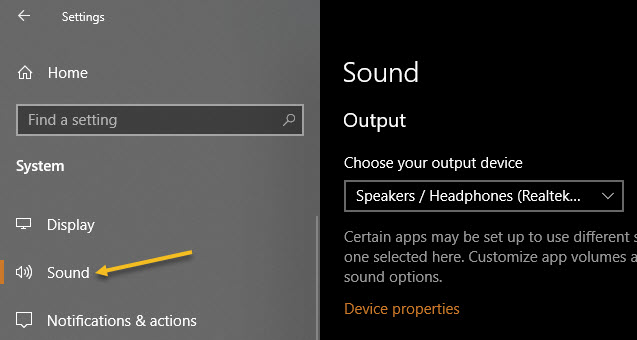
Next, select Sound in the sidebar. See following image:
Selecting the Sound option
Now, scroll down to the Input section and select the device you would like to configure using the Choose your output device drop-down list. Then click Device properties option. Refer to below image:
Accessing the selected device properties
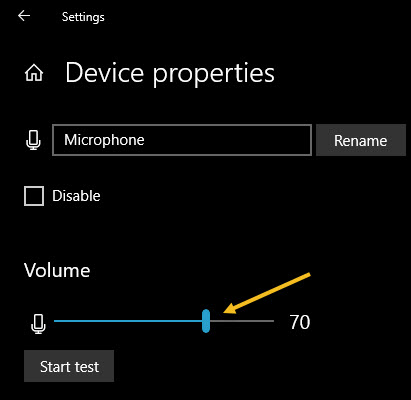
Next, use the Volume slider to adjust the output level of the microphone. See below image:
Adjusting the Sound volume
The louder the volume, the louder the output signal will be when you use the microphone. Louder is not always better, however, if the signal is too loud, your voice will be distorted. Try to find the ideal volume where your voice (or other sound source) is loud enough without having any kind of distortion.
If you need help, click the Start test button and speak into the microphone at a normal volume. See following image:
Running a sound test
When you click Stop test, you will see the highest percentage level registered by the test program. You can then adjust the volume slider accordingly. If you keep hitting 100% by talking at a normal volume, then the volume slider is adjusted too high. Reduce the volume and try again. Refer to below image where you will get a zero percent if no microphone is plugged in:
Results of your sound test
When you are satisfied, close Settings. If you ever need to adjust it again, revisit the above steps.
Use Control Panel
You can launch this tool from the speaker icon in your taskbar’s notification area, which is opposite the Start button. First, right-click the speaker icon and select Sounds from the menu that appears. See below image:
Accessing the Sounds option
Now, click the Recording tab. See following image:
Selecting the Recording tab
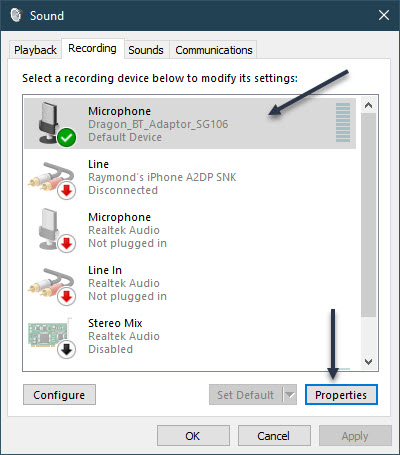
You will see a list of microphones installed on your system. Select the one you would like to adjust, then click the Properties button. Refer to below image:
Accessing the selected Microphone properties
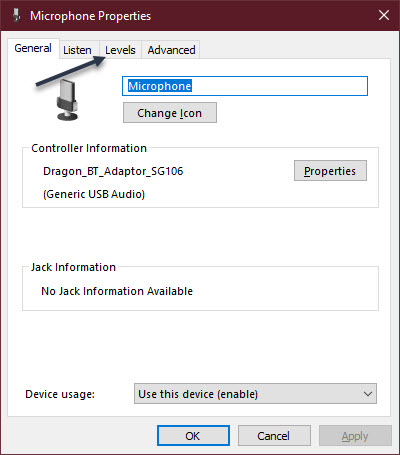
Next, click the Levels tab. See below image:
Selecting the Levels tab
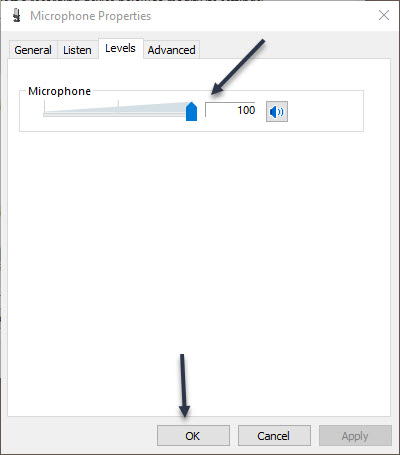
Now, use the Microphone slider to adjust the output level of the microphone. The higher the level, the louder your microphone signal will be while it is in use. That means your voice will come through louder. But a signal that is too loud will distort, so try to find the sweet spot where it is loud enough but not too loud to distort your voice. Next, click OK, then click OK again to close the Sound window. See following image:
Adjusting the Sound volume
If you need to adjust the level again, revisit the above steps.
That’s it. Please feel free to share this post! One way to share is via Twitter.
Just click the Tweet icon below. This will launch Twitter where you click its icon to post the Tweet.
Check out TechSavvy.Life for blog posts on smartphones, PCs, and Macs! You may email us at contact@techsavvy.life for comments or questions.
Please feel free to leave a comment. I would love hearing from you. Do you have a computer or smart device tech question? I will do my best to answer your inquiry. Just send an email to contact@techsavvy.life. Please mention the device, app and version that you are using. To help us out, you can send screenshots of your data related to your question.
The author’s Vietnam eBook on the Battle for Tra Bong: Events and Aftermath
When creating or modifying a Microsoft Word document, it can be beneficial to insert or embed another file into it. By inserting a file into a Word document, that file becomes a part of the Word document. A reader can open and view the embedded file without requiring special permission or access.
When creating or modifying a Microsoft Word document, it can be beneficial to insert or embed another file into it. By inserting a file into a Word document, that file becomes a part of the Word document. A reader can open and view the embedded file without requiring special permission or access.
Nearly any file can be inserted into a Word document, However, be aware that inserting a file into a Word document can increase its size significantly.
In this post, instead of using “copy and paste” from one document into another, we will show you another way, using the Insert feature.
This is for devices running Word
Copyright Scott Adams, Inc./Distributed by Universal Uclick for UFS
First, open the Word document that you would like to add the contents of, another Word document to.
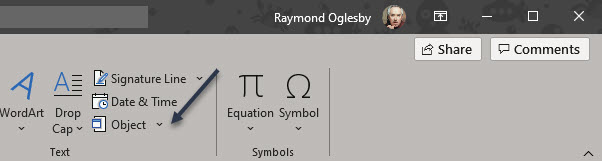
Next, in the Text group of the Insert tab, click the drop-down arrow next to the Object option. Refer to below image:
Accessing the Object option
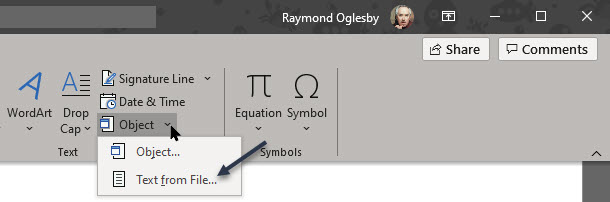
A drop-down menu will appear. There are two options to choose from here; Object and Text From File.
Object: Embeds an object such as a Word document or Excel chart
Text From File: Inserts the text from another file into your Word document
The Text From File option is essentially a quicker way to “copy and paste” the content of another file into this one.
Now, click the Text From File option in the drop-down menu. See below image:
Accessing the Text from file option from drop-down menu
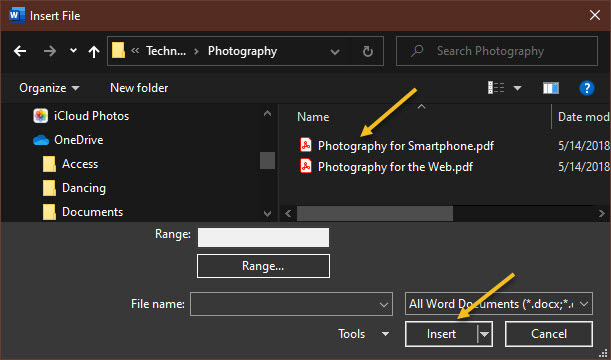
Next, the File Explorer (Finder on Mac) will open. Find the file you would like to copy the text from, select it, then click Insert. See following image:
Selecting the file to be inserted into original Word document
The contents of that Word document will now appear in the current Word document. This works well if there is not a lot of content in the other Word document, but if there is, embedding it may be a better option.
You may want to add headings/subheadings to the inserted document.
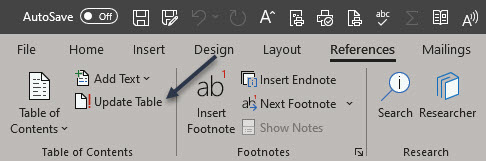
If your original Word document has a Table of Contents, make sure you update your table. First, under the References tab, select the Update Table option. Refer to below image:
Accessing Update Table option
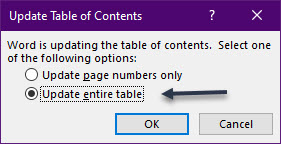
Now, from the pop-up window that will be displayed, select an option. It is recommended you choose the Update entire table option, then cli ck OK. See below image:
Selecting how you want the Table of Contents to be updated
That’s it. Please feel free to share this post! One way to share is via Twitter.
Just click the Tweet icon below. This will launch Twitter where you click its icon to post the Tweet.
Check out TechSavvy.Life for blog post on smartphones, PCs, and Macs! You may email us at contact@techsavvy.life for comments or questions.
Please feel free to leave a comment. I would love hearing from you. Do you have a computer or smart device tech question? I will do my best to answer your inquiry. Just send an email to contact@techsavvy.life. Please mention the device, app and version that you are using. To help us out, you can send screenshots of your data related to your question.
The author’s Vietnam eBook on the Battle for Tra Bong: Events and Aftermath
The default sound input device is the device that Windows uses to record or hear sound. When you connect more than one microphone or other recording devices to your PC, you can select which device you want to use by default.
The default sound input device is the device that Windows uses to record or hear sound. When you connect more than one microphone or other recording devices to your PC, you can select which device you want to use by default.
This is for devices running Windows 10
Copyright Scott Adams, Inc./Distributed by Universal Uclick for UFS
Windows 10 users often need to juggle several microphones. There might be one built into a PC, one on a webcam, on a headset, and perhaps a podcasting microphone.
It’s worth noting that in some apps (such as Zoom), you can select your microphone device within the app, and that choice will function independently of the Windows system sound settings.
To set your default microphone system-wide, follow the steps below. Every app that uses the default Windows microphone, that is the default option for most apps, will use it.
Using Settings to Set the Default Microphone
Before we begin, it’s worth mentioning that if you have only one microphone, it will be the default.
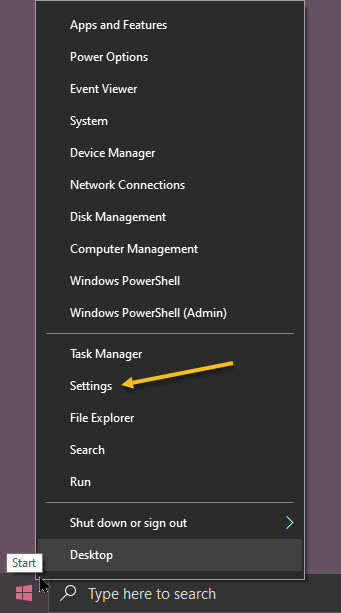
First, open Settings by clicking the Start menu and selecting the gear icon in the lower left-hand corner of your screen. You can also press Windows+i to open it. Refer to below image:
Accessing Settings
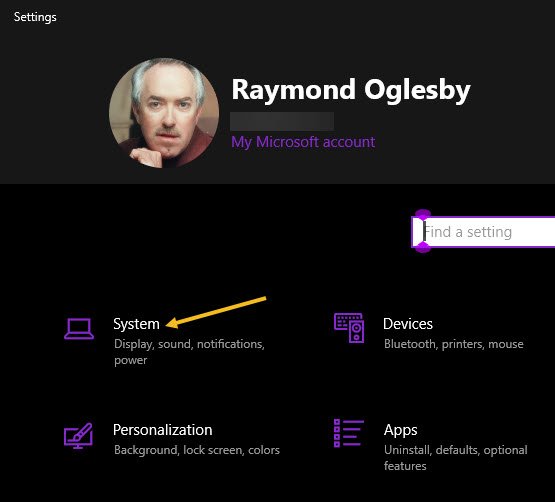
Now, in the Settings window, click the System option. See below image:
Accessing System option
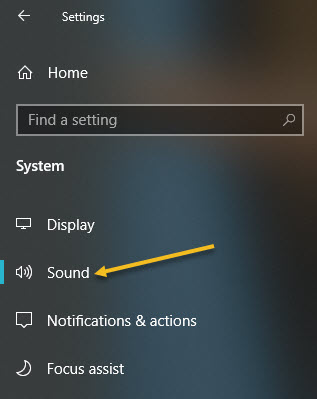
Next, on your System screen, click the Sound option from the sidebar menu. See following image:
Accessing Sound option
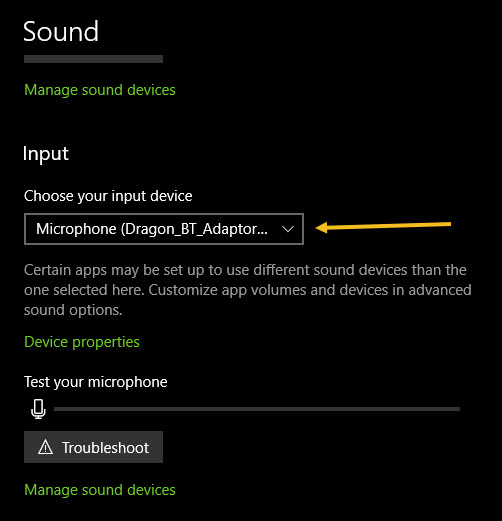
Now, scroll down to the Input section. In the drop-down menu labeled Choose your input device, select the microphone you would like to use as your default device. Refer to below image:
Selecting your default microphone
Once you have selected a device from the drop-down menu, Windows will use that device as your default microphone. Now, exit Settings.
Using Control Panel to Set the Default Microphone
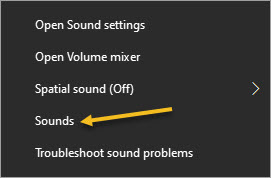
First, right-click the speaker icon in the system tray in the lower right-hand corner of your screen and select Sounds from the pop-up menu. See below image:
Accessing Sounds
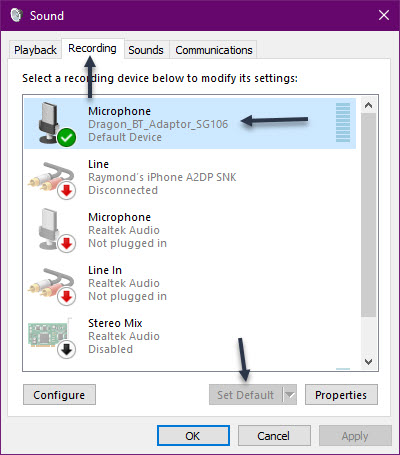
Next, click the Recording tab. Now, you will see a list of recording devices recognized by your system, which includes microphones. Select the microphone you would like to use as the default from the list and click the Set Default button. Note! If there is only one microphone listed, it will be the default. See following image:
Setting the default microphone
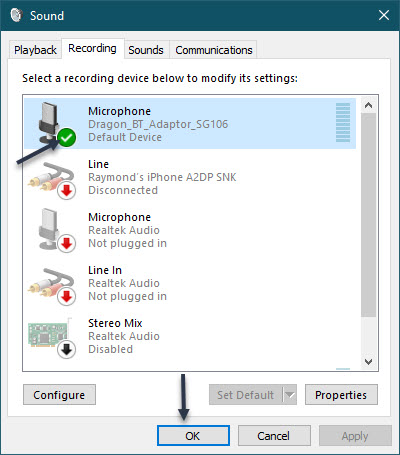
The microphone you have selected will have a green checkmark beside it and include the label DefaultDevice. Next, click OK to close your Sound window. Refer to below image:
Accepting the default microphone
If you want to change your default microphone again, just select Sounds from the speaker icon in the System tray and follow the above steps for using the Control Panel to set the default microphone.
You are finished setting your default microphone. Now you may close any openwindows. Please feel free to share this post! One way to share is via Twitter.
Just click the Tweet icon below. This will launch Twitter where you click its icon to post the Tweet.
Check out TechSavvy.Life for blog posts on smartphones, PCs, and Macs! You may email us at contact@techsavvy.life for comments or questions.
Please feel free to leave a comment. I would love hearing from you. Do you have a computer or smart device tech question? I will do my best to answer your inquiry. Just send an email to contact@techsavvy.life. Please mention the device, app and version that you are using. To help us out, you can send screenshots of your data related to your question.
The author’s Vietnam eBook on the Battle for Tra Bong: Events and Aftermath






























 Tech Savvy Life