Creating and using custom AutoText entries for frequently used phrases is a great way to speed up your content creation in Microsoft Word. By default, Word has very few entries so you may want to add your own. The good news is you can set up these time-savers in just a few clicks!
The software does come with lots of AutoText Document fields, like Author, Company Info, Status and other built-in entries such as Headers, Footers, Tables, Watermarks, etc., that you can choose for your document. You can use these entries in addition to your own AutoText entries for your documents.
Note! Your AutoText entries maintain its formatting when inserted into a document.
This is for PCs, Macs and other platforms that support Word
Copyright Scott Adams, Inc./Distributed by Universal Uclick for UFS
Creating an AutoText Entry
To begin, highlight the text in your Word document that you’d like to use to create your new AutoText entry. Refer to below image:
Selecting the text for your AutoText entry
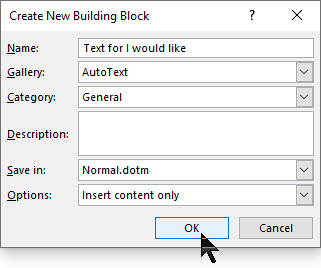
Press Alt+F3 to open the Create New Building Block window. Then, type in a name (within the 32-character limit) for your AutoText entry. Next, click OK. See following image:
Saving your AutoText entry
Your AutoText entry will be saved. Now that was easy.
Using an AutoText Entry
To use your AutoText entry, place your cursor where you want to insert the text in your Word document. Navigate to the Insert tab and click the Explore Quick Parts icon in the Text group. See below image:
Accessing your AutoText
A drop-down menu will be displayed. Hover your pointer over AutoText. Refer to below image:
Selecting the AutoText feature
A list of AutoText entries will appear. Select the one you want to use. See below image:
Inserting your custom AutoText entry
The entry you selected will be inserted into your document.
Deleting an AutoText Entry
If your AutoText list is getting crowded, or you made a mistake when you created a custom entry, you can delete them.
To do so, go back to the Insert tab and select the Text group. Then click the Explore Quick Parts icon, and then hover your pointer over AutoText.
From here, right-click the AutoText entry you want to delete. In the context pop-up menu that appears, click the option Organize and Delete. Refer to following image:
Accessing the Delete option
The Building Blocks Organizer window will be displayed with your AutoText entry highlighted. At the bottom of this dialog box, click on Delete. See below image:
The delete button at the end of the AutoText entries
A message box will appear asking you to confirm the deletion of your entry. To delete this entry, click Yes. Refer to below image:
Confirming your custom AutoText deletion
Now your entry will be deleted. You have successfully adding, inserted and deleted an AutoText entry. That’s it.
I Would Like to Hear from You
Please feel free to leave a comment. I would love hearing from you. Do you have a computer or smart device tech question? I will do my best to answer your inquiry. Please mention the device, app and version that you are using. To help us out, you can send screenshots of your data related to your question.
The author’s Vietnam eBook on the Battle for Tra Bong: Events and Aftermath
Your hard drive has been acting strange. It’s making clicking or screeching sounds, it’s unable to find files, crashes on boot, slow transfer speed or seems to be moving slowly. Your hard drive is dying.
Since it is a mechanical device it has moving parts unlike a Solid State Device (SSD) which has none. But even a SSD will eventually fail.
Even if your hard drive is healthy, over time, it will die. You should keep an eye on it’s health once in a while for your peace of mind. Let’s see how to do this.
This is for Windows 10 devices and Macs
Copyright Scott Adams, Inc./Distributed by Universal Uclick for UFS
To Tweet about this post, click the Tweet icon below to launch Twitter, then click its Tweet icon to post.
Check out TechSavvy.Life for their blog posts on smartphone apps, PCs. and Macs!
Most modern drives have a feature called S.M.A.R. T. (Self-Monitoring, Analysis and Reporting Technology) that monitors different drive attributes in an attempt to detect a failing disk. That way, your computer will automatically notify you before data loss occurs and the drive can be replaced while it still remains functional.
Check in Windows
In Windows 10, you can manually check the S.M.A.R.T. status of your drives from the Command Prompt. Just right-click the Start button, select Run, and type “cmd“, then click OK or type “cmd” into the Cortana search bar, then click OK. In the Command Prompt pop-up box, type:
wmic diskdrive get model,status
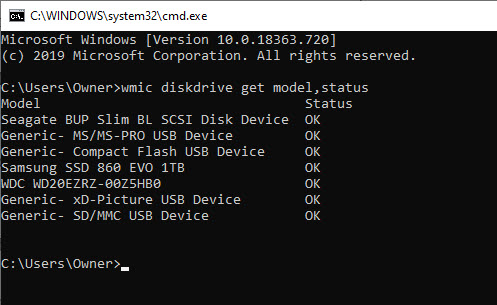
It will return “Pred Fail” if your drive’s death is imminent; “Bad”, “Unknown” or “Caution” if its time to take care of a drive or “OK” if it thinks a drive is doing fine. Refer to below image:
Checking your hard drives health
Check on a Mac
On a Mac, you can check S.M.A.R.T. status by opening the Disk Utility program, clicking on the drive and looking at “S.M.A.R.T. Status” in the bottom left, which will either read “Verified” or “Failing”.
SMART Status can be Misleading
However, this basic S.M.A.R.T. information can be misleading. You only know when your drive is near death, but you can start to experience problems even if the basic S.M.A.R.T. status is okay.
You can also use Defraggler program I discussed in a previous post. When you use the Analyze feature of the program, it will show your disk health. Click here for the post on using Defraggler.
Manufacture Check
If you want an even deeper, more accurate picture into your drive’s health, check its manufacturer’s website for a dedicated tool; for example, Seagate has SeaTools for its drives, Western Digital has Data Lifeguard Diagnostic for its drives and Samsung has Samsung Magician for its SSDs. These tools can sometimes take into account certain technologies specific to their hard drives and SSDs.
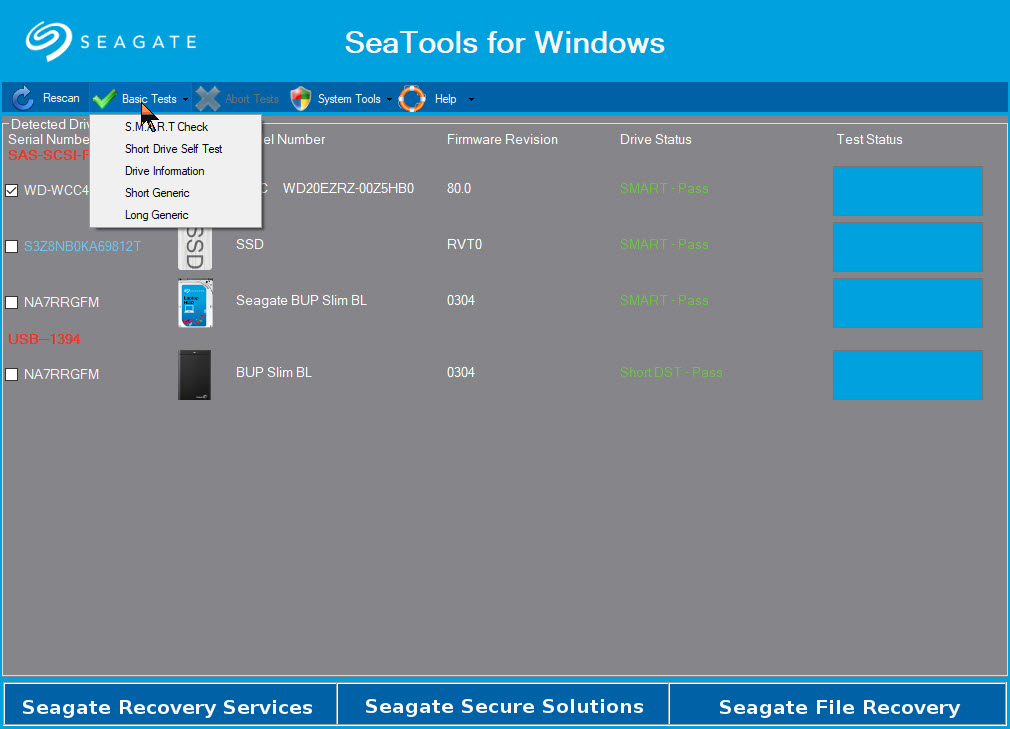
Note! You may find that the SeaTools (Seagate) utility is the only software you will need. In the below image, it can diagnose Samsung, Western Digital as well as Seagate using several methods:
SeaTools for Windows options
Is Your Drive Almost Dead
Drives with the “Pred Fail” status won’t necessarily fail tomorrow. They could chug along for a year or be dead as a doornail in a few days if not hours.
If you’re getting warnings, it’s time to back up your files before your drive fails. Failure to act may cost you serious money to recover your data.
Now is not the time for a full backup, however: you don’t want to stress the drive with too many reads or it could fail while you’re backing up. Instead, plug in an external drive and copy your most important files onto it; family photos, work documents and anything else that can’t easily be replaced. Then, once you know those are safe, you can try doing a full drive clone with something like EaseUS Todo Backup Free.
I got a S.M.A.R.T. status of “Pred Fail” on my main hard drive. I quickly backed up my important files to an external drive. I never finished before it died. I tried the trick off turning my desktop on its side, then upside down. I got a little more life from the hard drive. Then I removed the hard drive and gently shook the device. I could hear the spindle sliding; then I knew if was totally dead. But it’s worth trying this trick.
Is Your Drive Dead
If your hard drive has already stopped working, things get a lot tougher and you’ll probably need a professional data recovery service which can cost $1,000 or more. But if you have pricelrss data on the drive, it may be worth it to you.
Prepare for Hard Drive Failure
It’s not a matter of “if” your hard drive will fail; it’s a matter of “when”. All hard drives fail eventually and if you want to avoid losing all your important files, you absolutely have to back up your computer regularly; including when the drive is healthy.
Take some time to set up an automatic, cloud based backup like Google Backup and Sync using Google Drive. It is one of the best things you can do to protect yourself from heartache later on. Or at least back up to an external drive using Windows 10 built-in File History Tool.
If your drive failed catastrophically with no warning, you can get back up and running in no time by having an up-to-date backup.
That’s it. Please feel free to share this post! One way to share is via Twitter, as mentioned below.
I hope you have found this post helpful. If so, click the Tweet icon below. This will launch Twitter where you click its icon to post the Tweet.
I have found TechSavvy.Life blog posts extremely helpful. Check them out for posts on smart phone apps, Macs and PCs!
Please feel free to leave a comment. I would love hearing from you. Do you have a computer or smart device tech question? I will do my best to answer your inquiry. Please mention the device, app and version that you are using. To help me out, you can send screenshots of your data related to your question.
The author’s Vietnam eBook on the Battle for Tra Bong: Events and Aftermath
Microsoft Excel is getting a quick summary view of workbook statistics. This simple dialog box includes the boundaries of the sheets, tables, links, formulas and notes.
In a couple of clicks you can now view the workbook statistics.
This is for Excel in Office 365 on PCs and Macs
Copyright Scott Adams, Inc./Distributed by Universal Uclick for UFS
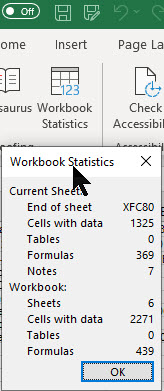
First, open an existing Excel workbook. Navigate to the Review tab and click on it. In the menu bar, head to the Proofing group. You will see the icon Workbook Statistics, just click on it to view. Refer to below image:
There are details for current sheet and the entire workbook. It is similar to Microsoft Word’s Word Count feature.
I Would Like to Hear From You
Please feel free to leave a comment. I would love hearing from you. Do you have a computer or smart device tech question? I will do my best to answer your inquiry. Please mention the device, app and version that you are using. To help us out, you can send screenshots of your data related to your question.
The author’s Vietnam eBook on the Battle for Tra Bong: Events and Aftermath
If you are not careful when starting new apps, you will find yourself immersed in annoying notifications. They take up your time and are somewhat hard to turn off via the Settings app. Let’s explore how to quickly disable these notifications on your iPhone or iPad.
This is for iPhone and iPad
Copyright Scott Adams, Inc./Distributed by Universal Uclick for UFS
Turn Off Notifications
First, unlock your device to display your Home screen. On this screen, hold and swipe down from the top center of your screen to reveal your Notifications. Refer to below image:
The Notifications screen
On a Notification you would like to disable, hold and swipe to the left. See following image for WordPress Beginner notification:
Revealing your Notification actions
A sliding menu option will be displayed for three actions you may take. The actions are as follows:
Manage – allows you to manage future Notifications, and to disable it.
View – takes you to the app that initiated the Notification.
Clear – removes the Notification from your screen, but does not remove it.
In my example, I decided to choose the TV App. Simply tap Turn Off to disable the Notification. Tapping the Deliver Quietly option allows you to receive future Notifications without receiving a sound or vibration. Refer to below image:
Turning off your Notification
A pop-up confirmation message will ask if you really want to turn off all Notifications for this app. Just tap Turn Off All Notifications. See following image:
Confirming your Notification action
From now on you will no longer receive Notifications for the chosen app.
Turn On Notifications
Let’s say you want to enable Notifications for the app you just turned off or any other Notification. In my example, I am enabling the TV App which I just turned off. To do this:
Tap Settings
Tap Notifications
Scroll down until you find the app and tap it
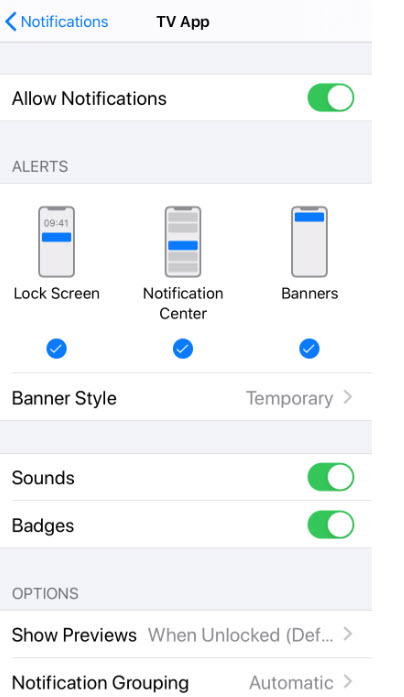
Tap the Allow Notifications toggle switch. Refer to below image:
Enabling your Notification for a particular app
The toggle will turn green and Settings will display other options you may want to configure. See below image:
Additional Notification actions
That was fairly easy. You now know how to quickly disable and enable your apps Notification.
I Would Like to Hear from You
Please feel free to leave a comment. I would love hearing from you. Do you have a computer or smart device tech question? I will do my best to answer your inquiry. Please mention the device, app and version that you are using. To help us out, you can send screenshots of your data related to your question.
The author’s Vietnam eBook on the Battle for Tra Bong: Events and Aftermath
Every once in a while you should delete Chrome’s data for faster load times and to correct erratic behavior. If this is your first time to do this, be patient, it may take a minute or so.
If you’re trying to fix loading or formatting issues to improve your browsing experience on Google Chrome, clearing your data is an excellent place to start.
For example, if Chrome is slow or unresponsive or you change a document like deleting a sentence but the sentence is still there after saving the document, its time to clear your Chrome browser data. Before doing this, log out or exit your running applications. If an application’s behavior is erratic, its recommended you log out instead of just exiting the program.
This is for Google Chrome on multiple platforms
Copyright Scott Adams, Inc./Distributed by Universal Uclick for UFS
What Happens When your Data is Deleted?
When you visit a website, it will save (or remember) certain information on your hard or SSD drive. Cookies save a user’s browsing data and cache (stored information) helps webpages load more quickly by remembering images, videos, text and other parts of the webpage from your last visit instead of reloading everything with each visit.
When you clear your data, all information gets deleted. You control how much data is deleted. The load time of previously visited sites will increase because Chrome needs to load the content of the webpage again.
Clearing Chrome’s Data
To clear your data in Chrome, you’ll need to access the browser’s Settings menu. There are three different ways to do this.
The first way is to click the three vertical dots icon (the hamburger icon) in the top-right corner of the screen, hovering over the More Tools option and then selecting Clear Browsing Data. Refer to below image:
Clear your browing data option
In the above image, you may notice the shortcut key. To go straight to the page to clear your data, hold and press down on the Ctrl + Shift + Delete keys.
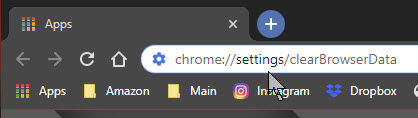
The third way is to enter chrome://settings/clearBrowserData in the address bar. See following image:
Alternate way to clear your browsing data
Now, the Clear Browsing Data window will be displayed.
The first thing you’ll do here is select the Time range for deleting the data. Click the drop down arrow next to Time range to expand the menu, then select the desired Time range; the default is All Time. It is recommended you use the default Time range. See below image:
Selecting your time range for clearing your data
Next, check the four boxes next to Browsing history, Download history, Cookies and 0ther site data and Cached images and files. If you want to clear passwords (not recommended), then checkmark Passwords and other sign-in data. Checking this box will force you to re-enter passwords you have setup before entering a website(s). Refer to below image:
Selecting your options for clearing data
Now click the Clear Data button to clear your data. See following image:
The last option for clearing your data
The process of clearing your data will take a litte while. If this is the first time, it may take several minutes, just be patient.
I Would Like to Hear from You
Please feel free to leave a comment. I would love hearing from you. Do you have a computer or smart device tech question? I will do my best to answer your inquiry. Please mention the device, app and version that you are using. To help us out, you can send screenshots of your data related to your question.
The author’s Vietnam eBook on the Battle for Tra Bong: Events and Aftermath
I recently read a post about finding your Microsoft Windows 10 product key. Microsoft likes to hide it but there are occasions you need to know the key. The key is a 25-characters code, making it virtually impossible to remember.
This is for Windows XP through 10 devices
Copyright Scott Adams, Inc./Distributed by Universal Uclick for UFS
That post gave a long command to use and a complicated Visual Basic Script (vbs) from an unknown author to be saved as a text file to run. To make things even more complicated, using two methods, the author showed two different keys. But there is a pain free way to find the key that I posted about using Belarc Advisor. This free software program is among the best to provide a detailed inventory of your device’s hardware and software.
Scroll down the report till you see the Software Licenses section. There you will find your Windows product key plus other software keys. See below image:
I Would Like to Hear from You
Please feel free to leave a comment. I would love hearing from you. Do you have a computer or smart device tech question? I will do my best to answer your inquiry. Please mention the device, app and version that you are using. To help me out, you can send screenshots of your data related to your question.
The author’s Vietnam eBook on the Battle for Tra Bong: Events and Aftermath
The Files app got a huge upgrade with iOS 13 and iPadOS 13 and its support for external storage. One of the new things was the native support for Zip files. You’ll no longer need to download third-party apps and shuffle between different apps just to open a Zip file.
Note! The naming convention of zip or compressed, and unzip or uncompressed, are interchangeable. Your original files are left unchanged.
The main reason for compressing your photos or documents is to reduce the file size to send as an email attachment. Without the Zip capability, the file could be too large for emailing.
This is for iPhone/iPad running iOS 13 or higher
Copyright Scott Adams, Inc./Distributed by Universal Uclick for UFS
Creating a Zip File
To compress files, you’ll first need to add them to the Files app. You can do this easily using the Share sheet feature.
In this example, we’ll walk you through the process of ziping and unziping photos from the Photos app, but it will work using any other type of document.
Note! Your original photos or documents are left unchanged. They are just being compressed to a different location.
Open the Photos app and navigate to the album containing your photos. From there, tap on the Select button in upper right hand corner and select the Photos you want to compress by tapping on them. Refer to below image:
Selecting photos from the Photos album to be compressed
Next, tap the Share button in lower left hand corner. See below image:
Selecting the Share button in bottom left hand corner
From the Share sheet, tap on the Save to Files option. See following image:
Selecting the Save to Files option
Choose the On My iPhone or On My iPad option. Refer to below image:
Setlecting the location of your compressed photos
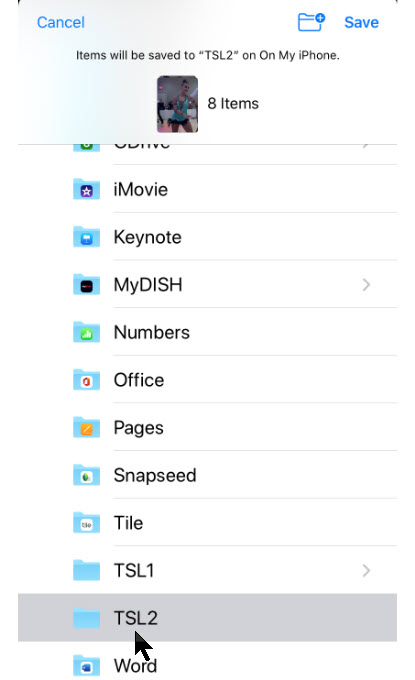
Here you can select an existing folder or create a new one, then tap the Save option. You will see a message at top of the screen displaying number of items, the folder name and On My iPhone or On My iPad location. See below image:
Selecting the folder of your compressed photos
Accessing the Files App
Navigate to the Files app and open the folder or location where you saved the photos. Then tap the Select button and select all the photos. Next, tap on the hamburger icon (the one with 3 dots) in lower right hand corner. Refer to below image:
Selecting all your photos and tapping the hamburger icon in lower right hand corner
In the context pop-up menu, tap on the Compress button. See below image:
Choosing the Compress option from the context pop-up menu
You will see a new file labeled Archive.zip in the same folder. Refer to below image:
Creating the default Zip file of your compressed photos
Renaming the Zip File
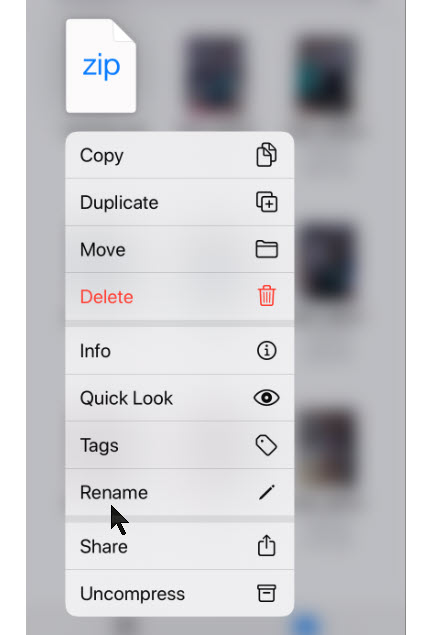
To rename the Zip file, tap and hold on it until the see its Context pop-up menu. See below image:
Selecting the Rename option
Now, tap on the Rename option and type in a new name, then tap Done. See following image:
Renaming the default Zip file name
Your new compressed file will now be displayed. Refer to below image:
Viewing your new Zip file
Now you are able to send the Zip file as an email attachment or to a service like Dropbox, Google Drive or OneDrive to share with others.
Choosing Another Location to Save Your Files
For future downloads, you might want to change your default storage location. The downloaded files, by default, are saved to the Downloads folder in iCloud Drive in the Files app. This is a great option if you have a paid iCloud storage plan because it allows your downloaded files to sync across all your devices. But if you’re on the free 5GB plan, you might not have space for storing large files, even if they are compressed.
Thankfully, you can change the default location to local or on-line storage. To do this on your smartdevice:
Open Settings app
Navigate to Safari
Select Downloads
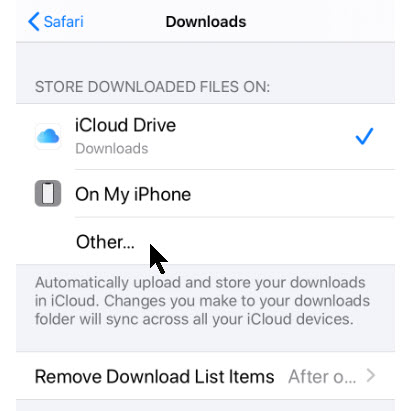
Tap on the Other option to select any folder from the local storage (or from a cloud storage option). Note! The default is the Downloads folder. For our example, we are using the default location and folder. See below image:
Selecting where to save your iPhone downloads
Unzip your File
The process of unzipping an archive in the Files app is relative easy.
Again, you’ll need the Zip file to be in the Files app. You can follow the same process we did in the previous section to add a Zip file to the Files app.
Navigate to the location where you saved the Zip file. Refer to below image:
Location of your saved Zip file
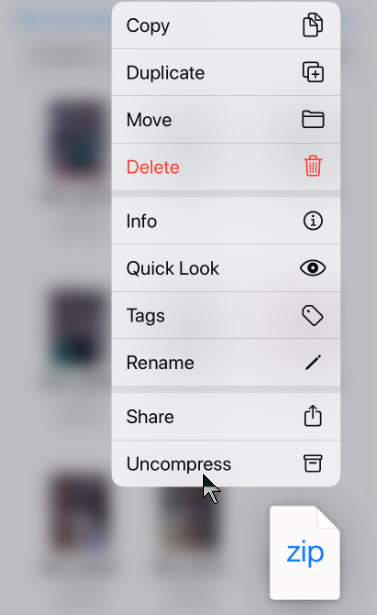
Tap and hold on the file name. Select the Uncompress option from the context pop-up menu. See following image:
Selecting the Uncompress option from the context pop-up menu
You will see a new folder with the same name as the Zip file. Tap on it to see the contents of the Zip file. Your photos are now unzipped. See below image:
The unzipped files
You have successfully compressed and uncompressed your photos.
I Would Like to Hear from You
Please feel free to leave a comment. I would love hearing from you. Do you have a computer or smart device tech question? I will do my best to answer your inquiry. Please mention the device, app and version that you are using. To help us out, you can send screenshots of your data related to your question.
The author’s Vietnam eBook on the Battle for Tra Bong: Events and Aftermath
Over the past few months, I have researched on how to do this, create a footer that I can use repeatly without doing a manual insert of footer elements. I finally found an article on how to partly do this. In my example, we are going in inset a document footer with the latest date on the left, the document name in the middle and the page number on the right. Yes, it will take a little time but it’s worth the one-time investment. You will save time and effort in using this feature.
If you’ve got a favorite document footer like mine, you can save that using the Quick Parts feature of Microsoft Word. What a lot of users don’t know is that Quick Parts can be saved under different categories to be accessible under different menus.
Let’s use my favorite footer as an example. I’ve constructed one in a blank document using a three column table: the left column has the current Date, the middle column contains the File Name and the right column shows “Page X of Y“. Also, I’ve turned off the borders in the table; those lines you see are simply the grid lines that display in Word.
This is for Word for Office 365 PCs and Macs that support Quick Parts. Other versions of Word will be similar.
Copyright Scott Adams, Inc./Distributed by Universal Uclick for UFS
Lets get started.
Navigate to the the Insert tab, then to the Header option. Head to the bottom of the options and select Edit Footer. Your footer will be activated with the pointer in the left hand column.
Once again, go to the Insert tab, then select the Table option. Highlight the first 3 columns with your pointer. You will see 3 x 1 table description at top of your screen. Now, just click on the third grid element in the first row and the table will be inserted into your footer. See following image:
Selecting the table to be inserted for the custom footer
Inserting Current Date
In the first column of the footer table, type in the text Date: (there is one space after the text) then navigate to the Insert tab and click on the Date & Time option in the Text group. Select your date format and click OK. See below image:
Selecting the current Date format to be inserted into your custom footer
Inserting File Name
Now, hit the Tab key once, or move your pointer to the middle column. Again, go to the the Insert tab, then to the Footer option. Navigate to the bottom of the options and select Edit Footer. In the Insert group, select Document Info, then select File Name.
UPDATE: If you do not see Document Info, in the Search box type in “Add document info” and follow its steps.
Refet to below image:
Selecting the File Name to be inserted
Note! For demo purposes, I named this example document as &Filename. See below image:
Showing the inserteed Date and File Name for your custom footer
Inserting Page Number
Now, tab once more or position your pointer in the right column. Once again, from the Insert tab, select Page Number from the Header & Footer group. Next, hoover your pointer over Current Position and select Bold Numbers under the Page X of Y group. Refer to below image:
Inserting the Page Number as bold text for Page X of Y into your custom footer
Your footer elements will look similar to the following image:
Showing all elements for your custom footer
Formatting the Custom Footer
Now, you may want to align your footer elements. In my example, I am aligning the File Name to be centered. For the Page Number, I am choosing right justified. The Date is already left justified. At this point, you can change the font and/or font size and other formatting options. You may want to change font size for File Name to allow for long document names. Refer to below image:
Aligning the footer elements for your custom footer
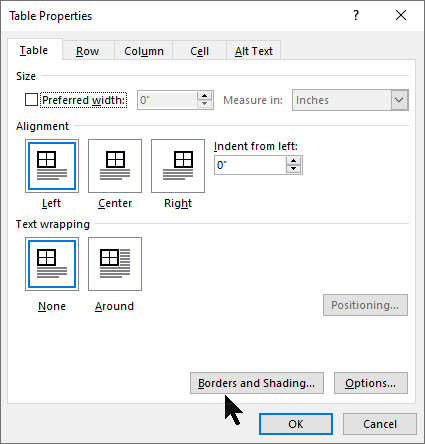
Next, lets remove the borders for our footer table. Right click on the “+” sign located to the left of the table, then select Table Properties. See below image:
Accessing the Table Properties for your custom footer
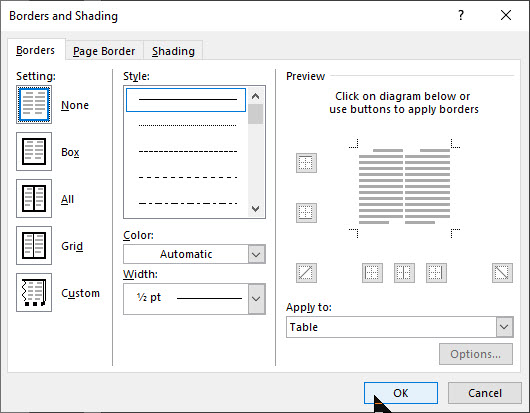
Now, select Borders and Shadings option. Under the Borders tab, select the None option, then click OK, then click OK again to remove the borders. Refer to below image:
Removing the borders for your custom footer
Your final footer result will be similar to the following image:
The final result of your custom footer
If you make a mistake, start from the miscue or start from stratch. As you can see, there are a lot of manual steps. So, instead of repeating all of the above just to insert a footer, we can easily access our favorite footer by using the Quick Parts feature.
Setting Up the Quick Part Feature
Highlight the footer with your pointer or click on the “+“sign located to the left of the table. Next, navigate back to the Insert tab. Select the Quick Parts option in the Text group. Then choose Save Selection to Quick Park Gallery. See below image:
Saving your custom footer to Quick Parts
Give the Footer a unique name, mine is My Best Footer. In the Gallery drop-down box, select Footers. In the Category drop-down box, select General. Now, give the footer a Description. When you are finished, click OK. Refer to below image:
Setting up the custom footer building block
Now your favorite footer will be an available selection whenever you click Footer on the Insert tab. Refer to following image:
Displaying your custom footer entry
Using Your Custom Footer
To try out your custom footer, open a blank document. Navigate to the Insert tab (click one), select the Footer option (click two). Locate your recent entry and click on it (click three). Your footer selection will be inserted. And you only used three clicks! See below image:
Inserting your custom footer into a document
There are a whole bunch of other Quick Parts Galleries available for you to save your favorite snippets in. For example, you could have a Quick Parts that inserts your “ Initials _____” on the last page of a draft. Another Quick Parts would be creating and inserting your favorite Watermark.
Edit Your Custom Footer Properties
Navigate to the Insert tab. Select the Quick Parts option in the Text group. Then choose the Building Blocks Organizer option. Next, locate and click on your custom footer entry. Then, click on the Edit Prolerties tab. Here you can change the custom Name, the Gallery, the Category, etc. Its best to leave the Gallery set to Footers and Category set to General.
UPDATE: To make your custom footer float to the top, select enter a new Category, and label it Alpha instead of selecting General.
Once you are finished, click OK. Refer to below image:
Editing your custom footer properties
Delete Your Custom Footer
Navigate back to the Insert tab. Select the Quick Parts option in the Text group. Then choose Building Blocks Organizer option. Next, locate and click on your custom footer entry. Then, click on the Delete tab. To complete the deletion process, click OK. See following image:
Deleting your custom footer
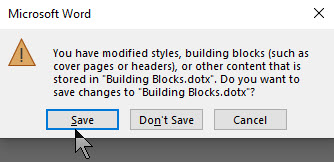
When you Exit Microsoft Word, you will see the following screen. Make sure you click Save to save your custom footer in the Building Blocks.dotx file, where your custom footer is stored. This is easy to overlook. If you don’t Save, you will lose your custom footer or any other snippet you created during your Word session.
Your final dialog box upon exiting Word. You must click Save to save your work.
You have successfully created, inserted, edited and deleted a custom footer.
I Would Like to Hear From You
Please feel free to leave a comment. I would love hearing from you. Do you have a computer or smart device tech question? I will do my best to answer your inquiry. Please mention the device, app and version that you are using. To help us out, you can send screenshots of your data related to your question.
The author’s Vietnam eBook on the Battle for Tra Bong: Events and Aftermath
In PowerPoint, it’s hard to remember what slide number you are presenting. As an aid, we can add the slide number to our slides.
One way, we could manually add a number using a text box. But what if you added or deleted a slide? This would require you to manually update your slide numbers; a time consuming and error prone task.
Instead, you can have the slide numbers update automatically on all your hidden and active slides. By default, your slide numbers appear in your slide footer, but you can move and format them.
This is for PowerPoint for Office 365 Windows and Mac versions. Other versions of PowerPoint will be similar.
Copyright Scott Adams, Inc./Distributed by Universal Uclick for UFS
Adding Slide Numbers
Open a PowerPoint presentation with several slides to see the feature. Click the Insert tab. In the Text section, click the Header & Footer icon. See below image:
Text dialog box
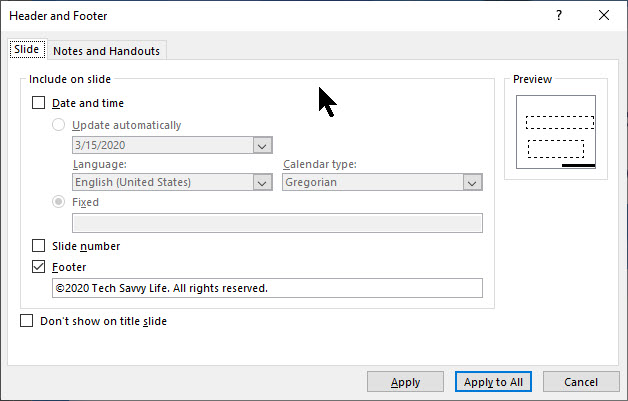
The Header & Footer options box will open. Refer to below image:
Slide Header and Footer options
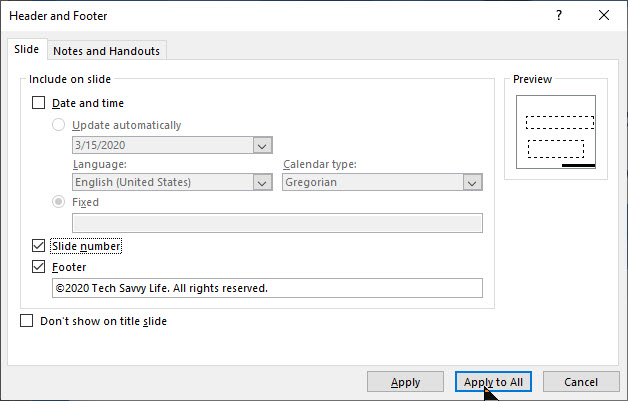
Under the Slide option, place a check in the Slide number checkbox. To add your slide number to all of your slides, select Apply to All button. Refer to below image:
Checkmarking the Slide Number option
Your slide number will appear in the bottom right corner. Note! The number place holder will be small. See following image:
Sliode Number placeholder
Remove Slide Numbers
To remove your slide numbers, follow the steps above. In the Header & Footer options options box, simply uncheck the Slide number checkbox. Then click Apply to All button. Your slide numbers will be removed.
Format Slide Numbers
We are going to use PowerPoint Slide Master to make the slide number in a different font, color, size or position.
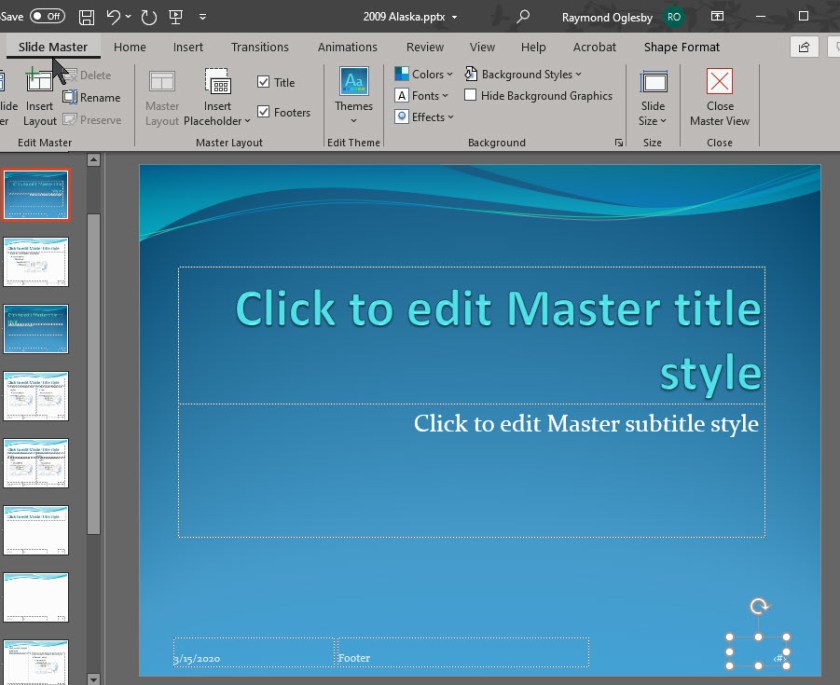
To do this, click View from the main menu, then select Slide Master. This will load the Slide Master editing box. You will see the slide number box in its default position at the bottom right section of the slide. See following image:
Accessing the Slide Master
Note! You could add a text box with the word “Slide” next to the slide number; this is not shown.
When you move or apply a different font, size or color, it will apply to all your slides.
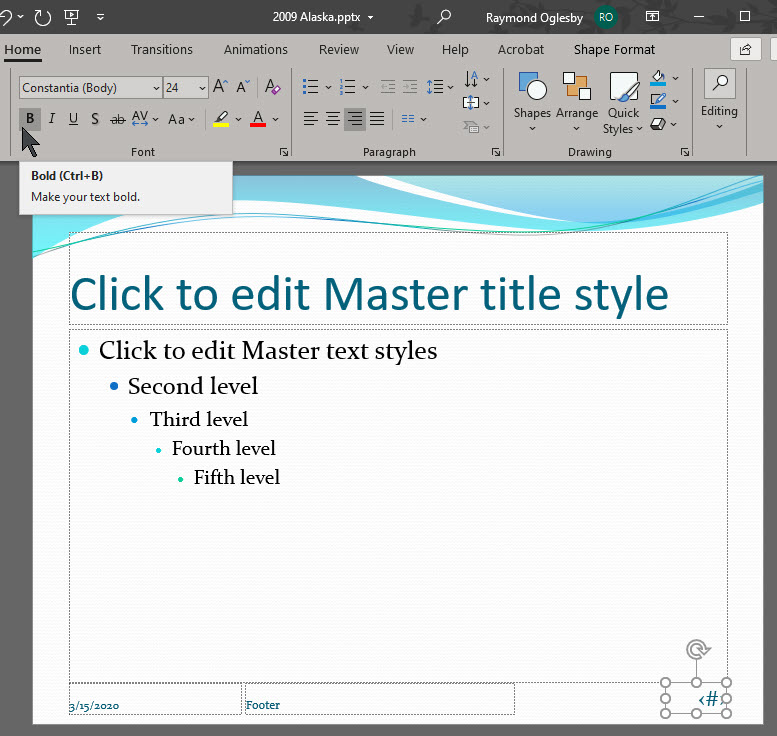
To edit the text box, select the box then select the Home tab. See below image:
Selecting the Home tab for editing
Then you can use the available options in the Font and Paragraph sections to format the number like choosing Bold, Underline, etc. I have set the number to be Bold and made the font size bigger. See below image:
Editing the Slide Number placeholder
Once you have finished editing, return back to the Slide Master tab and click Close Master View button. Refer to below image:
Closing the Slide Master
Be sure to Save your presentation with the automatic slide numbering feature.
Please feel free to leave a comment. I would love hearing from you. Do you have a computer or smart device tech question? I will do my best to answer your inquiry. Please mention the device, app and version that you are using. To help me out, you can send screenshots of your data related to your question.
The author’s Vietnam eBook on the Battle for Tra Bong: Events and Aftermath
As you are browsing the web, you may come across a PDF file you want to save for later viewing. Let’s examine how to do this.
This if for Apple iPhone and iPad
Copyright Scott Adams, Inc./Distributed by Universal Uclick for UFS
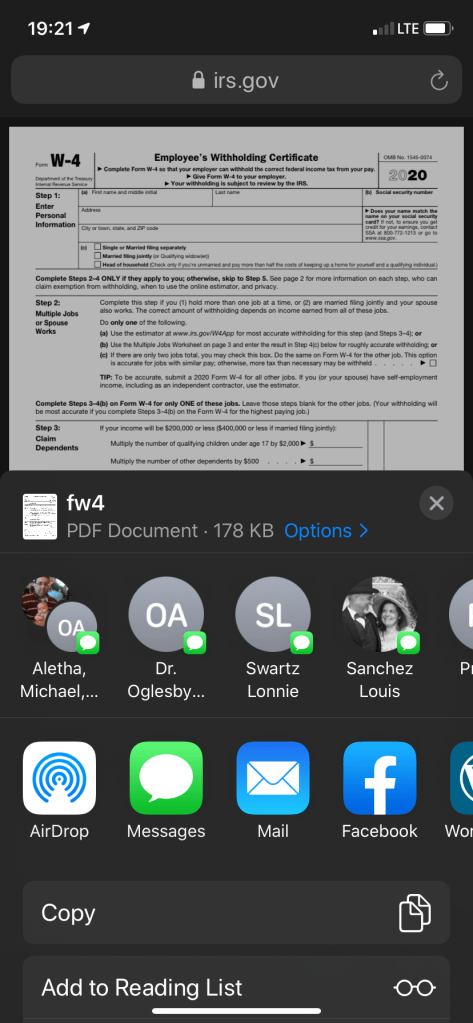
While viewing the PDF file in Safari, tap on the Share button. The Share button resembles a rectangle with an up arrow. On an iPhone, the button will be at the bottom of the screen. For an iPad, the Share button is located just to the right of the browser’s address bar. See following image for the iPhone location:
The Share icon at bottom center of the screen
Ways to Save Your File
After tapping the Share button, you will see a list of ways to share or save the file, including sending the file to others by a text message or email. Refer to below image:
Ways to share your file
Swipe down the list to find the app you want to open with. See following image:
More ways to save your file. Showing the Save to Files option
Use Built-In Apps
You may want to chose the built-in apps like Books or Files. If you want to use Books, the file will be available in the Books app. If you chose Files, then chose your save location.
Use Outside Services
Some people prefer to save their file to an outside service like Dropbox, Google Drive or Microsoft OneDrive. The choice is up to you.
My Example
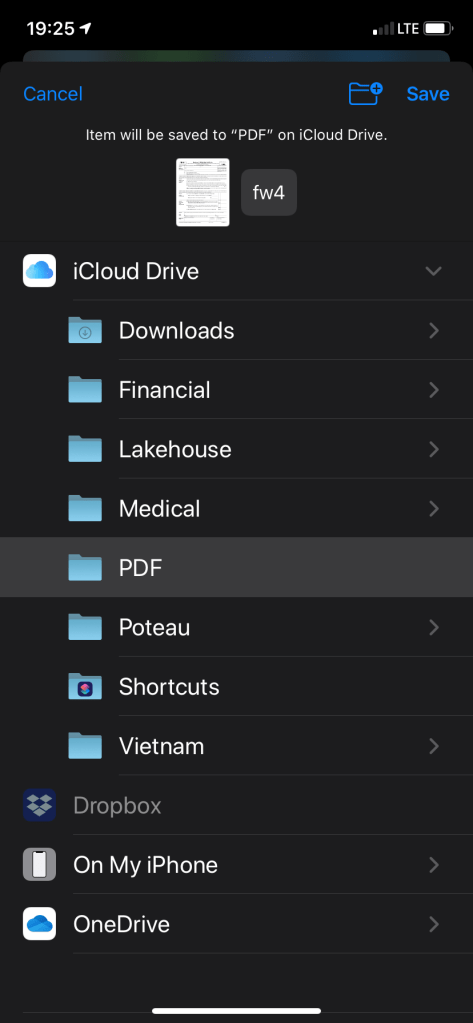
For my example, I am saving the file using the Files option to the PDF folder on the iCloud Drive. Refer to below image:
Saveing the file to iCloud Drive using the PDF folder
Later, if you chose the Files app, you will see the PDF file you just downloaded; same for the Books app. See following image on my choosing the Files app:
Chosing the Files App
Getting ready to open the PDF file
As you have seen, you have a lot of choices, thanks to Apple engineers.
I Would Like to Hear from You
Please feel free to leave a comment. I would love hearing from you. Do you have a computer or smart device tech question? I will do my best to answer your inquiry. Please mention the device, app and version that you are using. To help me out, you can send screenshots of your data related to your question.
The author’s Vietnam eBook on the Battle for Tra Bong: Events and Aftermath
















































 Tech Savvy Life